
This website uses cookies so that we can provide you with the best user experience possible. Cookie information is stored in your browser and performs functions such as recognising you when you return to our website and helping our team to understand which sections of the website you find most interesting and useful.
Font Size:
Introduction
Key Features
Uniqueness
Frequently Asked Questions
Open-Source?
Registration Needed?
Installation Required?
AI-empowered?
Specifications
URL:
Country or Region:
Author(s):
Availability:
Operating System(s):
Language(s):
Registration Needed:
Installation Required:
Video Demonstration
User Guide
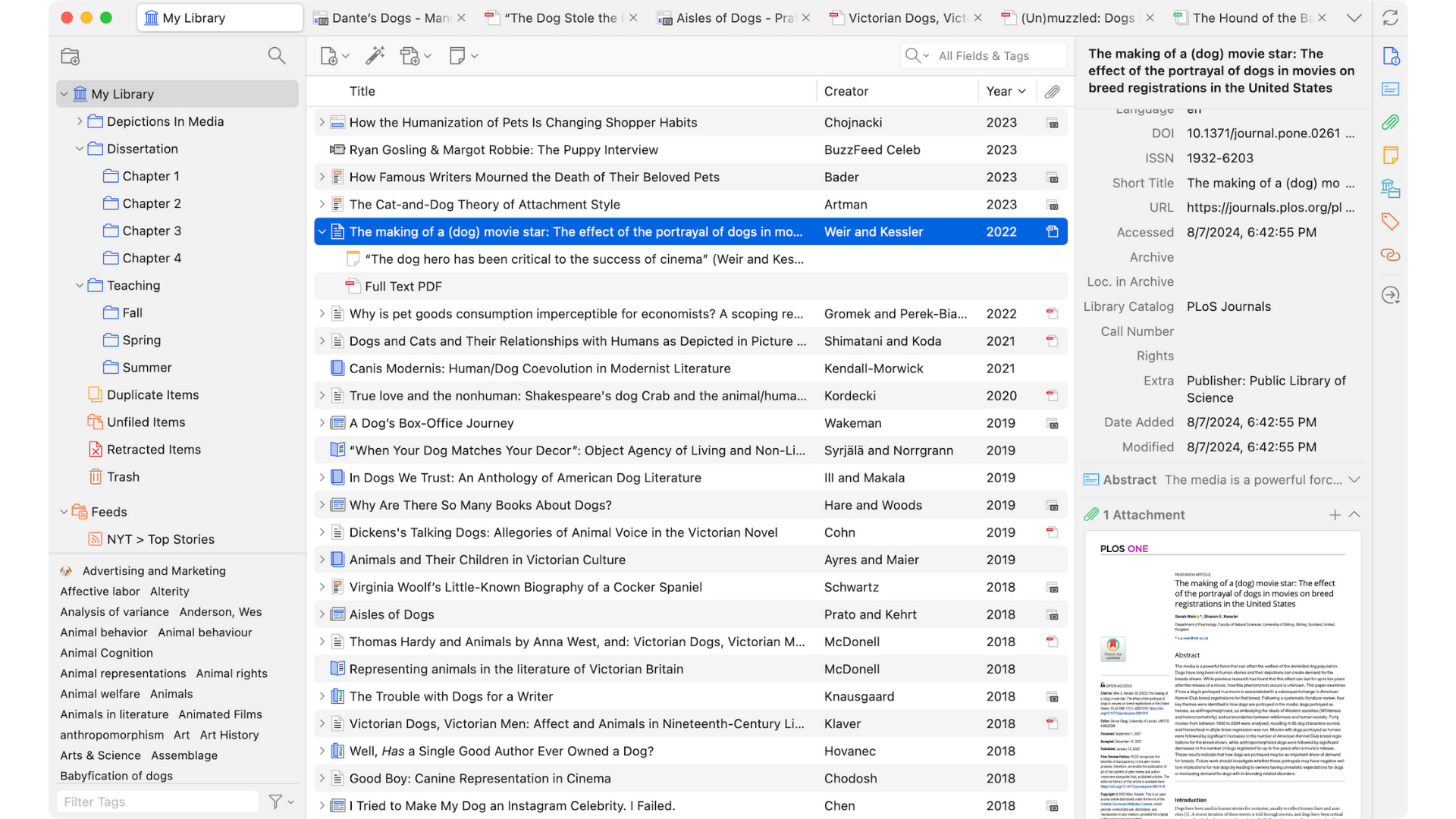
This guide outlines how to install Zotero, add references to the library from multiple sources, and cite them within a Word document. This guide introduces a selection of key features from Zotero, including:
- Download and Install Zotero
- Add References from Zotero App
- Add References from Browser
- Cite Sources in a Word Document
Download and Install Zotero
| a. | Navigate to the website: https://www.zotero.org/; |
| b. | Click Log In and register for a new account or log in with an existing one (Note: Registration requires clicking the activation link in the confirmation email); |
| c. | Click Download to go to the download page; |
| d. | Download the Zotero application suitable for the operating system; |
| e. | Open the downloaded file and follow the on-screen instructions to finish the installation; |
| f. | Click Install Chrome Connector > Add to Chrome > Add extension to install the chrome extension(Note: The Zotero Connector automatically senses web content and allows you to save items with a single click); |
| g. | Click the puzzle piece icon in the top-right corner of the browser; |
| h. | Click the pin icon next to the extension to keep it visible on the toolbar. |
Add References from Zotero App
| a. | Open the Zotero application; |
| b. | Click the New Collection icon in the top-left of the sidebar; |
| c. | Type a name for the new collection and press Enter; |
| d. | Click the New Item icon in the top panel; |
| e. | Select an item type from the dropdown list and enter the bibliographic details in the right-hand pane; |
| f. | Click the magic wand icon (Add Item by Identifier) to add an item using its ISBN or DOI; |
| g. | Click the Add Attachment icon and select Add File to import from a local device, or drag and drop a file into the library pane (Note: Any file can be attached to an item); |
| h. | Navigate to File > Import..., select a file, and click Next to upload a RIS file. |
Add References from Browser
| a. | Open the browser where the Zotero Connector extension is installed; |
| b. | Go to a website or journal article; |
| c. | Click the Zotero Connector icon in the browser's toolbar (Note: Ensure the Zotero application is running); |
| d. | Choose the collection in which to save the item (Note: Files are downloaded automatically when imported using the Zotero Connector). |
Cite Sources in a Word Document
| a. | Place the cursor in the document where the citation is needed; |
| b. | Go to the Zotero tab and click the Add/Edit Citation button; |
| c. | Choose a Citation Style and Language, then click OK (Note: This is only required the first time a citation is added to a document); |
| d. | Find the source by title or author in the search bar and select it; |
| e. | Press Enter to add the citation; |
| f. | Place the cursor where the reference list should appear; |
| g. | Go to the Zotero tab and click the Add/Edit Bibliography button; |
| h. | Right-click the added bibliography and select Update Field to synchronise the bibliography with the Zotero Library. |
Educational Scenarios
Educators' Perspectives
Learners' Perspectives