
This website uses cookies so that we can provide you with the best user experience possible. Cookie information is stored in your browser and performs functions such as recognising you when you return to our website and helping our team to understand which sections of the website you find most interesting and useful.
Font Size:
Introduction
Key Features
Uniqueness
Frequently Asked Questions
Open-Source?
Registration Needed?
Installation Required?
AI-empowered?
Specifications
URL:
Country or Region:
Author(s):
Availability:
Operating System(s):
Language(s):
Registration Needed:
Installation Required:
Video Demonstration
User Guide
This guide outlines how to download, install, and use ZoomIt for screen magnification and annotation during presentations. (Reference Version: v9)
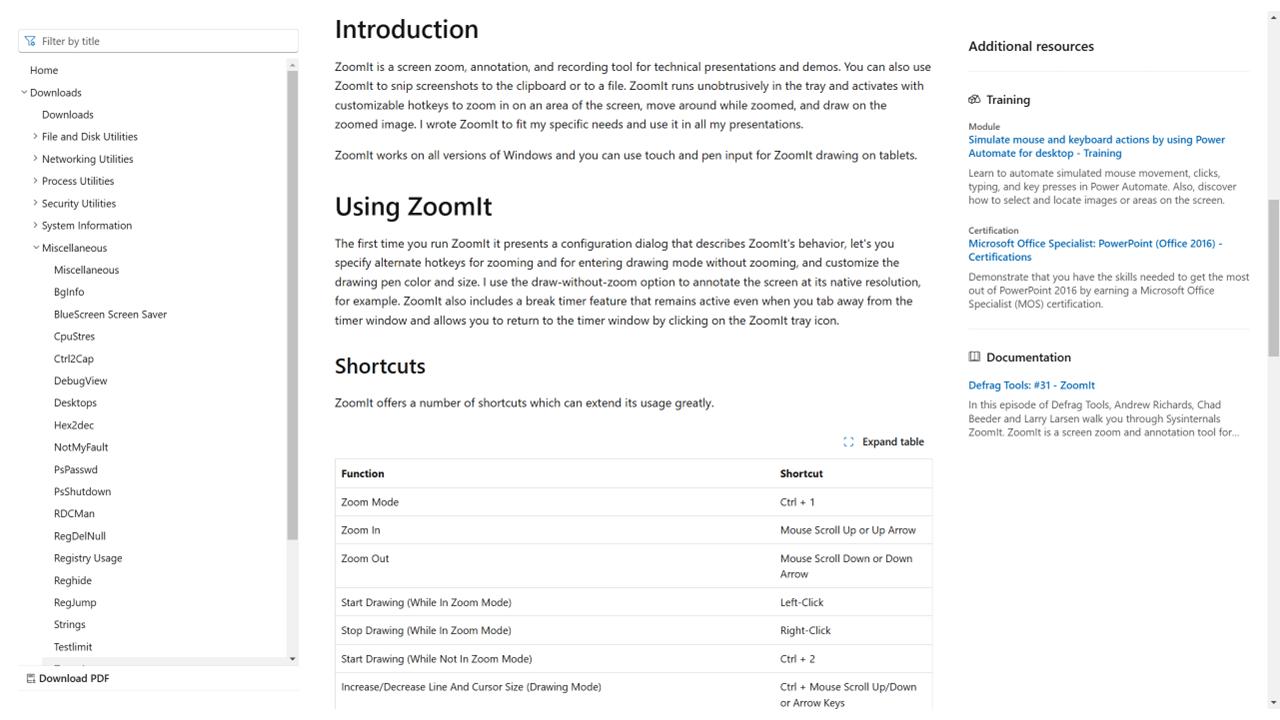
Download and Install ZoomIt
| a. | Navigate to the website: https://learn.microsoft.com/en-us/sysinternals/downloads/zoomit; |
| b. | Click the Download ZoomIt button to download the application file; |
| c. | Run the downloaded installer and follow the on-screen instructions to complete the installation; |
| d. | Launch the ZoomIt software. |
Magnify Screen
| a. | Double-click the ZoomIt icon in the system tray to open the options window; |
| b. | Select the Zoom tab and set a custom hotkey in the Zoom Toggle field; |
| c. | Adjust the slider to specify the initial magnification level; |
| d. | Select the LiveZoom tab and set the LiveZoom Toggle hotkey; |
| e. | Click OK to save the settings; |
| f. | Press the Zoom Toggle hotkey to magnify the area around your mouse pointer (Note: The screen is frozen in standard zoom mode); |
| g. | Use the mouse scroll wheel or the up and down arrow keys to adjust magnification; |
| h. | Press the LiveZoom Toggle hotkey to magnify the screen while keeping it active and interactive; |
| i. | Press the Esc key or the right mouse button to exit zoom mode. |
Annotate Screen with Drawing Tools
| a. | Activate standard zoom mode with the Zoom Toggle hotkey; |
| b. | Left-click the mouse to enter drawing mode on the static image; |
| c. | Double-click the ZoomIt icon in the system tray to open the options window; |
| d. | Select the Draw tab in the options menu to set the Draw w/out Zoom hotkey; |
| e. | Click OK to save the settings; |
| f. | Press the assigned hotkey to begin drawing on the live screen; |
| g. | Hold the left Ctrl key and use the mouse scroll wheel or up/down arrow keys to adjust the pen width; |
| h. | Change the pen colour by pressing R for red, G for green, B for blue, Y for yellow, O for orange, or P for pink (Note: Hold the Shift key while pressing a colour key to use a translucent highlighter); |
| i. | Hold Shift while dragging the mouse to draw a straight line; |
| j. | Hold Ctrl while dragging the mouse to draw a rectangle; |
| k. | Hold Tab while dragging the mouse to draw an ellipse; |
| l. | Hold Ctrl+Shift while dragging the mouse to draw an arrow; |
| m. | Press T to enter typing mode; |
| n. | Use the mouse wheel or arrow keys to change the font size; |
| o. | Press E to erase all annotations or Ctrl+Z to undo the last drawing; |
| p. | Press the Esc key or double-click the right mouse button to exit drawing mode. |
Educational Scenarios
Educators' Perspectives
Learners' Perspectives