
This website uses cookies so that we can provide you with the best user experience possible. Cookie information is stored in your browser and performs functions such as recognising you when you return to our website and helping our team to understand which sections of the website you find most interesting and useful.
Font Size:
Introduction
Key Features
Uniqueness
Frequently Asked Questions
Open-Source?
Registration Needed?
Installation Required?
AI-empowered?
Specifications
URL:
Country or Region:
Author(s):
Availability:
Operating System(s):
Language(s):
Registration Needed:
Installation Required:
Video Demonstration
User Guide
This guide outlines how to use an AI-powered platform to chat with documents, draft and revise articles, and manage a research library.
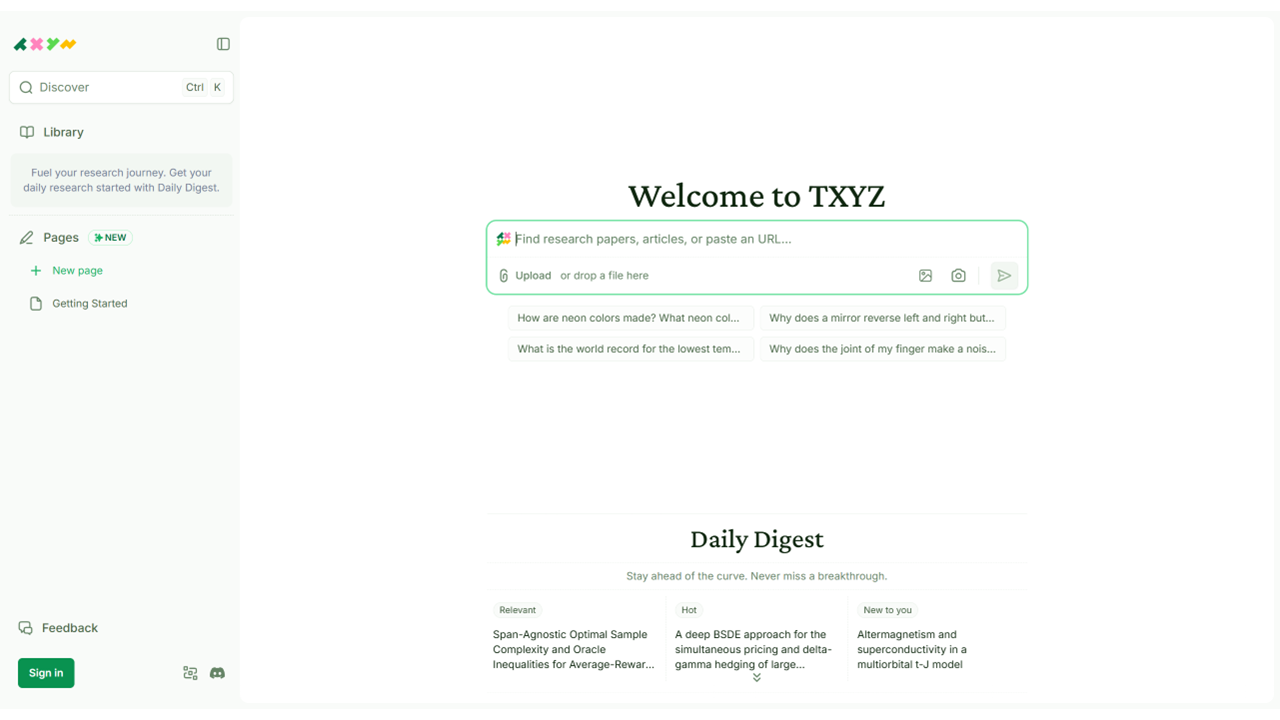
Access TXYZ Website
| a. | Navigate to the website: https://app.txyz.ai/; |
| b. | Click Sign In to log in or register with a Google account or email address. |
Chat with Files
| a. | Click the Upload button to select a document from the computer (Note: The platform supports one PDF file per upload and cannot process scanned image-only documents); |
| b. | Click the image icon next to the search bar to upload up to five images; |
| c. | Type a question or paste a URL into the search bar and click the send icon. |
Draft Articles with AI
| a. | Select Pages from the left-hand sidebar and click the + New page button; |
| b. | Click Chat with AI and select to discuss via microphone or text message; |
| c. | Describe the main topic, audience, and desired format by speaking or typing in the chat box (Note: The AI uses this information to provide more targeted assistance); |
| d. | Click the References panel to add reference material by searching online, selecting from the library, uploading PDF files, or adding web URLs; |
| e. | Describe the writing goals in the chat box to request a structured outline from the AI; |
| f. | Click Accept to finalise the draft outline; |
| g. | Type / in the chat box and select the Write full article command to generate a complete draft; |
| h. | Type @ in the chat box and select Web, Scholar, or Reference to use specific sources for the response. |
Revise Articles
| a. | Highlight text in the editor and click the Ask TXYZ button from the pop-up menu; |
| b. | Select an option such as Make it longer, Paraphrase, or Improve writing to revise the text; |
| c. | Select Fix spelling & grammar to correct mistakes; |
| d. | Review the suggested revision and click Accept; |
| e. | Click the Export button at the top of the page; |
| f. | Select a file format such as Markdown, HTML, or PDF, and click Export to download the document. |
Manage Library
| a. | Click Library in the left-hand sidebar to view all saved AI conversations; |
| b. | Hover over a conversation, click the More (three-dot) icon, and select Pin to keep it at the top of the list; |
| c. | Select an item and click Add tag to create and apply custom labels for organisation. |
Educational Scenarios
Educators' Perspectives
Learners' Perspectives