
This website uses cookies so that we can provide you with the best user experience possible. Cookie information is stored in your browser and performs functions such as recognising you when you return to our website and helping our team to understand which sections of the website you find most interesting and useful.
Font Size:
Introduction
Key Features
Uniqueness
Frequently Asked Questions
Open-Source?
Registration Needed?
Installation Required?
AI-empowered?
Specifications
URL:
Country or Region:
Author(s):
License:
Operating System(s):
Language(s):
Registration Needed:
Installation Required:
Video Demonstration
User Guide
This guide outlines how to access the tldraw canvas, utilise its drawing and embedding functionalities, and engage in real-time collaboration with other users.
(Access Date: 28 July 2025)
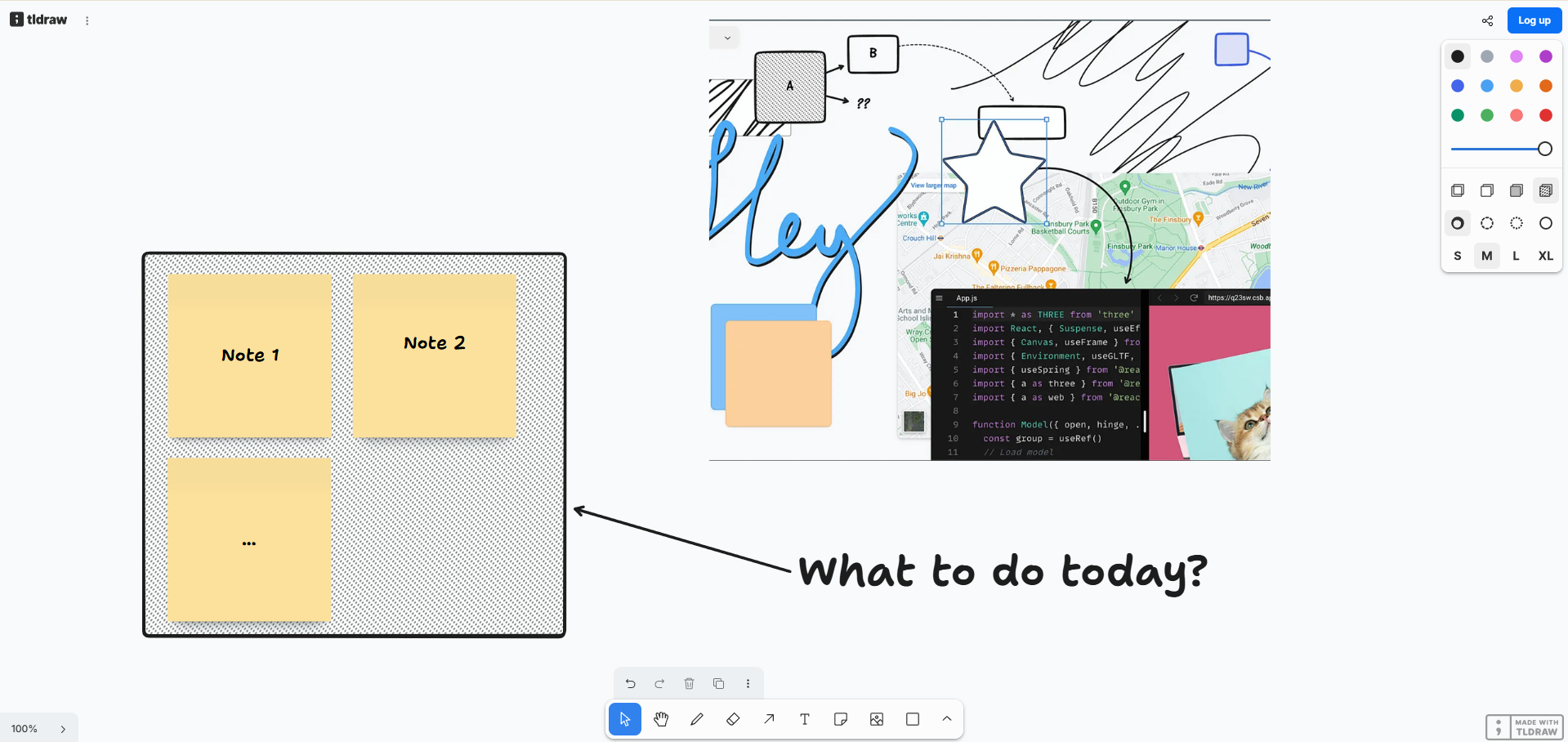
Access Tldraw Website
| a. | Navigate to the website: https://www.tldraw.com/; |
| b. | Click Sign in to save to log in or register with a Google account or email. |
Using Drawing Tools
| a. | Hold down the Spacebar key and drag your mouse to pan across the canvas; |
| b. | Hold down the Ctrl key and scroll your mouse wheel to zoom in or out; |
| c. | Click to select an element on the canvas; |
| d. | Edit properties of the selected element such as colour, fill, and line style from the right context menu; |
| e. | Select the Pen tool from the toolbar to draw freehand lines; |
| f. | Select the Text tool from the toolbar, click on the canvas, and input your text; |
| g. | Select the Note tool from the toolbar, click on the canvas, and input your note; |
| h. | Select the show more icon from the toolbar, and select a Shape; |
| i. | Drag the selected shape on the canvas to draw it. |
Embed Multimedia and Webpage
| a. | Select the Media tool from the toolbar; |
| b. | Choose a file from your computer and select Open to upload it to the canvas (Note: Supports JFIF, PJPEG, JPEG, PJP, JPG, PNG, WEBP, SVGZ, SVG, GIF, APNG, PNG, AVIF, M4V, MP4, WEBM, and MOV); |
| c. | Copy the URL of a website or video; |
| d. | Paste the URL onto the canvas to embed it; |
| e. | Select the embedded media element and resize it by dragging its corner. |
Export and Share
| a. | Click the Share button in the top right corner; |
| b. | Click Copy Link to share the project with collaborators (Note: You can set permissions for editing or viewing); |
| c. | Click Share, select Export, and choose Export image to save the canvas as a PNG or SVG file. |
Educational Scenarios
Educators' Perspectives
Learners' Perspectives