
This website uses cookies so that we can provide you with the best user experience possible. Cookie information is stored in your browser and performs functions such as recognising you when you return to our website and helping our team to understand which sections of the website you find most interesting and useful.
Font Size:
Introduction
Key Features
Uniqueness
Frequently Asked Questions
Open-Source?
Registration Needed?
Installation Required?
AI-empowered?
Specifications
URL:
Country or Region:
Author(s):
License:
Operating System(s):
Language(s):
Registration Needed:
Installation Required:
Video Demonstration
User Guide
This guide outlines how to use the Storm tool for generating multi-perspective discussions and summarising them into reports, covering initial setup, content generation, and report downloading.
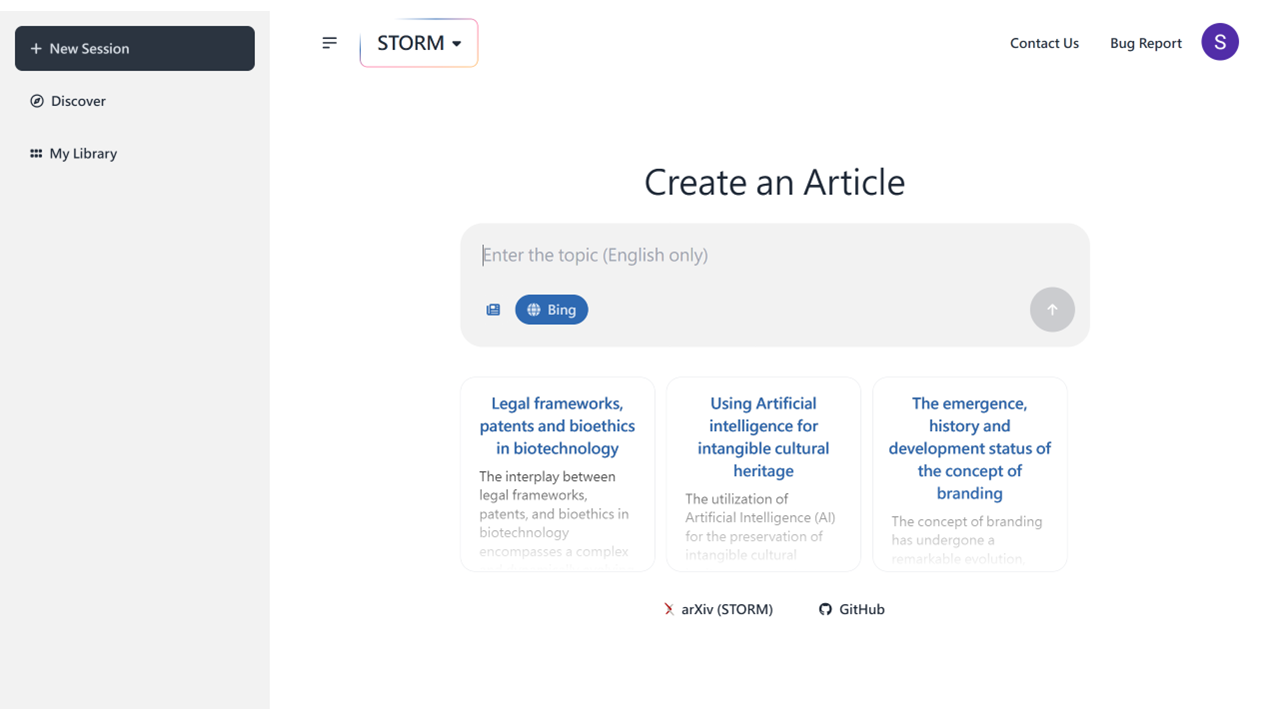
Access the STORM Website
| a. | Navigate to the website: https://storm.genie.stanford.edu/; |
| b. | Click the Get Started button; |
| c. | Log in or register with a Google account. |
Generate Multi-Perspective Discussion
| a. | Enter a topic into the text field (Note: The topic should be concise and under 20 words); |
| b. | Click the STORM button to change the mode to CO-STORM; |
| c. | Click the Generate button; |
| d. | Enter the research purpose in the Writing Purpose text field; |
| e. | Click the Submit button; |
| f. | Click the Generate button to view the next point of view; |
| g. | Enter a message in the bottom text field; |
| h. | Press Enter to join the conversation; |
| i. | Click a perspective section to view its contributions in the table of content. |
Summarise the Discussion into Reports
| a. | Click the Article tab; |
| b. | Review the automatically generated report; |
| c. | Click the inline citation numbers to view the original sources; |
| d. | Click the Show to PDF button; |
| e. | Click the Download button to save the report. |
Educational Scenarios
Educators' Perspectives
Learners' Perspectives