
This website uses cookies so that we can provide you with the best user experience possible. Cookie information is stored in your browser and performs functions such as recognising you when you return to our website and helping our team to understand which sections of the website you find most interesting and useful.
Font Size:
Introduction
Key Features
Uniqueness
Frequently Asked Questions
Open-Source?
Registration Needed?
Installation Required?
AI-empowered?
Specifications
URL:
Country or Region:
Author(s):
License:
Operating System(s):
Language(s):
Registration Needed:
Installation Required:
Video Demonstration
User Guide
This guide outlines how to search for ancient Chinese books, view digital and scanned versions, and use the dictionary, citation, and translation features on the Shidianguji platform.
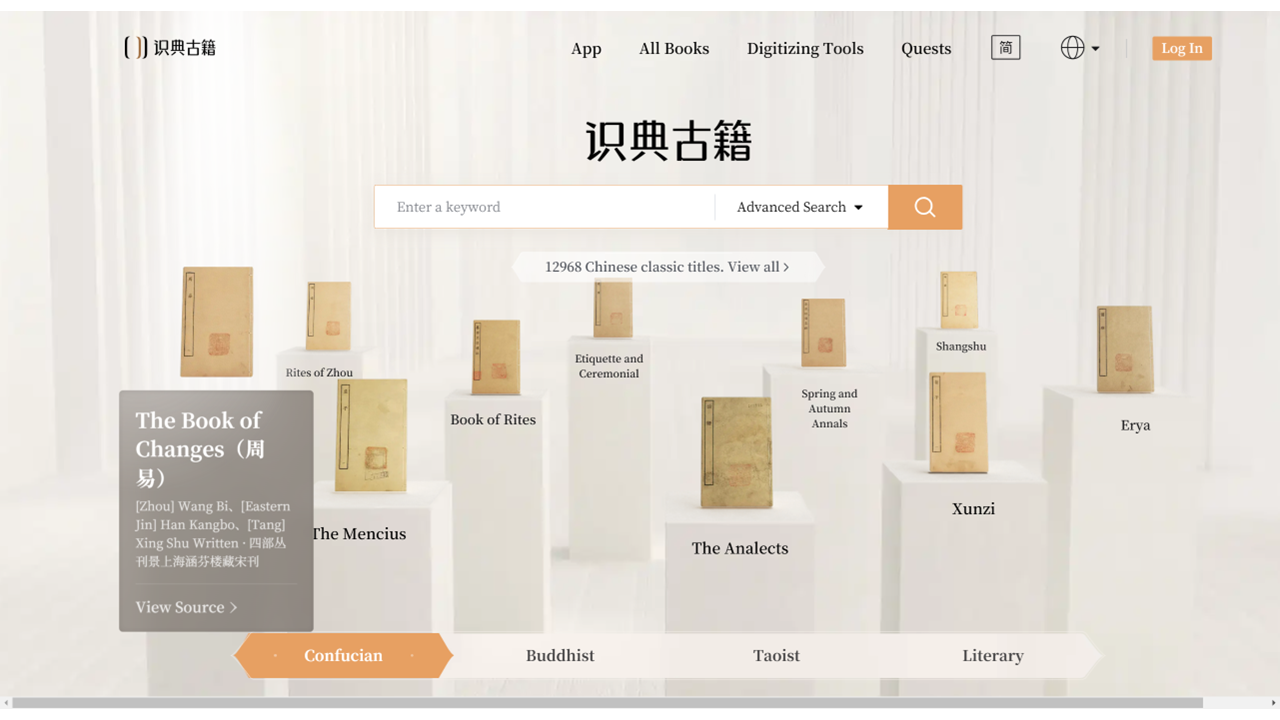
Access Shidianguji Website
| a. | Navigate to the website: https://www.shidianguji.com/. |
Search Ancient Chinese Books
| a. | Input the name of the book into the search bar; |
| b. | Click the orange Search button to view the results; |
| c. | Click the book from the search result to open. |
View Dictionary and Citations
| a. | View the scanned version and digital version in parallel; |
| b. | Select a character or phrase within the text body to view the corresponding text in the scanned view; |
| c. | Click View More from the pop-up menu to view the selected text in the dictionary in the right-hand side panel; |
| d. | Click the Search button from the pop-up menu to search the selected text in all books; |
| e. | Select This Chapter or This Book to view the search result in a different range; |
| f. | Click Cite > Copy All from the pop-up menu to copy a citation for the selected text; |
| g. | Click the Translation button on the top panel to view the English translation under each sentence; |
| h. | Click the Annotations button on the top panel to show the annotation from the original book in the digital view. |
Educational Scenarios
Educators' Perspectives
Learners' Perspectives