
This website uses cookies so that we can provide you with the best user experience possible. Cookie information is stored in your browser and performs functions such as recognising you when you return to our website and helping our team to understand which sections of the website you find most interesting and useful.
Font Size:
Introduction
Key Features
Uniqueness
Frequently Asked Questions
Open-Source?
Registration Needed?
Installation Required?
AI-empowered?
Specifications
URL:
Country or Region:
Author(s):
Availability:
Operating System(s):
Language(s):
Registration Needed:
Installation Required:
Video Demonstration
User Guide
This guide outlines how to use SciSpace to find research papers, extract data from PDFs, generate videos, and manage citations.
(Access Date: 22 July 2025)
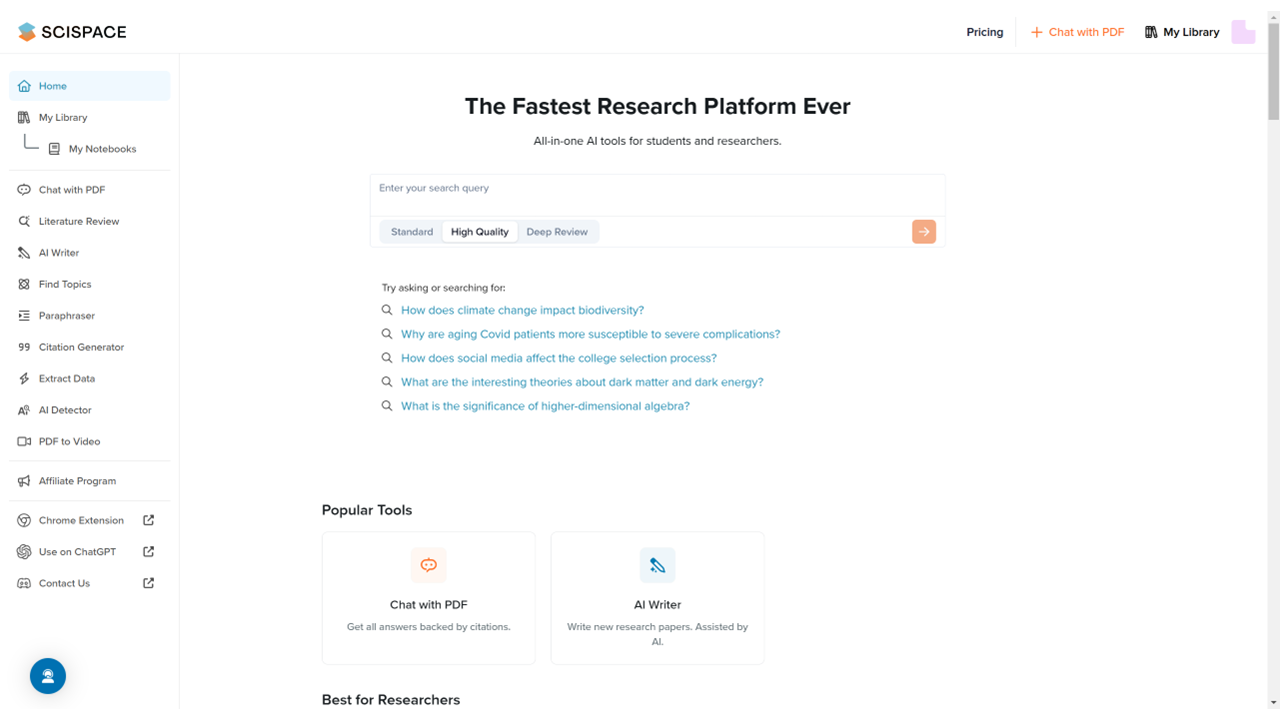
Access SciSpace Website
| a. | Navigate to the website: https://scispace.com/; |
| b. | Click the Sign up button in the top-right corner; |
| c. | Create an account using your email address or by linking an existing Google account. |
Find Research Papers
| a. | Type a research question or a descriptive phrase into the search field; |
| b. | Click the Send icon; |
| c. | Review the summary from the top five most relevant papers and the table of literature review of 10 related papers; |
| d. | Use the filters to narrow down your results; |
| e. | Click Load more papers to add 10 more papers to the table; |
| f. | Click Add a Column to insert a new comparison aspect to the table (Note: The free plan supports up to 100 papers and 5 columns in the literature review); |
| g. | Click on a paper to view detailed information in the SciSpace viewer; |
| h. | Click the Cite button to generate a citation; |
| i. | Click the Bookmark icon to save the paper to your library. |
Extract Data from PDFs
| a. | Select the My Library tab from the left-side menu; |
| b. | Click the Upload PDFs button and select local files in the pop-up file explorer; |
| c. | Select a collection in the SciSpace Library and click Upload; |
| d. | Click to open the uploaded document within the SciSpace viewer; |
| e. | Select the Summary tab to view the generated summary; |
| f. | Ask questions about the PDF in the AI Chat section; |
| g. | Click the My Library tab in the left-side menu to return; |
| h. | Click the chatbot icon next to the Upload PDFs button; |
| i. | Ask questions about this library in the pop-up AI Chat section. |
Generate Video from PDF
| a. | Select the PDF to Video tab from the left-side menu; |
| b. | Click the Upload PDF button and select a local file; |
| c. | Click Generate Video/Slides for PDF to initiate the process; |
| d. | Click the uploaded file to view the generation progress; |
| e. | Click the View button to see the result; |
| f. | Click the download icon to download the video; |
| g. | Click the Copy Link button to get the share link. |
Generate and Export Citation
| a. | Select the Citation Generator tab from the left-side menu; |
| b. | Choose a citation style from the drop-down list next to the search field; |
| c. | Search for a paper by its title, DOI, or URL; |
| d. | View the generated main citation and in-text citation; |
| e. | Locate the My References section on the page to batch export a citation list; |
| f. | Check the boxes next to the papers you wish to cite and click the Export as... button; |
| g. | Select a file format: DOCX or BIB. |
Educational Scenarios
Educators' Perspectives
Learners' Perspectives