
This website uses cookies so that we can provide you with the best user experience possible. Cookie information is stored in your browser and performs functions such as recognising you when you return to our website and helping our team to understand which sections of the website you find most interesting and useful.
Font Size:
Introduction
Key Features
Uniqueness
Frequently Asked Questions
Open-Source?
Registration Needed?
Installation Required?
AI-empowered?
Specifications
URL:
Country or Region:
Author(s):
Availability:
Operating System(s):
Language(s):
Registration Needed:
Installation Required:
Video Demonstration
User Guide
This guide outlines how to install the One Scholar Chrome extension and use its features on Google Scholar and PubMed for academic research.
Install One Scholar Chrome Extension
| a. | Navigate to the website: https://chromewebstore.google.com/detail/scihub-addon/hfcbmognahkfhdhfhfgiioafohojeolh; |
| b. | Click Add to Chrome > Add extension to install the extension; |
| c. | Click the puzzle piece icon (Extensions button) in the top-right corner of your browser after installation; |
| d. | Find One Scholar in the list and click the pin icon to keep it visible on your toolbar; |
| e. | Click the One Scholar icon and register with an email address. |
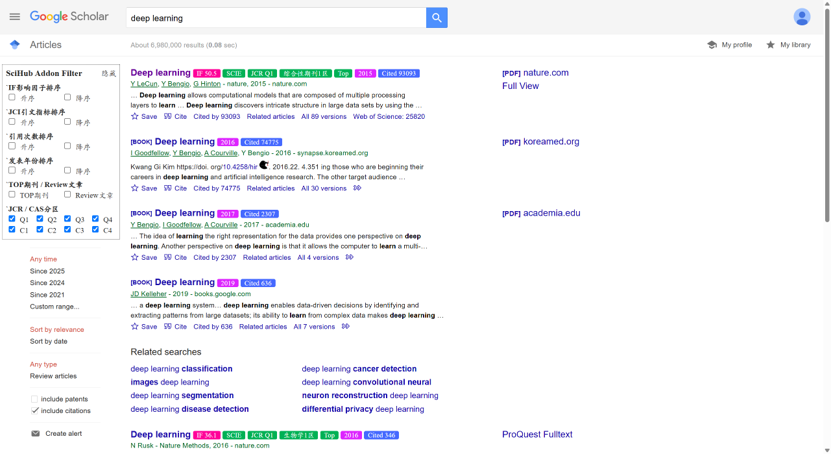
Use the Extension on Google Scholar
| a. | Navigate to the website: https://scholar.google.com/; |
| b. | Enter your keywords into the search bar and press Enter to initiate the search; |
| c. | View journal metrics including JCR quartile, CAS ranking, and Impact Factor below each search result; |
| d. | Examine citation counts from sources such as Google Scholar, CrossRef, and Semantic Scholar; |
| e. | Click the One Scholar icon in the toolbar on a page containing a DOI to view detailed article information and access the PDF if available. |
Use the Extension on PubMed
| a. | Navigate to the website: https://pubmed.ncbi.nlm.nih.gov/; |
| b. | Enter your keywords into the search bar and press Enter to initiate the search; |
| c. | View journal details including Impact Factor, JCR quartile, CAS ranking, EI index, and CSSCI index below each search result; |
| d. | Preview abstracts directly from the search results page; |
| e. | Examine citation data from multiple academic databases; |
| f. | View matched full journal names from abbreviations; |
| g. | Click the One Scholar icon, then select a citation format to import to Endnote or Mendeley. |
Educational Scenarios
Educators' Perspectives
Learners' Perspectives