
This website uses cookies so that we can provide you with the best user experience possible. Cookie information is stored in your browser and performs functions such as recognising you when you return to our website and helping our team to understand which sections of the website you find most interesting and useful.
Font Size:
Introduction
Key Features
Uniqueness
Frequently Asked Questions
Open-Source?
Registration Needed?
Installation Required?
AI-empowered?
Specifications
URL:
Country or Region:
Author(s):
License:
Operating System(s):
Language(s):
Registration Needed:
Installation Required:
Video Demonstration
User Guide
This guide outlines how to install the Quicker application, create custom shortcuts and automated workflows, and add new actions from the online library. (Reference Version: 1.44.22)
Download and Install Quicker
| a. | Navigate to the website: https://getquicker.net; |
| b. | Click 立即下載 (Download); |
| c. | Select the installer version that matches your operating system; |
| d. | Run the installer and follow the on-screen instructions to complete the installation; |
| e. | Launch the Quicker software; |
| f. | Log in or register with a WeChat Account or Email address; |
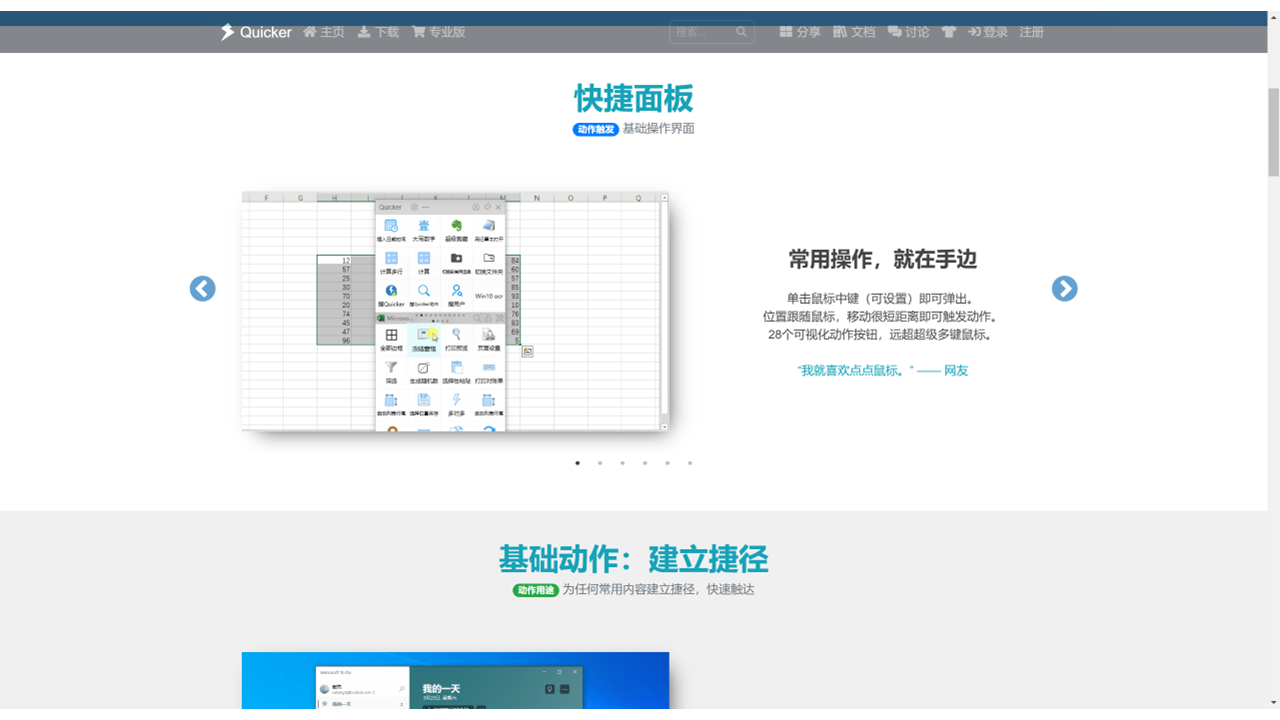
| g. | Press the middle mouse button to open the action panel; |
| h. | Right-click the Quicker icon in the system tray to open the context menu for quick settings. |
Create Shortcuts and Customisations
| a. | Click any + button on the action panel; |
| b. | Select an action type, such as 啟動軟體 (Launch Software) or 運行命令 (Run Commands); |
| c. | Input the required details in the configuration window; |
| d. | Assign a name to the button; |
| e. | Save the new shortcut; |
| f. | Click any + button on the action panel; |
| g. | Select 新建組合動作 (Create Combined Action) to open the visual editor; |
| h. | Drag-and-drop functional building blocks from the module library onto the main canvas; |
| i. | Set the conditions and connections of the block (Note: Connect the output of one block to the input of another to create an automated workflow); |
| j. | Click Save to finish creation; |
| k. | Right-click the Quicker icon in the system tray; |
| l. | Click 設置 (Settings); |
| m. | Create a trigger for the action by 擴展熱鍵 (Extended Hotkeys) or 高級鼠標觸發 (Advanced Mouse Triggers); |
| n. | Define a new trigger condition; |
| o. | Assign an existing action from your panel to the new trigger. |
Browse and Install Actions from the Library
| a. | Navigate to the website: https://getquicker.net/Share; |
| b. | Use the search bar to find a specific tool or click on a software category to browse available actions; |
| c. | Click on an action to open its details page; |
| d. | Click the 复制到剪贴板 (Copy to clipboard) button (Note: This copies the action's installation data, allowing you to paste it directly into the Quicker application); |
| e. | Press the middle mouse button to open the Quicker panel; |
| f. | Click any + button on the panel; |
| g. | Select 粘貼分享的動作 (Paste Action from Clipboard) to install the tool. |
Educational Scenarios
Educators' Perspectives
Learners' Perspectives