
This website uses cookies so that we can provide you with the best user experience possible. Cookie information is stored in your browser and performs functions such as recognising you when you return to our website and helping our team to understand which sections of the website you find most interesting and useful.
Font Size:
Introduction
Key Features
Uniqueness
Frequently Asked Questions
Open-Source?
Registration Needed?
Installation Required?
AI-empowered?
Specifications
URL:
Country or Region:
Author(s):
License:
Operating System(s):
Language(s):
Registration Needed:
Installation Required:
Video Demonstration
User Guide
This guide explains how to Download and Install Pot-app, Configure and Use Selection Translation, and Configure and Use OCR Translation.
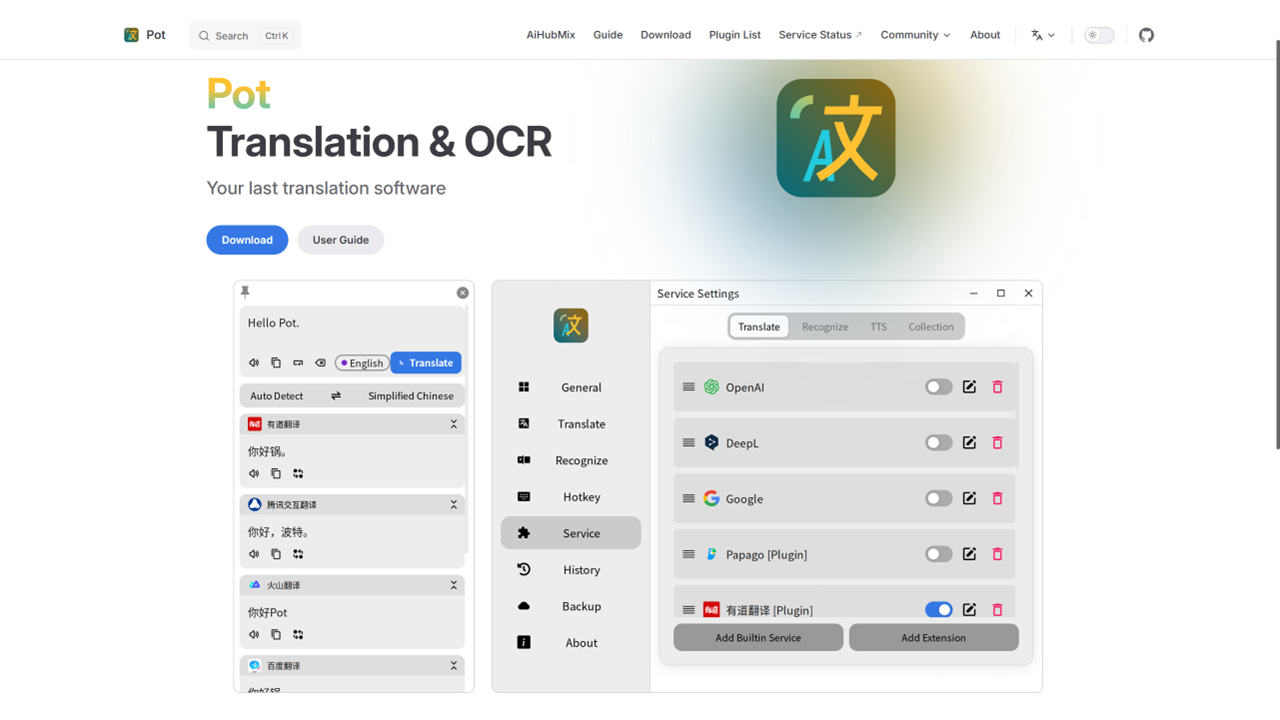
Download and Install Pot-app
| a. | Navigate to the website: <https://pot-app.com/en/>; |
| b. | Click the Download button; |
| c. | Run the installer and follow the on-screen instructions to complete the installation; |
| d. | Launch the Pot-app software. |
Configure and Use Selection Translation
| a. | Right-click the Pot-app icon in the system tray to open the context menu and click Config; |
| b. | Select the Translate tab in the left sidebar; |
| c. | Set the Target Language and an optional Secondary Target Language; |
| d. | Select the Service tab in the left sidebar; |
| e. | Activate the desired translation services on the Translate sub-tab by clicking the toggle switch next to their names; |
| f. | Select the Hotkey tab in the left sidebar; |
| g. | Click the text box for Selection Translation that reads Press to Set Hotkey; |
| h. | Press the desired key combination (e.g., Ctrl+1); |
| i. | Click the Ok button to save the hotkey; |
| j. | Select any text on the screen; |
| k. | Press the configured hotkey (e.g., Ctrl+1) to open the translation window. |
Configure and Use OCR Translation
| a. | Right-click the Pot-app icon in the system tray to open the context menu and click Config; |
| b. | Click the Service tab in the left sidebar; |
| c. | Click the Recognise button at the top of the settings area; |
| d. | Activate the desired OCR services by clicking the toggle switch next to their names (Note: Pot-app supports built-in system OCR and various online services); |
| e. | Click the Hotkey tab in the left sidebar; |
| f. | Locate the Screenshot Translation or Text Recognition option; |
| g. | Click the text box next to the chosen function and press the desired key combination (e.g., Ctrl+4); |
| h. | Click the Ok button to confirm the hotkey; |
| i. | Press the configured hotkey (e.g., Ctrl+4) for Screenshot Translation; |
| j. | Click and drag the mouse to select the screen area containing the text to be recognised and translated. |
Educational Scenarios
Educators' Perspectives
Learners' Perspectives