
This website uses cookies so that we can provide you with the best user experience possible. Cookie information is stored in your browser and performs functions such as recognising you when you return to our website and helping our team to understand which sections of the website you find most interesting and useful.
Font Size:
Introduction
Key Features
Uniqueness
Frequently Asked Questions
Open-Source?
Registration Needed?
Installation Required?
AI-empowered?
Specifications
URL:
Country or Region:
Author(s):
License:
Operating System(s):
Language(s):
Registration Needed:
Installation Required:
Video Demonstration
User Guide
This guide outlines how to use Perplexity AI for searching, customising search sources, and interacting with the generated results. (Access Date: 25 July 2025)
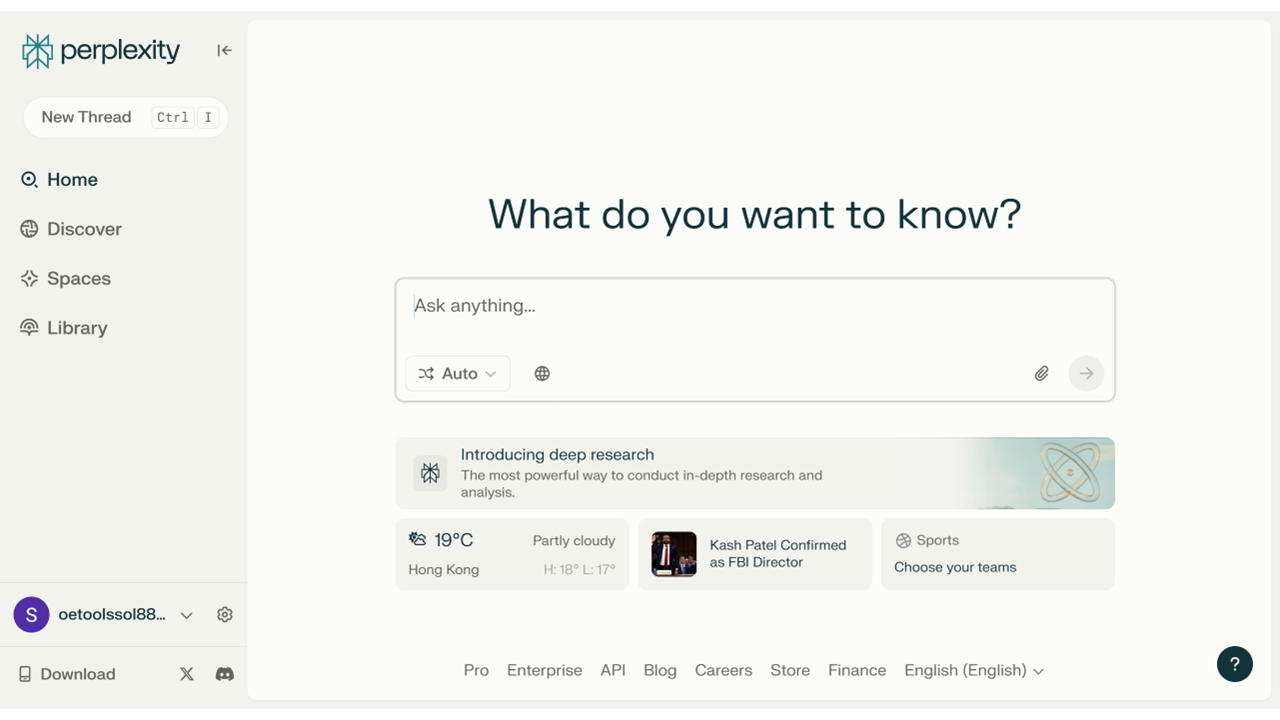
Access Perplexity AI Website
| a. | Navigate to the website: https://www.perplexity.ai; |
| b. | Click Continue with Google, Apple, or Email to log in or register. |
AI-Powered Search
| a. | Locate the main search bar on the Perplexity AI homepage; |
| b. | Select Search or Research mode from the buttons to the left of the search bar (Note: Free users have 3 queries daily for Research mode); |
| c. | Click the source for search button to the right of the search bar; |
| d. | Toggle on preferred fields such as Web, Academic, Social, and Finance; |
| e. | Enter your query in the search bar; |
| f. | Click the Send button (Note: The answer generation takes time). |
Interact with Results
| a. | Review the answer provided by Perplexity AI; |
| b. | Click on the numbered citations above the main answer to view the original source material; |
| c. | Scroll down to the Related section to find suggested follow-up questions; |
| d. | Click on a suggested question to initiate a new search; |
| e. | Input a follow-up query in the bottom search bar; |
| f. | Click the Send button for further exploration; |
| g. | Click the Search Images or Search Videos button from the right sidebar to display related visual media; |
| h. | Click the Share button at the top-right of the answer block to share results; |
| i. | Click the three-dot icon next to the Share button to export results; |
| j. | Choose to export the results as a PDF, Markdown, or DOCX file. |
Educational Scenarios
Educators' Perspectives
Learners' Perspectives