
This website uses cookies so that we can provide you with the best user experience possible. Cookie information is stored in your browser and performs functions such as recognising you when you return to our website and helping our team to understand which sections of the website you find most interesting and useful.
Font Size:
Introduction
Key Features
Uniqueness
Frequently Asked Questions
Open-Source?
Registration Needed?
Installation Required?
AI-empowered?
Specifications
URL:
Country or Region:
Author(s):
Availability:
Operating System(s):
Language(s):
Registration Needed:
Installation Required:
Video Demonstration
User Guide
This guide introduces a selection of key features from OpenMAIC, including: Login to OpenMAIC, Generate Interactive Classroom, Study in Multi-Agent Classroom, and Export and Share the Lesson.
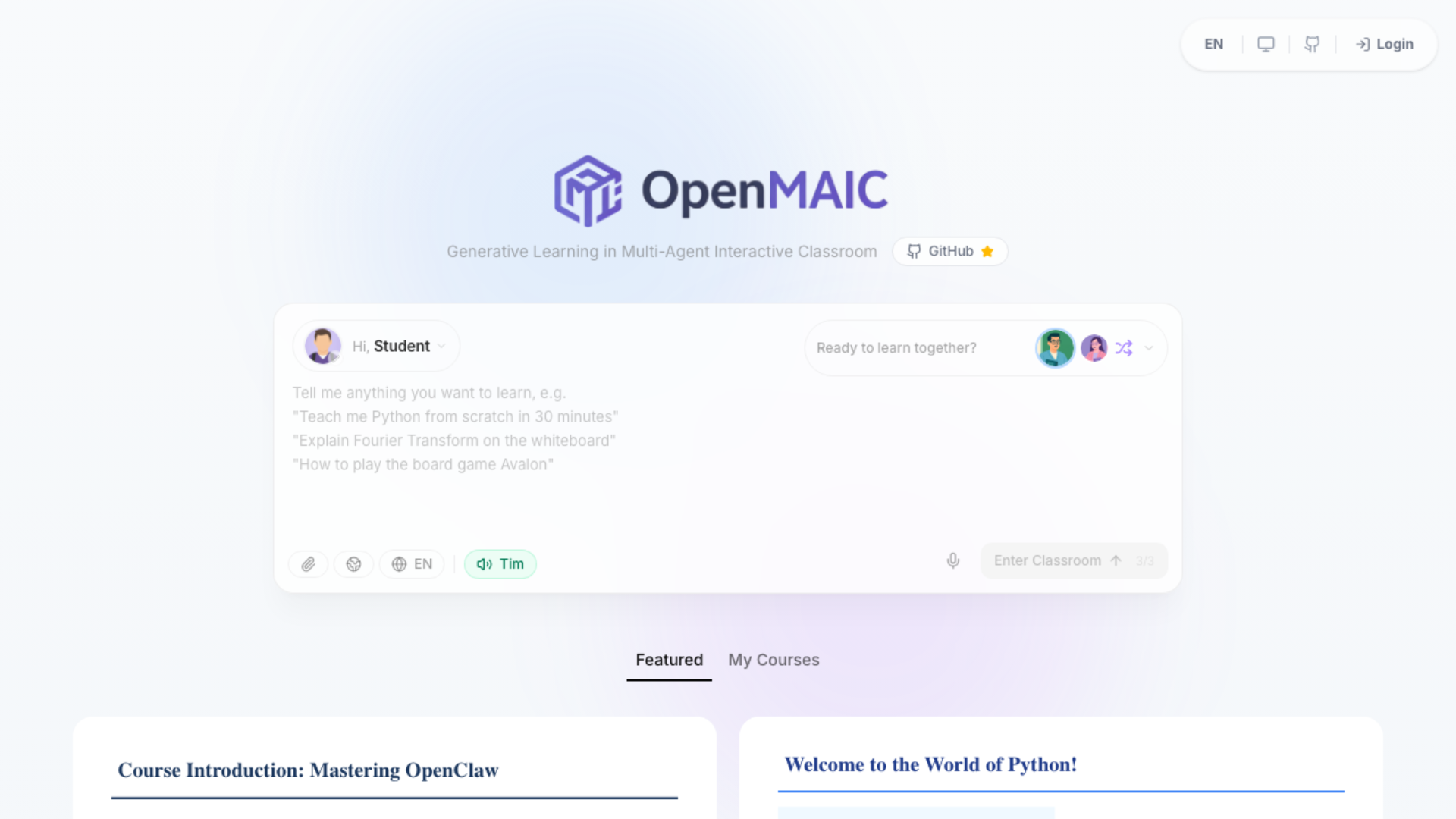
1. Login to OpenMAIC
| a. | Navigate to the website: https://open.maic.chat/(Note: This guide covers the hosted demo version which requires no local installation); |
| b. | Click the Login button located in the top-right corner of the page; |
| c. | Register or log in with an email or phone number (Note: The discussion function requires a login to use). |
2. Generate Interactive Classroom
| a. | Navigate to the central chat input box on the homepage; |
| b. | Input a prompt describing the topic for study (Note: Select the attachment icon to upload PDF files for the AI to analyse); |
| c. | Configure the Classroom Role by clicking the Read to learn together button to assign AI personas; |
| d. | Choose from the preset roles or select Auto Generate to allow the system to define participants; |
| e. | Select the Enter Classroom button to begin the course generation. |
3. Study in Multi-Agent Classroom
| a. | Select the newly generated lesson card to open the virtual classroom; |
| b. | Click the Play button to start the lesson; |
| c. | Click the Talking bubble icon in the bottom-right corner to view the Notes and Chat; |
| d. | Type a message to start Q&A Mode; |
| e. | Input messages into the chat panel on the right to converse with the AI teacher and classmates; |
| f. | Click the pen icon on the bottom menu to view the AI Whiteboard; |
| g. | Click the Toggle sidebar icon in the bottom-left corner, located above the AI teacher portrait icon; |
| h. | View the generated courseware overview in the left sidebar and select a different section to study. |
4. Export and Share the Lesson
| a. | Locate the Export PPTX button in the top-right corner of the page; |
| b. | Click the Export PPTX option to download the slides; |
| c. | Choose the Export Resource Pack function to export PPTX and interactive pages. |
Educational Scenarios
Educators' Perspectives
Learners' Perspectives