
This website uses cookies so that we can provide you with the best user experience possible. Cookie information is stored in your browser and performs functions such as recognising you when you return to our website and helping our team to understand which sections of the website you find most interesting and useful.
Font Size:
Introduction
Key Features
Uniqueness
Frequently Asked Questions
Open-Source?
Registration Needed?
Installation Required?
AI-empowered?
Specifications
URL:
Country or Region:
Author(s):
Availability:
Operating System(s):
Language(s):
Registration Needed:
Installation Required:
Video Demonstration
User Guide
This guide outlines how to install, use, configure, and uninstall the OpenClaw automation tool on various operating systems. This guide introduces a selection of key features from OpenClaw, including:
- Install OpenClaw
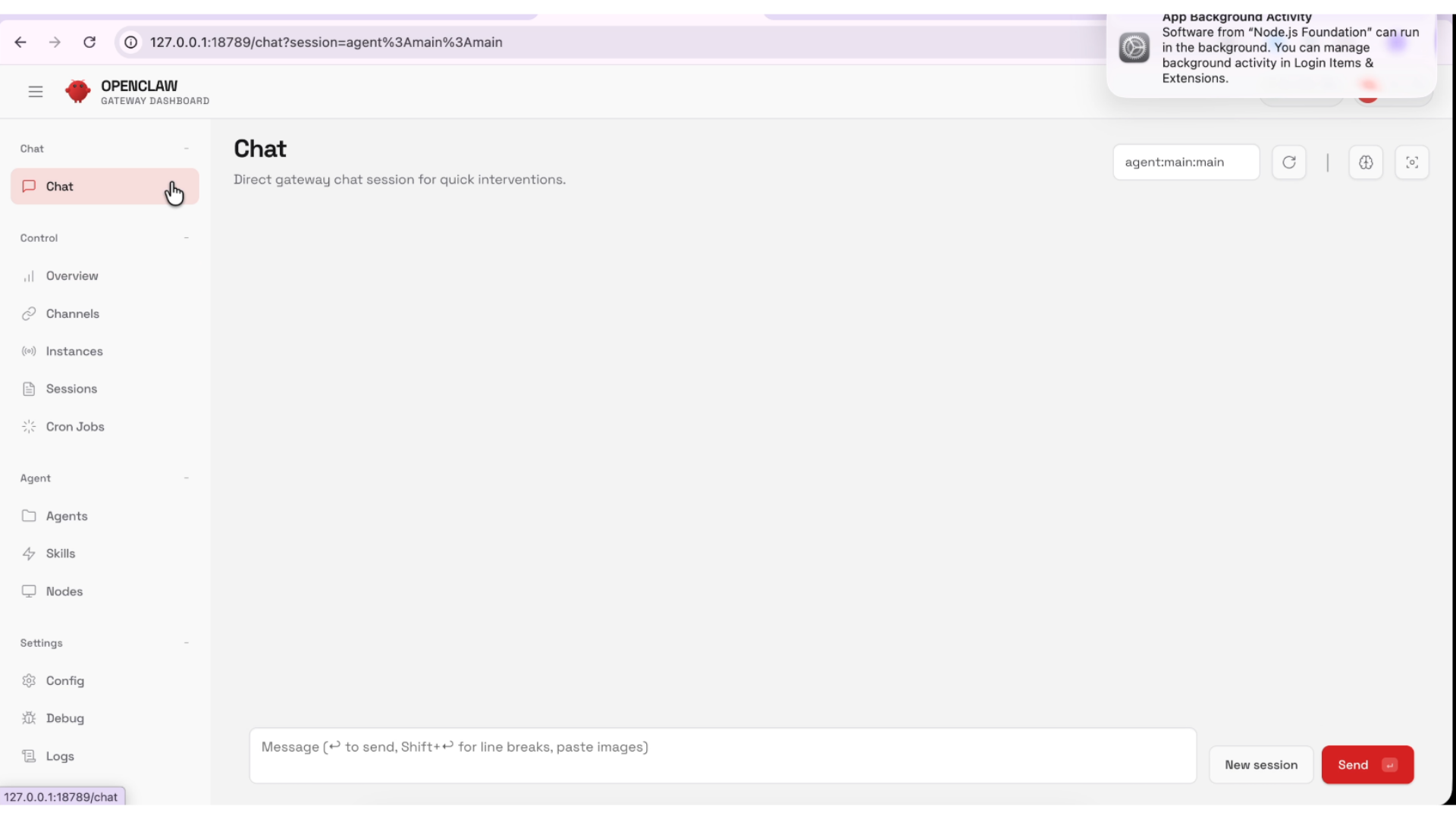
- Conduct Multi-Step Tasks with OpenClaw
- Set Up Chat Channel on WhatsApp
- Uninstall OpenClaw
Install OpenClaw
| a. | Open the command-line interface for the operating system (Note: For Windows, open Windows PowerShell; for macOS/Linux, open Terminal); |
| b. | Input the installation command for the operating system; - For Windows, use iwr -useb https://openclaw.ai/install.ps1 | iex- For macOS/Linux, use curl -fsSL https://openclaw.ai/install.sh | bash |
| c. | Press Enter to execute the command; |
| d. | Follow the on-screen instructions to proceed with the installation (Note: A security warning may appear; read this carefully before proceeding as OpenClaw is in beta and can perform system actions.); |
| e. | Run the onboarding command: openclaw onboard --install-daemon |
| f. | Perform a system check by running the command: openclaw doctor |
| g. | Check the gateway status by running the command: openclaw status + openclaw health |
| h. | Launch the dashboard by running the command: openclaw dashboard |
Conduct Multi-Step Tasks with OpenClaw
| a. | Click Chat in the left panel to start a new conversation; |
| b. | Input the prompt in the input field; |
| c. | Click the Send button to submit the query; |
| d. | Supervise the OpenClaw operation on the computer (Note: The program may interact with files on email clients, calendars, web services, and APIs to complete complex, multi-step tasks). |
Set Up Chat Channel on WhatsApp
| a. | Configure WhatsApp in the ~/.openclaw/openclaw.json file; |
| b. | Run the command openclaw channels login to scan the QR code; |
| c. | Start the gateway (Note: For setup instructions for other chat channels, visit: https://docs.openclaw.ai/channels). |
Uninstall OpenClaw
| a. | Open Terminal; |
| b. | Run the command: openclaw uninstall (Note: This is the recommended method if OpenClaw is correctly installed.); |
| c. | If the previous command fails, stop the gateway service by running: openclaw gateway stop |
| d. | Uninstall the gateway service by running: openclaw gateway uninstall |
| e. | Delete configuration and state data by running: rm -rf '${OPENCLAW_STATE_DIR:-$HOME/.openclaw}' |
| f. | Delete the workspace by running: rm -rf ~/.openclaw/workspace |
| g. | Remove the CLI installation by running the appropriate command (Note: Use npm rm -g openclaw, pnpm remove -g openclaw, or bun remove -g openclaw); |
| h. | For macOS, remove the application by running: rm -rf /Applications/OpenClaw.app |
Educational Scenarios
Educators' Perspectives
Learners' Perspectives