
This website uses cookies so that we can provide you with the best user experience possible. Cookie information is stored in your browser and performs functions such as recognising you when you return to our website and helping our team to understand which sections of the website you find most interesting and useful.
Font Size:
Introduction
Key Features
Uniqueness
Frequently Asked Questions
Open-Source?
Registration Needed?
Installation Required?
AI-empowered?
Specifications
URL:
Country or Region:
Author(s):
Availability:
Operating System(s):
Language(s):
Registration Needed:
Installation Required:
Video Demonstration
User Guide
This guide outlines how to install Obsidian, create and manage notes, link them to build a knowledge graph, and export or share your content. (Reference Version: 1.8.10)
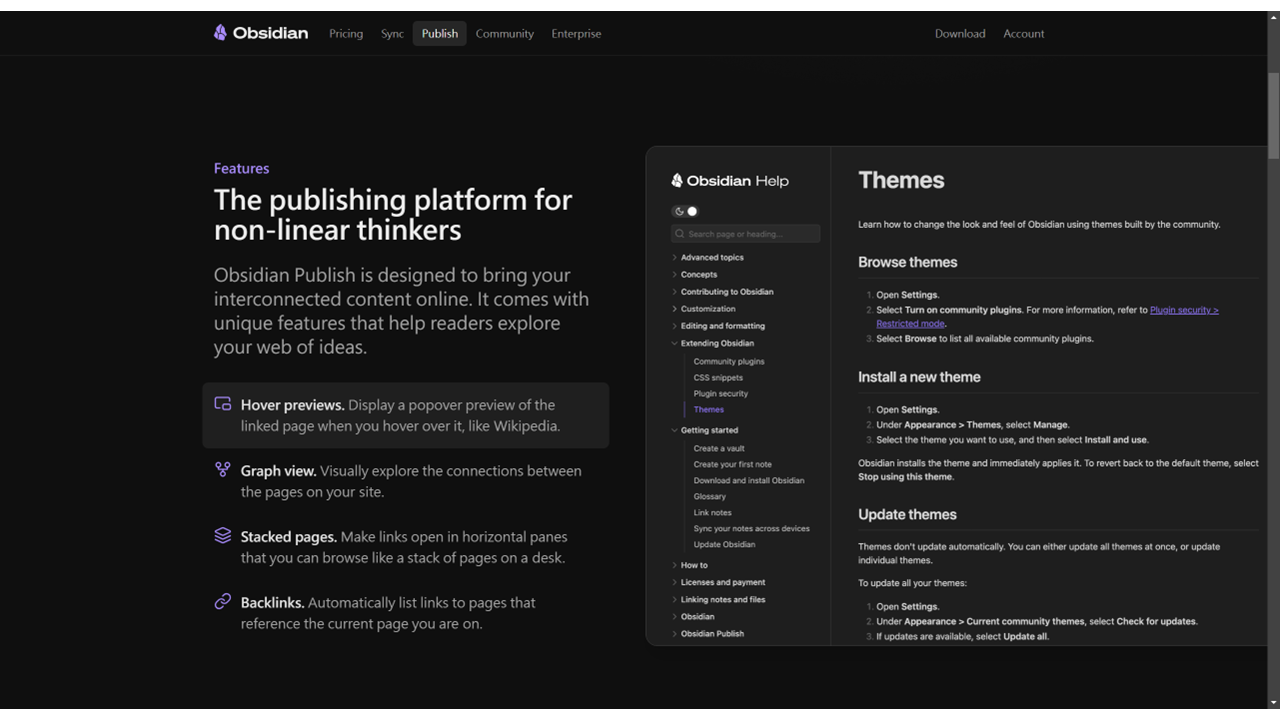
Download and Install Obsidian
| a. | Navigate to the website: https://obsidian.md; |
| b. | Select the installer version that matches your operating system; |
| c. | Run the installer and follow the on-screen instructions to complete the installation; |
| d. | Launch the Obsidian software. |
Create Vault and Notes
| a. | Select the Create new vault option upon first launch; |
| b. | Enter a name for your vault and click Browse to choose a storage folder for your notes; |
| c. | Click Create to finish setting up the new vault (Note: A vault is a local folder on your device, which ensures you always own and control your data); |
| d. | Click the File icon in the top-left sidebar to view the vault's file structure; |
| e. | Click the New note icon or press Ctrl+N to create a new note file; |
| f. | Drag-and-drop a file to the folder section to import; |
| g. | Click the New folder icon to create a directory for organising notes; |
| h. | Select any note in the file explorer to open it in the main editor panel. |
Link and Visualise the Note Graph
| a. | Type [[ while editing a note to open the link suggestion menu; |
| b. | Type the name of the note to link and select it from the list; |
| c. | Type ]] or press Enter to complete the link (Note: This creates a direct link and a corresponding backlink, connecting the two notes in both directions); |
| d. | Click the new link to navigate directly to the linked file; |
| e. | Click the Graph view icon in the left-hand sidebar to open a visual map of the notes; |
| f. | Observe the graph where each note is a node and each link is a line (Note: This view helps you discover relationships and patterns within your knowledge base); |
| g. | Hover over a node to see the note's title; |
| h. | Click a node to open that specific note in the editor. |
Export and Share
| a. | Click the three-dot (More options) icon in the top-right corner of the note panel; |
| b. | Select Export to PDF... from the dropdown menu; |
| c. | Adjust the settings such as page size and margins in the pop-up window, and click Export; |
| d. | Select Show in system explorer to open the folder on your computer where the Markdown (.md) file for your note is stored (Note: You can copy this file to share it or use it in other applications); |
| e. | Select Copy Obsidian URL to copy a unique link to your clipboard that can be used to open that specific note from another location within Obsidian. |
Educational Scenarios
Educators' Perspectives
Learners' Perspectives