
This website uses cookies so that we can provide you with the best user experience possible. Cookie information is stored in your browser and performs functions such as recognising you when you return to our website and helping our team to understand which sections of the website you find most interesting and useful.
Font Size:
Introduction
Key Features
Uniqueness
Frequently Asked Questions
Open-Source?
Registration Needed?
Installation Required?
AI-empowered?
Specifications
URL:
Country or Region:
Author(s):
License:
Operating System(s):
Language(s):
Registration Needed:
Installation Required:
Video Demonstration
User Guide
This guide outlines how to download and install Mubu, create and format notes, convert lists to mind maps, and export and share your documents. (Reference Version: 2.83.0)
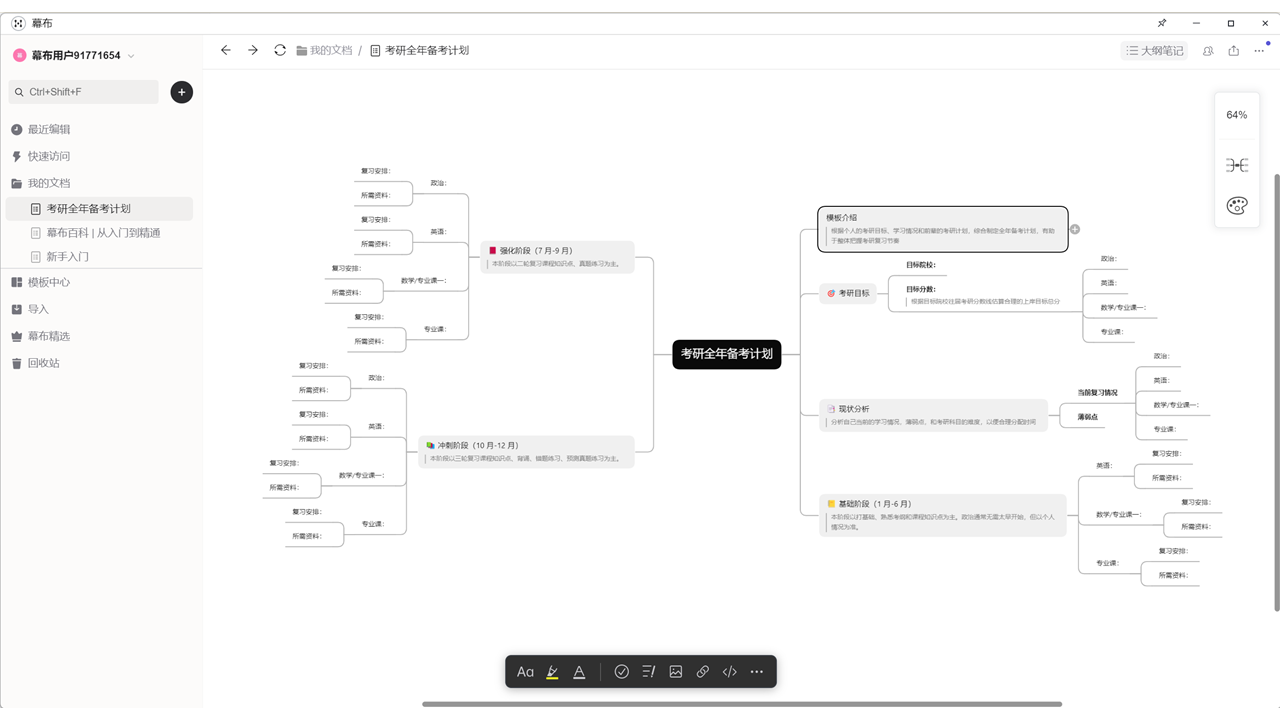
Download and Install Mubu
| a. | Navigate to the website: https://mubu.com/home; |
| b. | Click the 下載 (Download) button and select the appropriate version for the operating system; |
| c. | Follow the on-screen instructions to install the application on the device; |
| d. | Launch the application and click 登錄 (Log in) to access the account. |
Create and Format a New Note
| a. | Click the + icon on the main page and select 新建文檔 (New Document) to create a new file; |
| b. | Input text into the new note; |
| c. | Click the indentation icon on the inserting toolbar to create sub-items; |
| d. | Press and hold to select text and use the formatting toolbar to apply styles such as bold or italics; |
| e. | Select a specific item and click the highlight icon to add a background colour; |
| f. | Click the checkbox icon on the inserting toolbar to add a checkbox to a row; |
| g. | Click the # icon to insert a tag, and type a keyword to create a searchable link; |
| h. | Click the insert icon on the inserting toolbar and select the image icon to upload an image into the note; |
| i. | Click the Back icon on the upper-left corner to return to the main page. |
Create a Mind Map from a List
| a. | Click the checkbox icon in the inserting toolbar to add a check box to a row; |
| b. | Click the check box to mark it as complete; |
| c. | Click the # icon to insert a tag, and type a keyword to create a searchable link; |
| d. | Click the insert icon in the inserting toolbar and select the image icon to upload an image into the note; |
| e. | Click the add child branch icon to add a new indented item below the current one; |
| f. | Click the insert icon and select the link to document icon to insert a link to another Mubu document; |
| g. | Click the Mind Map icon at the upper-right corner of the screen to switch to the mind map view; |
| h. | Click the style icon at the bottom-left corner while in mind map view to open the editing options; |
| i. | Select a new structure or theme from the available styles. |
Export and Share
| a. | Click the three-dot (More Options) icon in the upper-right corner; |
| b. | Select 匯出 (Export) from the dropdown menu; |
| c. | Choose 匯出為圖片 (Save as Image) to save the document as an image; |
| d. | Select 分享 (Share) from the dropdown menu to share the document; |
| e. | Enable the 分享開關 (Enable Sharing) toggle to make the document accessible; |
| f. | Press and hold the URL to copy it to the clipboard. |
Educational Scenarios
Educators' Perspectives
Learners' Perspectives