
This website uses cookies so that we can provide you with the best user experience possible. Cookie information is stored in your browser and performs functions such as recognising you when you return to our website and helping our team to understand which sections of the website you find most interesting and useful.
Font Size:
Introduction
Key Features
Uniqueness
Frequently Asked Questions
Open-Source?
Registration Needed?
Installation Required?
AI-empowered?
Specifications
URL:
Country or Region:
Author(s):
License:
Operating System(s):
Language(s):
Registration Needed:
Installation Required:
Video Demonstration
User Guide
This guide outlines how to use Minimax Audio's primary functions for voice cloning, text-to-speech conversion, and AI music creation. (Access Date: 4 August 2025)
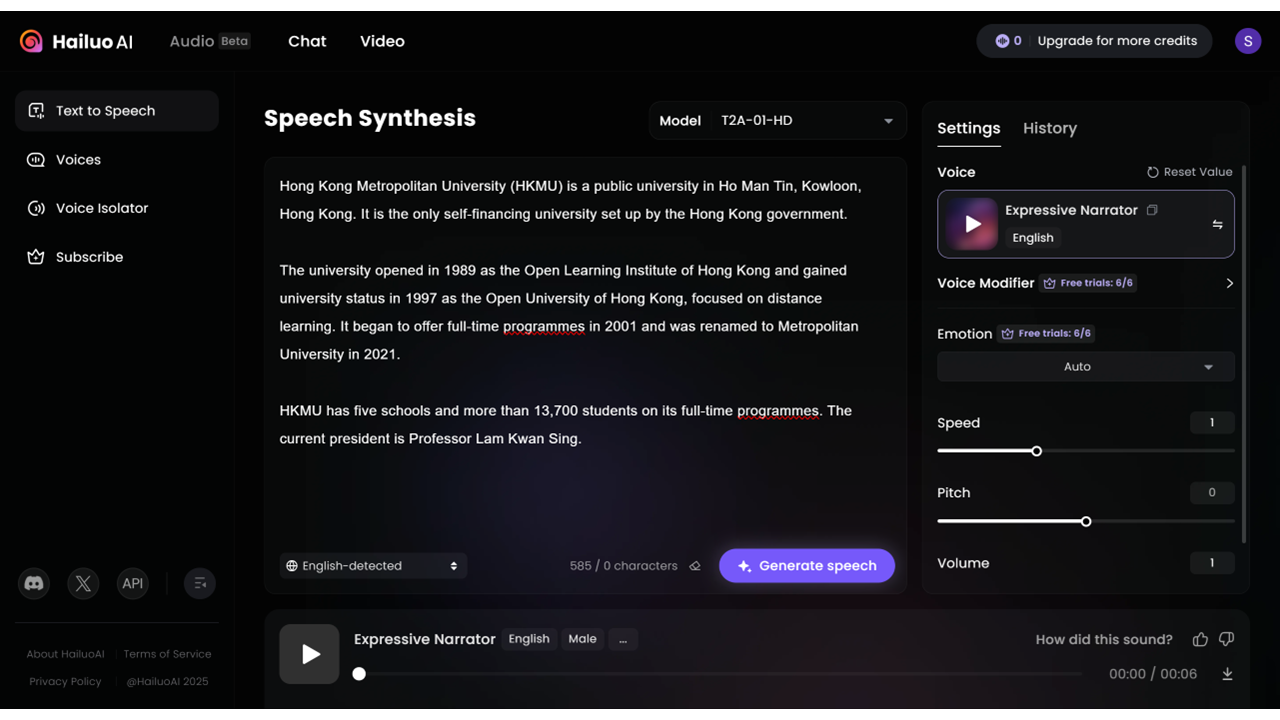
Access Minimax Website
| a. | Navigate to the website: https://www.minimax.io/audio; |
| b. | Click the Sign In button on the upper right corner of the webpage to log in or register with a Google account. |
Clone Voice
| a. | Click Voice Clone in the left-hand menu of the main page; |
| b. | Drag-and-drop an audio file into the Import your Voice box or click Record audio to create a new 10-60 second clean voice clip (Note: For best results, use a clean voice recording from a quiet environment); |
| c. | Enter up to 300 characters of text in the Text to Preview box to test the cloned voice; |
| d. | Click the Generate button to create the voice clone. |
Convert Text to Speech
| a. | Click Text to Speech in the left-hand menu of the main page; |
| b. | Enter the desired text into the main text field (Note: The character limit is 10,000 characters); |
| c. | Select a voice model from the Model dropdown menu at the top; |
| d. | Click the Voice panel on the right-hand side; |
| e. | Select a voice from the Library tab, or the cloned voice from the My Voice tab; |
| f. | Preview a voice by clicking on it, then select it by clicking the Use button; |
| g. | Adjust the Speed, Pitch, and Volume using the corresponding sliders in the Settings panel; |
| h. | Click the Generate button to create the audio file; |
| i. | Play the generated audio using the player that appears at the bottom; |
| j. | Click the Download icon to save the MP3 file. |
Create AI Music
| a. | Click Music in the left-hand menu of the main page; |
| b. | Select the Simple mode for prompt-based music generation (Note: Advanced mode supports composing tracks with your own lyrics); |
| c. | Type a description of the music in the text field (Note: The word limit is from 20 to 300 characters); |
| d. | Select a model from the Model dropdown menu; |
| e. | Click the Create button to generate the music; |
| f. | Click to play the generated track under the My Work tab on the right-hand side; |
| g. | Click the Download icon to save the MP3 file. |
Educational Scenarios
Educators' Perspectives
Learners' Perspectives