
This website uses cookies so that we can provide you with the best user experience possible. Cookie information is stored in your browser and performs functions such as recognising you when you return to our website and helping our team to understand which sections of the website you find most interesting and useful.
Font Size:
Introduction
Key Features
Uniqueness
Frequently Asked Questions
Open-Source?
Registration Needed?
Installation Required?
AI-empowered?
Specifications
URL:
Country or Region:
Author(s):
Availability:
Operating System(s):
Language(s):
Registration Needed:
Installation Required:
Video Demonstration
User Guide
This guide outlines how to access the Lumi platform, create and share H5P content online, install the desktop application, and create content offline. (Access Date: 16 Dec 2025)
1. Access the Lumi Website
| a. | Navigate to the website: https://app.lumi.education/; |
| b. | Click Get started or Sign in to proceed with account registration or login with Google, GitHub, Apple, Microsoft, Eduplaces, or email account; |
| c. | Follow the on-screen instructions to set up the profile and preferences. |
2. Create H5P Content Online
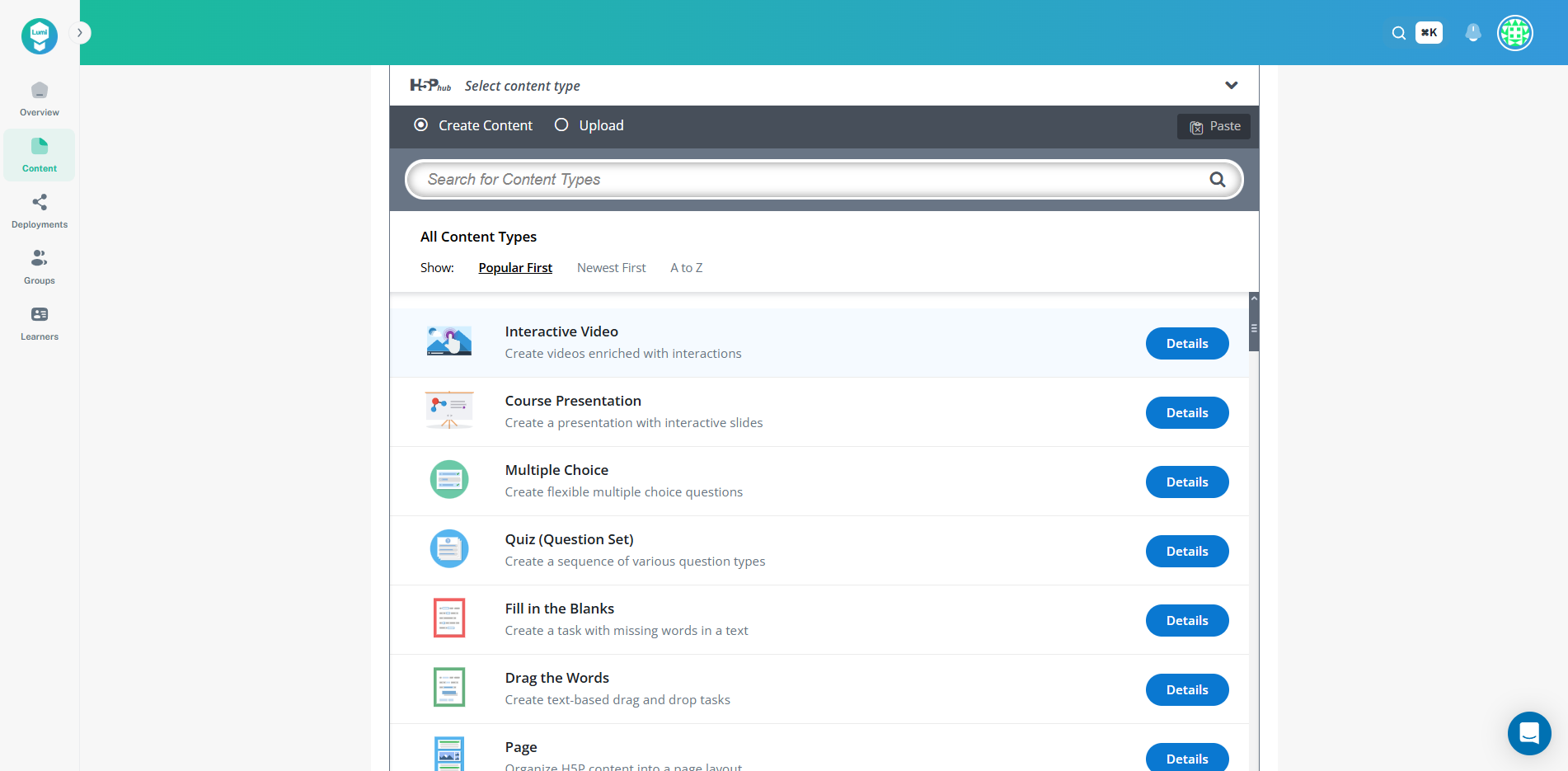
| a. | Click the New Content button, then select Create H5P Content; |
| b. | Browse the H5P content list, then click Details to view the content demo; |
| c. | Select a Content Type from the list (Note: Lumi supports over 50 H5P content types); |
| d. | Customize the content and interactive elements in the Edit tab; |
| e. | Click Save in the top-right corner to store the content in the library; |
| f. | Select the View tab to preview the H5P content; |
| g. | Click Share, then select As Link… to share the H5P content via a link, embed code, or QR code; |
| h. | Click Share, then select Download to export the content as an H5P, SCORM, or HTML file. |
3. Download and Install Lumi Desktop
| a. | Navigate to the website: https://apps.microsoft.com/detail/9pd83xfv86j4; |
| b. | Click the Download button; |
| c. | Run the installer, then follow the on-screen instructions to complete the installation. |
4. Create H5P Content Offline
| a. | Launch the Lumi software (Note: No registration is needed); |
| b. | Select a Content Type, then customize the content and interactive elements; |
| c. | Click File on the menu bar, then click Save to save the H5P file to a local device; |
| d. | Click File, select Export, then choose a format to export the file (Note: Supported formats include SCORM, HTML with media files, and an All-in-one HTML file). |
Educational Scenarios
Educators' Perspectives
Learners' Perspectives