
This website uses cookies so that we can provide you with the best user experience possible. Cookie information is stored in your browser and performs functions such as recognising you when you return to our website and helping our team to understand which sections of the website you find most interesting and useful.
Font Size:
Introduction
Key Features
Uniqueness
Frequently Asked Questions
Open-Source?
Registration Needed?
Installation Required?
AI-empowered?
Specifications
URL:
Country or Region:
Author(s):
License:
Operating System(s):
Language(s):
Registration Needed:
Installation Required:
Video Demonstration
User Guide
This guide outlines how to set up an account, create and manage tasks, and customise an avatar in Habitica.
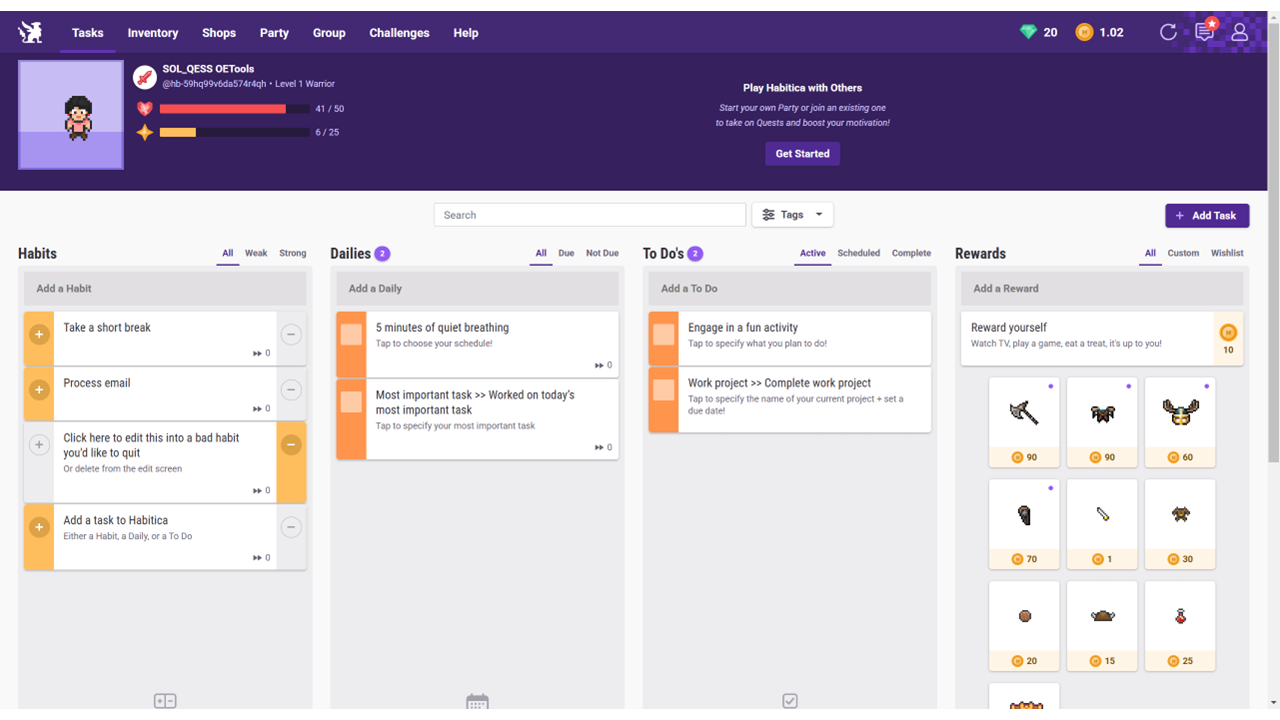
Access Habitica Website
| a. | Navigate to the website: https://habitica.com; |
| b. | Click the Login button to access the login page, or remain on the homepage to sign up; |
| c. | Fill in the Username, Email, and Password fields; |
| d. | Click the Sign Up button to create the account; |
| e. | Select Sign up with Google or Sign up with Apple as an alternative registration method; |
| f. | Click Get Started to proceed to the main dashboard. |
Create Tasks and Challenges
| a. | Click the + Add Task button; |
| b. | Select a task type from the dropdown menu: Habit, Daily, To Do, or Reward; |
| c. | Select Habit, enter a Title and optional Notes, set it as Positive or Negative, and choose a Difficulty (Note: Habits can be checked off multiple times per day); |
| d. | Select Daily, enter a Title, and set a repetition schedule (Note: Dailies reset according to the schedule you choose); |
| e. | Select To Do, enter a Title, and add checklist items to break the task down (Note: To Do's are single-completion tasks); |
| f. | Select Reward, enter a Title, and set a gold price for redemption (Note: Rewards are used to treat the virtual avatar after completing other tasks); |
| g. | Click Create to add the new task to the dashboard; |
| h. | Select the Challenges tab in the top navigation bar; |
| i. | Click the create challenge button; |
| j. | Fill in the required details, such as the challenge name, summary, and description; |
| k. | Click Add Challenge Tasks to publish the challenge; |
| l. | Add tasks to the challenge using the same method for creating standard tasks. |
Complete Tasks and Customise the Avatar
| a. | For Habits, click the + icon for positive habits or the - icon for negative habits; |
| b. | For Dailies and To Do's, click the checkbox next to the task to mark it as complete (Note: Completing tasks will earn experience points, which level up the avatar, and gold, which can be spent on Rewards); |
| c. | Click the Inventory tab in the top navigation bar; |
| d. | Select the Equipment tab and click the available equipment items to customise the avatar's appearance (Note: The changes will be reflected immediately on your avatar, displayed in the user panel on the left side of the dashboard). |
Educational Scenarios
Educators' Perspectives
Learners' Perspectives