
This website uses cookies so that we can provide you with the best user experience possible. Cookie information is stored in your browser and performs functions such as recognising you when you return to our website and helping our team to understand which sections of the website you find most interesting and useful.
Font Size:
Introduction
Key Features
Uniqueness
Frequently Asked Questions
Open-Source?
Registration Needed?
Installation Required?
AI-empowered?
Specifications
URL:
Country or Region:
Author(s):
License:
Operating System(s):
Language(s):
Registration Needed:
Installation Required:
Video Demonstration
User Guide
This guide outlines how to use Folo to subscribe to RSS feeds, search for content, customise your settings, and view AI-powered summaries of articles and social media posts. (Access Date: 18 July 2025)
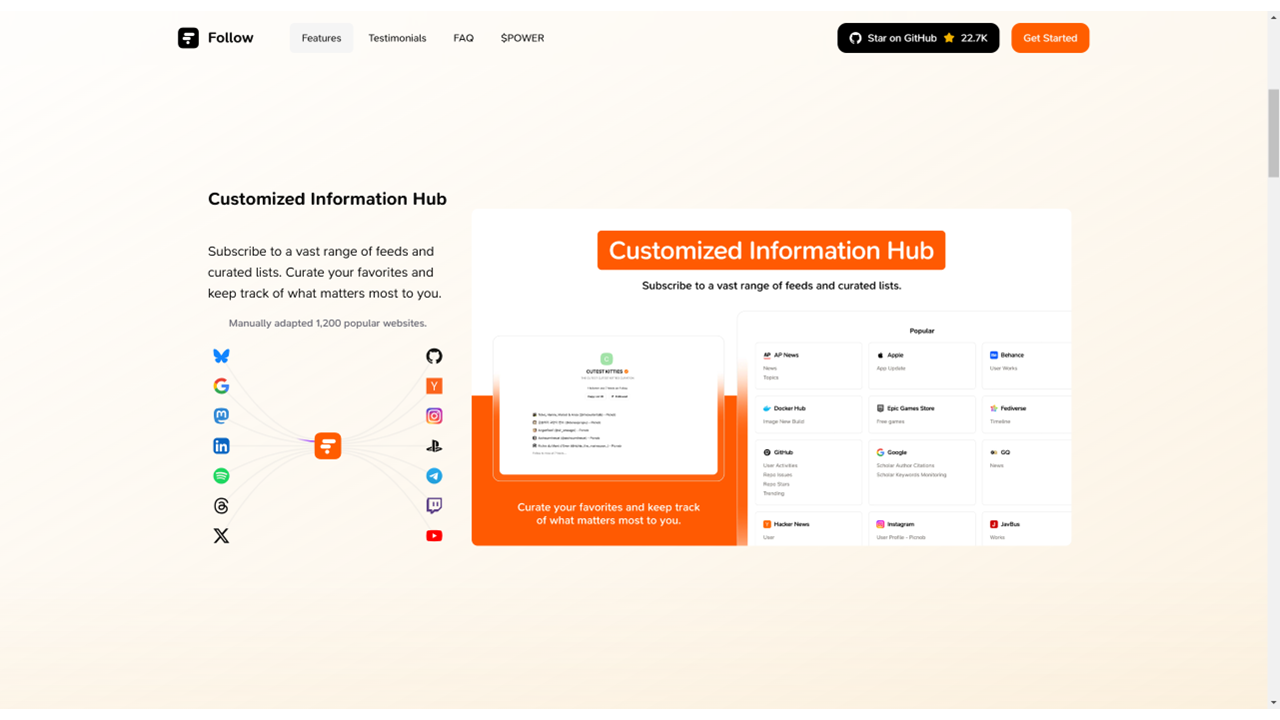
Access Folo Website
| a. | Navigate to the website: https://follow.is/; |
| b. | Click the Try on Web button; |
| c. | Select a registration option or log in to the website with an Apple, GitHub, Google account or email. |
Subscribe to RSS (Really Simple Syndication) Feeds
| a. | Click the + button in the left-side menu and select the RSS tab; |
| b. | Input the URL and click the Preview button; |
| c. | Select a social media channel and click the Follow button; |
| d. | Input the title, category, and select a view type for the RSS feed (Note: Available view types include article, social media, pictures, videos, audios, or notifications); |
| e. | Click the Follow button to add the subscription. |
Search for Feeds and Collections
| a. | Click the + button on the top-left and input a URL or keywords; |
| b. | Click Lists and Search to start searching; |
| c. | Select a social media channel or news source and click the Follow button; |
| d. | Input a title, a category, and select a view type for the channel; |
| e. | Click the Follow button to confirm. |
Customise Settings
| a. | Click your profile picture and select Preferences > General; |
| b. | Enable the AI Summary feature; |
| c. | Select an option from the Appearance setting. |
View AI-Powered Feed Summaries
| a. | View all subscriptions in the left sidebar; |
| b. | Check the unread article count next to each subscription; |
| c. | Switch between the four views in the left sidebar: Articles, Social Media, Pictures, and Videos; |
| d. | Click a followed channel or article to view the content; |
| e. | Click the Refetch button (the circle icon) to refresh the posts; |
| f. | Click the star button to save a post; |
| g. | View AI-generated summaries at the top of articles after enabling the AI Summary feature; |
| h. | Click the star icon in the upper-right panel of Social Media posts to view the AI Daily Report (Note: The AI Daily Report is updated daily at 8 AM and 8 PM). |
Troubleshoot Reading Issues
| a. | Click the Readability button (the notebook icon) in the upper-right panel if an article's content does not display correctly; |
| b. | Await the system's attempt to re-fetch the content for proper display. |
Educational Scenarios
Educators' Perspectives
Learners' Perspectives