
This website uses cookies so that we can provide you with the best user experience possible. Cookie information is stored in your browser and performs functions such as recognising you when you return to our website and helping our team to understand which sections of the website you find most interesting and useful.
Font Size:
Introduction
Key Features
Uniqueness
Frequently Asked Questions
Open-Source?
Registration Needed?
Installation Required?
AI-empowered?
Specifications
URL:
Country or Region:
Author(s):
License:
Operating System(s):
Language(s):
Registration Needed:
Installation Required:
Video Demonstration
User Guide
This guide outlines how to translate text and documents, and use an AI-powered writing editor with the DeepL online tool.
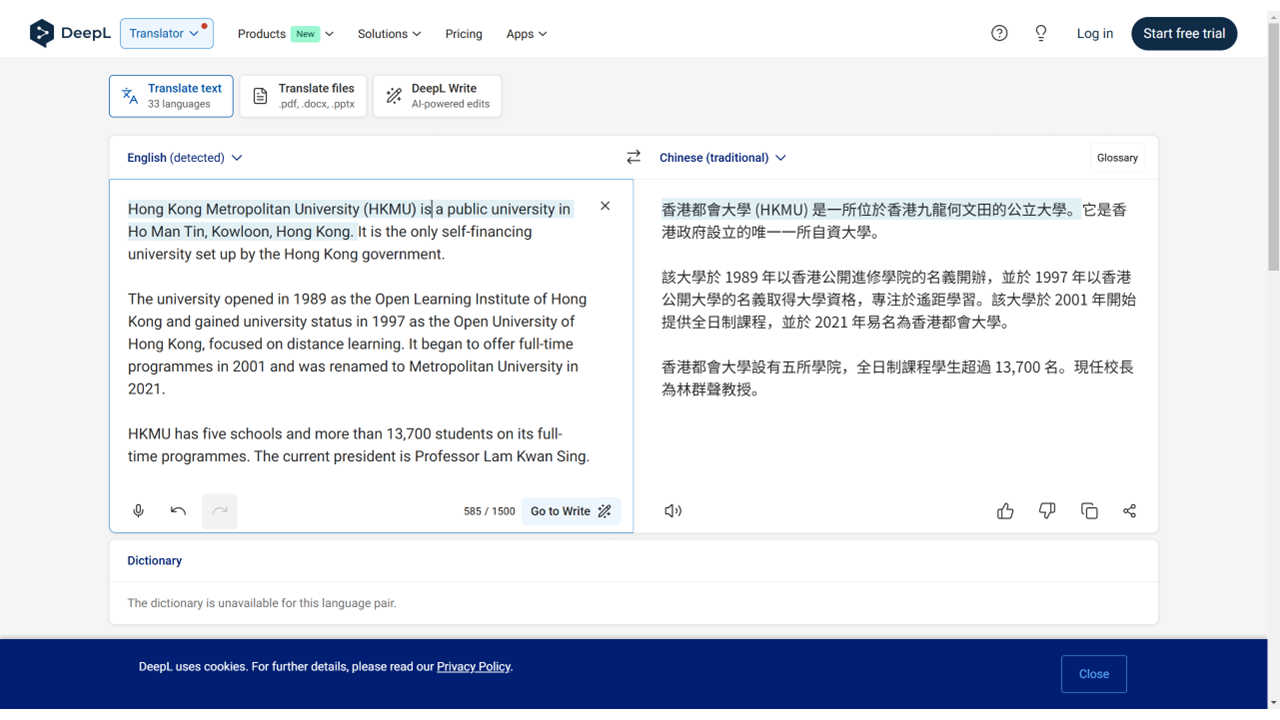
Access DeepL Translator Website
| a. | Navigate to the website: https://www.deepl.com/translator; |
| b. | Click Log in or Start free trail to log in or register with an email account. |
Translate Text and Documents
| a. | Select the Translate text tab; |
| b. | Select the source language from the top-left dropdown menu, or leave Detect language selected for automatic identification; |
| c. | Select the target language from the top-right dropdown menu; |
| d. | Type or paste the text into the left-hand source text panel; |
| e. | Review the completed translation in the right-hand panel; |
| f. | Select the Translate files tab; |
| g. | Select the source language and target language; |
| h. | Drag-and-drop the file into the main window, or click the Select from your computer button to upload a file (Note: The free service supports PDF, DOCX, and PPTX files with less than 5 MB in size or 100,000 characters in content); |
| i. | Click Translate to start processing (Note: The result file will be downloaded automatically upon completion). |
Use AI Writing Editor
| a. | Click the DeepL Write tab to switch to the editor; |
| b. | Select the language of your text from the dropdown menu; |
| c. | Type or paste your text into the left-hand input box; |
| d. | Click the Style button on the right-hand side; |
| e. | Select a writing style or a tone, then click Apply; |
| f. | Click a word in the right-hand panel and select Replace word to view phrasing options; |
| g. | Click a highlighted sentence in the right-hand panel and select Rephrase to view rephrasing options; |
| h. | Click the Copy to Clipboard button to get the refined text from the right-hand panel. |
Educational Scenarios
Educators' Perspectives
Learners' Perspectives