
This website uses cookies so that we can provide you with the best user experience possible. Cookie information is stored in your browser and performs functions such as recognising you when you return to our website and helping our team to understand which sections of the website you find most interesting and useful.
Font Size:
Introduction
Key Features
Uniqueness
Frequently Asked Questions
Open-Source?
Registration Needed?
Installation Required?
AI-empowered?
Specifications
URL:
Country or Region:
Author(s):
License:
Operating System(s):
Language(s):
Registration Needed:
Installation Required:
Video Demonstration
User Guide
This guide outlines how to access the Curipod website, create interactive slides with various engaging activities, and generate comprehensive after-lesson reports for performance analysis.
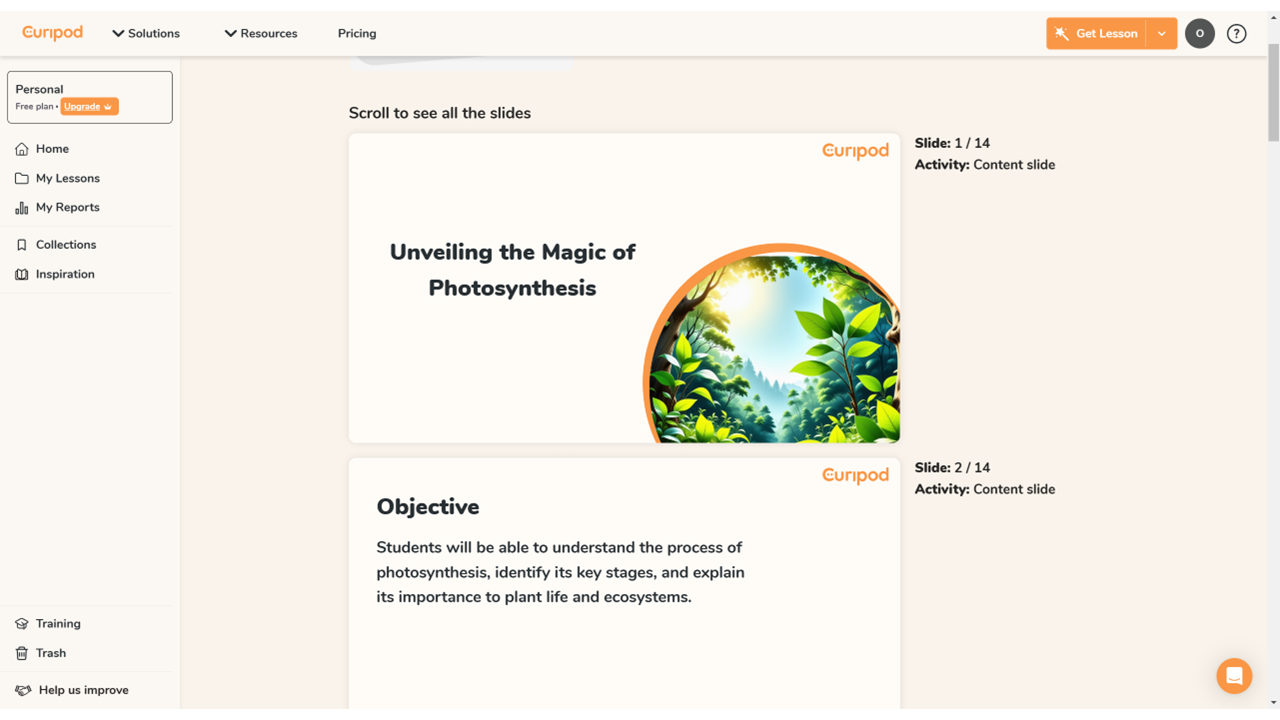
Access Curipod Website
| a. | Navigate to the website: https://curipod.com/; |
| b. | Click the Log in or Sign Up For Free button to log in or register with a Google account or email. |
Create Interactive Slides
| a. | Click the + Create lesson button; |
| b. | Enter descriptive content in the text field, including the student's grade level, language, and desired course activities; |
| c. | Click the Send button; |
| d. | Enter further instructions on the AI reply form; |
| e. | Click the Send button; |
| f. | Click the Generate lesson button; |
| g. | Preview the generated slides and chat with the AI in the left-side panel; |
| h. | Click the Manual edit button at the upper-left corner to expand the editing toolbar on the left (Note: The toolbar includes Add Activity, Add slide, Add Visuals, and Translate); |
| i. | Select an activity slide; |
| j. | Click the Edit Activity button in the top panel to edit; |
| k. | Modify the Activity type, Duration, or Options (Note: Supports Poll, Word cloud, Drawings, Open question, and AI Feedback); |
| l. | Click the Home button to return to the home page (Note: Changes are auto-saved as you edit). |
Generate After-Lesson Reports
| a. | Navigate to the My lessons > Lessons section from the home page; |
| b. | Click to open a lesson; |
| c. | Click Start lesson and share the QR Code or URL with students; |
| d. | Navigate to the My Reports > Reports section from the home page; |
| e. | Click on the lesson for which you want to view a report; |
| f. | Select the Summary tab and click Generate insights to view an AI-generated overview; |
| g. | Click the activity tabs to see aggregated responses for each slide; |
| h. | Click the Students tab and select a student's name to view their individual report; |
| i. | Click Share > Download report to export the report as an Excel file. |
Educational Scenarios
Educators' Perspectives
Learners' Perspectives