
This website uses cookies so that we can provide you with the best user experience possible. Cookie information is stored in your browser and performs functions such as recognising you when you return to our website and helping our team to understand which sections of the website you find most interesting and useful.
Font Size:
Introduction
Key Features
Uniqueness
Frequently Asked Questions
Open-Source?
Registration Needed?
Installation Required?
AI-empowered?
Specifications
URL:
Country or Region:
Author(s):
Availability:
Operating System(s):
Language(s):
Registration Needed:
Installation Required:
Video Demonstration
User Guide
This guide outlines how to use ChatPDF to interact with documents, find academic papers, and analyse text for AI-generated content.
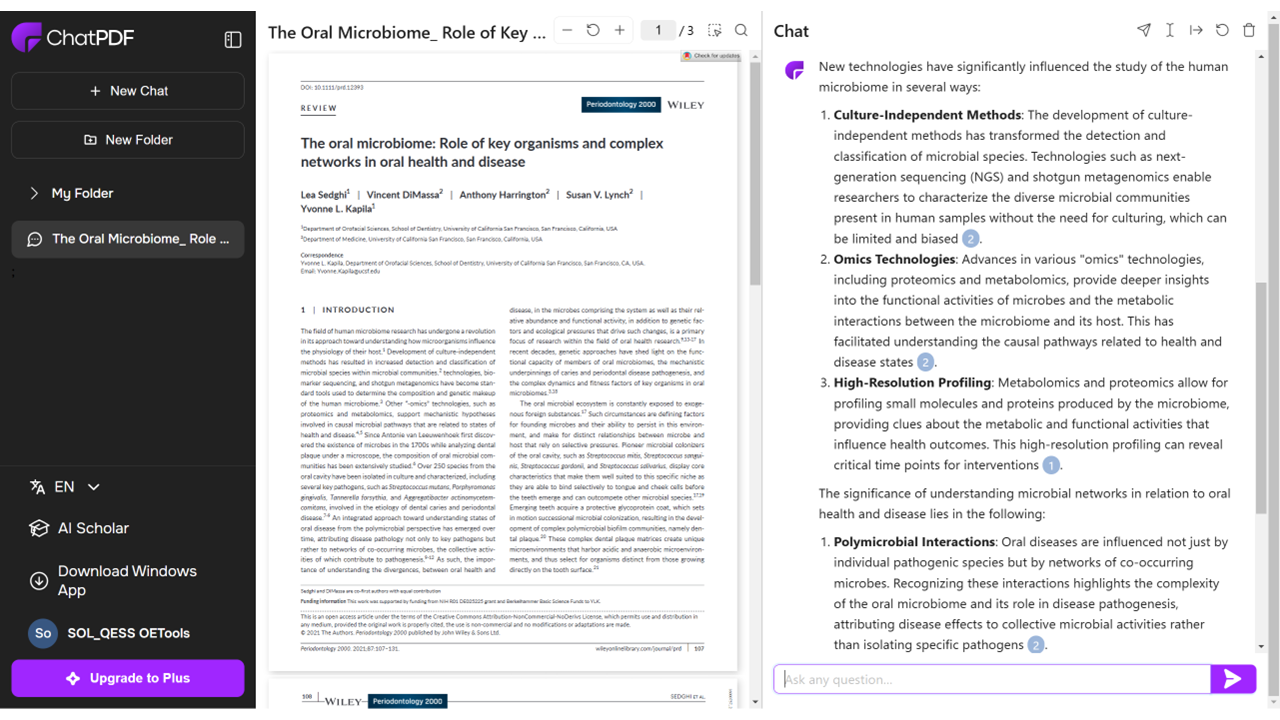
Access ChatPDF Website
| a. | Navigate to the website: https://www.chatpdf.com/; |
| b. | Use the service immediately without an account (Note: Create a free account for additional features such as saved chat history and multi-document analysis). |
Chat with PDF Documents
| a. | Click the Upload PDF button or drag-and-drop a file into the designated upload area (Note: Supported file formats include PDF, DOCX, PPTX, MD, and TXT); |
| b. | Type your questions in the chat box to interact with the document; |
| c. | Click on the citations within the AI's responses to view the corresponding sections in the source document; |
| d. | Click the New Folder button in the left side panel to create a folder for analysing multiple documents; |
| e. | Upload all relevant files into the folder; |
| f. | Use the sharing option to generate a secure link for sharing the chat session. |
Use AI Scholar
| a. | Select the AI Scholar tab in the bottom-left corner of the main page; |
| b. | Enter your search query in the search bar to find relevant academic papers, articles, and scientific publications; |
| c. | Select a document from the search results and click the Chat with PDF button beneath it to load it into the chat interface. |
Use AI Detector
| a. | Find and click the AI Detector link in the bottom-left corner of the main page; |
| b. | Copy and paste the text you want to analyse into the provided text field; |
| c. | Click the Check text button to initiate the analysis process (Note: The AI Detector has a maximum limit of 1000 words per analysis); |
| d. | Review the generated report on the likelihood of the content being AI-generated. |
Educational Scenarios
Educators' Perspectives
Learners' Perspectives