
This website uses cookies so that we can provide you with the best user experience possible. Cookie information is stored in your browser and performs functions such as recognising you when you return to our website and helping our team to understand which sections of the website you find most interesting and useful.
Font Size:
Introduction
Key Features
Uniqueness
Frequently Asked Questions
Open-Source?
Registration Needed?
Installation Required?
AI-empowered?
Specifications
URL:
Country or Region:
Author(s):
Availability:
Operating System(s):
Language(s):
Registration Needed:
Installation Required:
Video Demonstration
User Guide
This guide outlines how to install and use Buzz Caption to transcribe audio from local files, a microphone, or URLs on the Windows operating system. (Reference Version: 1.2.0)
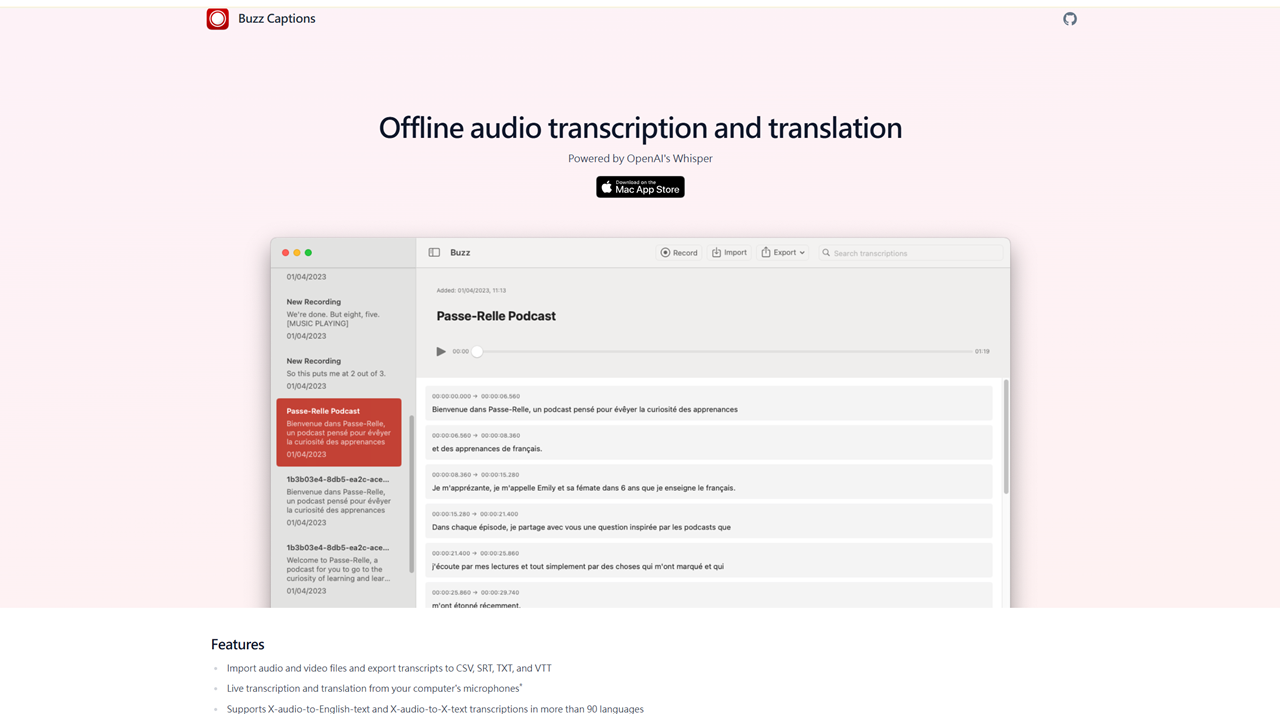
Download and Install Buzz Caption
| a. | Navigate to the website: https://buzzcaptions.com/; |
| b. | Download the software installer for your operating system (Windows/Mac); |
| c. | Run the installer and follow the on-screen instructions to complete the installation; |
| d. | Launch the Buzz Caption application. |
Transcribe from Local Files
| a. | Click the + icon on the main page to select a local file; |
| b. | Configure the transcription settings as they appear; |
| c. | Tick the boxes to select the desired export file format(s); |
| d. | Click the Run button to start the transcription process; |
| e. | Locate the transcribed file(s) in the same folder as the uploaded audio/video; |
| f. | View the transcription records on the main page; |
| g. | Click the Trash Bin icon to delete the transcription history if required (Note: Supported file formats include MP3, WAV, M4A, OGG, OPUS, FLAC, MP4, WebM, OGM, MOV, MKV, AVI, WMV). |
Transcribe from Microphone
| a. | Click the microphone icon to initiate the recording; |
| b. | Select Whisper from the first dropdown menu; |
| c. | Choose a model version from the second dropdown menu; |
| d. | Set the Task dropdown menu to Transcribe; |
| e. | Select the audio language from the Language menu; |
| f. | Choose the input microphone from the last dropdown menu; |
| g. | Click the Record button to start recording; |
| h. | Click the Finish button to stop the recording; |
| i. | View the transcribed content in the text box (Note: Transcription time may vary depending on your system's resources.). |
Transcribe from URLs
| a. | Click the Hyperlink icon on the main page; |
| b. | Input the URL into the text field and click OK; |
| c. | Configure the transcription settings as they appear; |
| d. | Tick the boxes to select the desired export file format(s); |
| e. | Click the Run button to start the transcription task. |
Educational Scenarios
Educators' Perspectives
Learners' Perspectives