
This website uses cookies so that we can provide you with the best user experience possible. Cookie information is stored in your browser and performs functions such as recognising you when you return to our website and helping our team to understand which sections of the website you find most interesting and useful.
Font Size:
Introduction
Key Features
Uniqueness
Frequently Asked Questions
Open-Source?
Registration Needed?
Installation Required?
AI-empowered?
Specifications
URL:
Country or Region:
Author(s):
Availability:
Operating System(s):
Language(s):
Registration Needed:
Installation Required:
Video Demonstration
User Guide
This guide outlines how to install and utilise the Doco add-in for Microsoft Word, interact with its Smart Library, draft content, and manage citations. (Access Date: 12 January 2026)
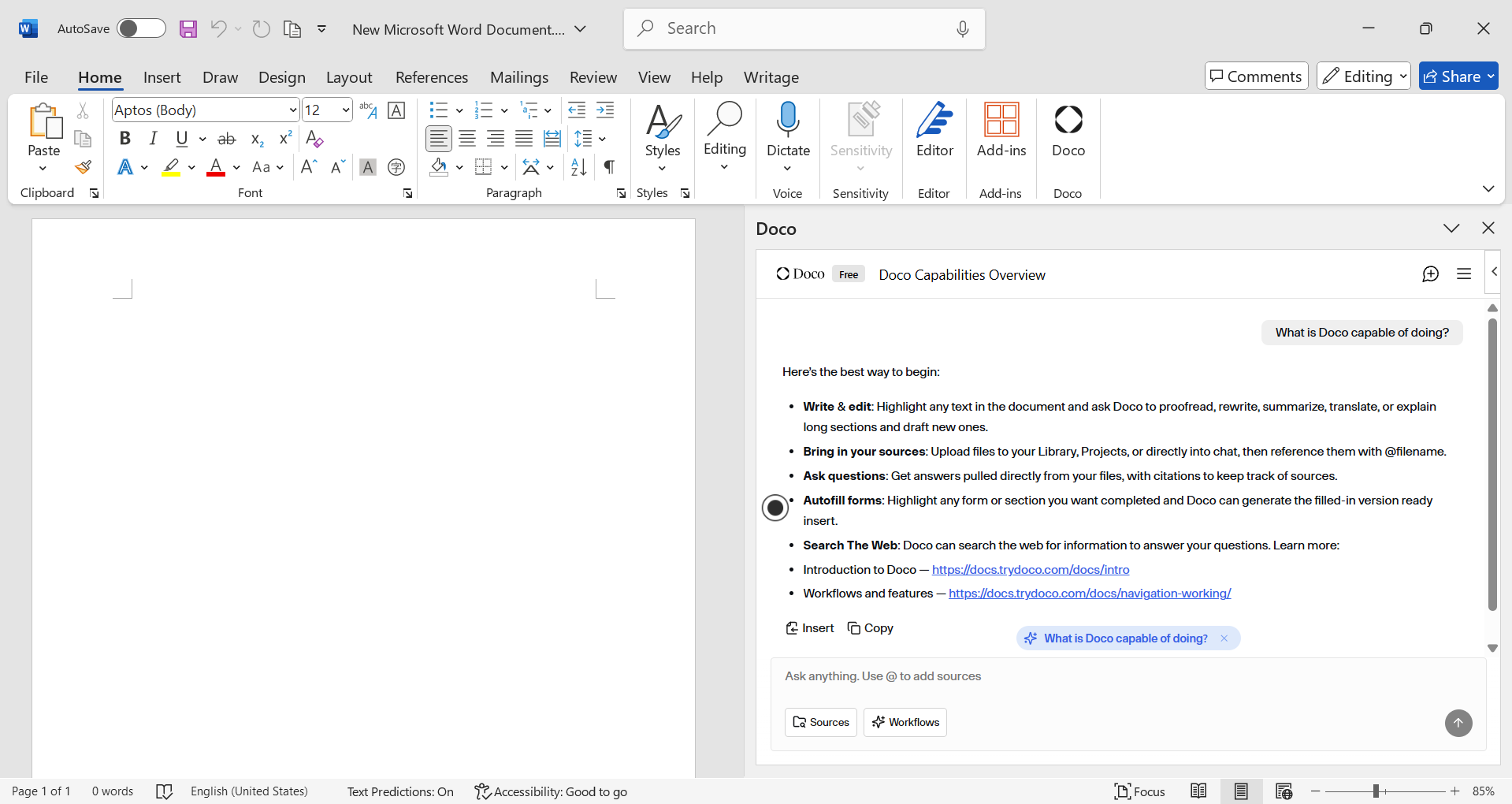
Install Doco
| a. | Open a Microsoft Word file; |
| b. | Navigate to Home > Add-ins > More Add-ins; |
| c. | Search for "Doco" in the search bar and press Enter; |
| d. | Select the Doco application and click Add to install it; |
| e. | Sign up or log in to your Doco account from the add-in pane. |
Interact with the Smart Library
| a. | Click the three-bar icon to create a new project; |
| b. | Upload project files to Doco (Note: Supports PDF, DOCX, EXCEL, and TXT); |
| c. | Use the interface to ask questions or search for information within your connected files; |
| d. | Click Sources > Connect SharePoint / OneDrive to connect more knowledge sources; |
| e. | Receive answers with the source file cited for each piece of information; |
| f. | Click Accept All to apply the changes; |
| g. | Store up to 50 library files on the "Starter" plan (Note: Unlimited uploads are available on the "Pro" and "Enterprise" tiers). |
Draft and Edit Content
| a. | Enter the content you wish to draft in the chat box and press Enter; |
| b. | Select any content in the file to add it to the chat; |
| c. | Click See suggested edits to view suggested modifications; |
| d. | Click Workflows and create a preset workflow to insert the prompt into the chat box; |
| e. | Select a paragraph in the document and click the preset workflow; |
| f. | Select the text in the response and Copy to the document as needed. |
Manage Citations and Formatting
| a. | Click Sources and toggle on Web Search; |
| b. | Enter a query in the chat box and check the response with the given source URLs; |
| c. | Ask Doco to modify content formatting such as fonts, styles, tables, bullets, and numbering; |
| d. | Click Accept All to apply the changes. |
Educational Scenarios
Educators' Perspectives
Learners' Perspectives