
This website uses cookies so that we can provide you with the best user experience possible. Cookie information is stored in your browser and performs functions such as recognising you when you return to our website and helping our team to understand which sections of the website you find most interesting and useful.
Font Size:
Introduction
Key Features
Uniqueness
Frequently Asked Questions
Open-Source?
Registration Needed?
Installation Required?
AI-empowered?
Specifications
URL:
Country or Region:
Author(s):
Availability:
Operating System(s):
Language(s):
Registration Needed:
Installation Required:
Video Demonstration
User Guide
This guide outlines how to use NotebookLM for creating source-based notebooks, generating AI-assisted content, and interacting with documents through an intuitive chat interface.
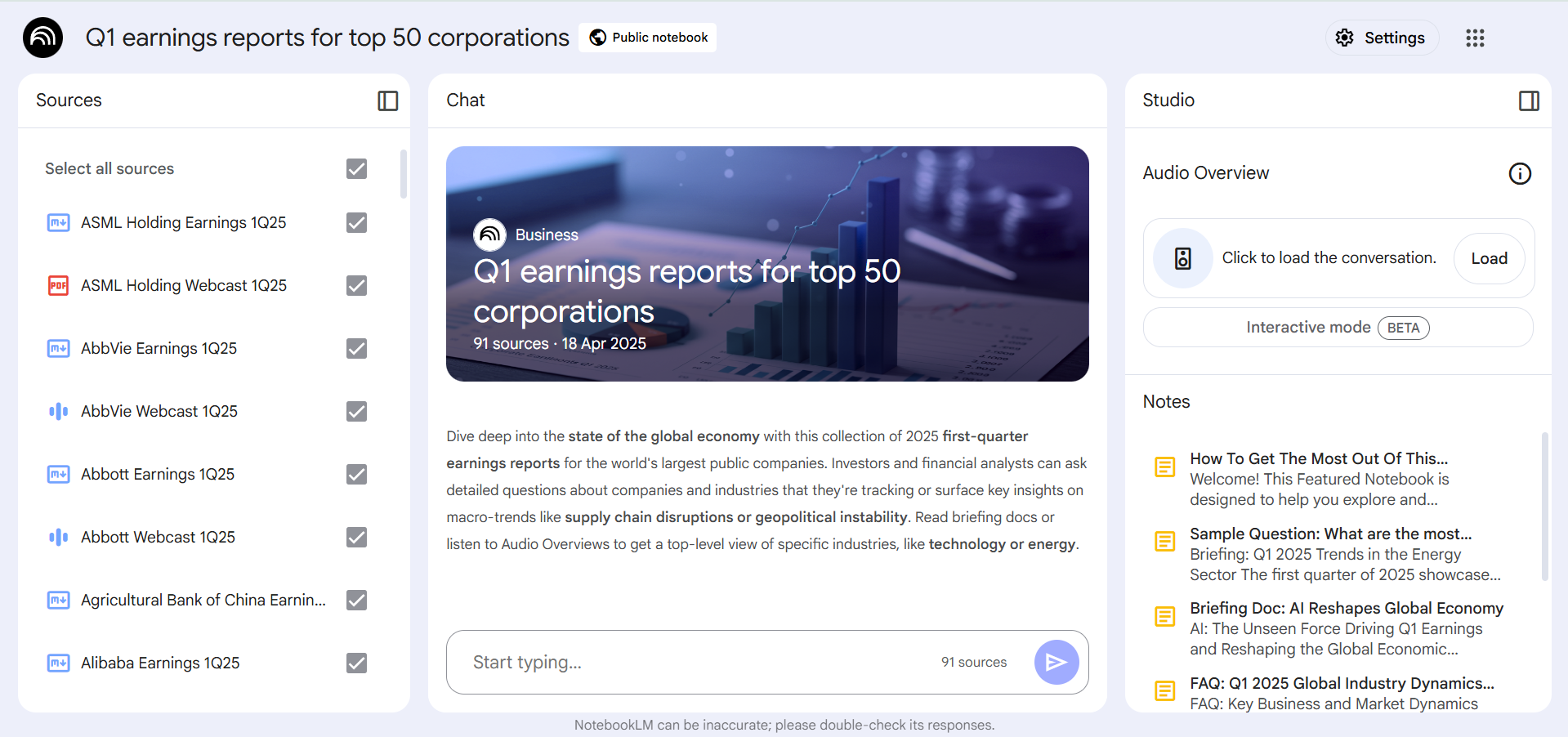
Access NotebookLM Website
| a. | Navigate to the Website: https://notebooklm.google/; |
| b. | Click Try NotebookLM to log in with your Google account and access the main dashboard. |
Create Source-based AI Notebook
| a. | Click the + Create new button in the upper-right panel; |
| b. | Drag and drop files from a computer or select Google Drive to import content from Google Docs or Google Slides; |
| c. | Select Link to add information from a website or a YouTube video transcript; |
| d. | Click Paste text to add copied text directly as a source. |
Utilise AI-assisted Content Generation
| a. | Click to open a created notebook; |
| b. | Click + Add in the Sources panel on the left to import new sources; |
| c. | Click the Study guide button on the right panel to automatically generate notes based on the imported sources; |
| d. | Click Timeline to organise events and information from the sources into a chronological sequence; |
| e. | Select Briefing doc to synthesise materials into a structured report; |
| f. | Click Generate in the Audio Overview panel on the right to create a podcast-style conversation; |
| g. | Click the three-dot icon in the player and select Download to save the audio file; |
| h. | Type a question into the chat bar at the bottom of the screen to query the documents; |
| i. | Review the AI's response, which includes citations that link directly back to the relevant source material; |
| j. | Click the pin icon next to any useful response to save it as a permanent note in the Notes section. |
Educational Scenarios
Educators' Perspectives
Learners' Perspectives