
This website uses cookies so that we can provide you with the best user experience possible. Cookie information is stored in your browser and performs functions such as recognising you when you return to our website and helping our team to understand which sections of the website you find most interesting and useful.
Font Size:
Introduction
Key Features
Uniqueness
Frequently Asked Questions
Open-Source?
Registration Needed?
Installation Required?
AI-empowered?
Specifications
URL:
Country or Region:
Author(s):
Availability:
Operating System(s):
Language(s):
Registration Needed:
Installation Required:
Video Demonstration
User Guide
This guide outlines how to access and use simulations, and explore teacher resources on the PhET website for interactive science and math learning.
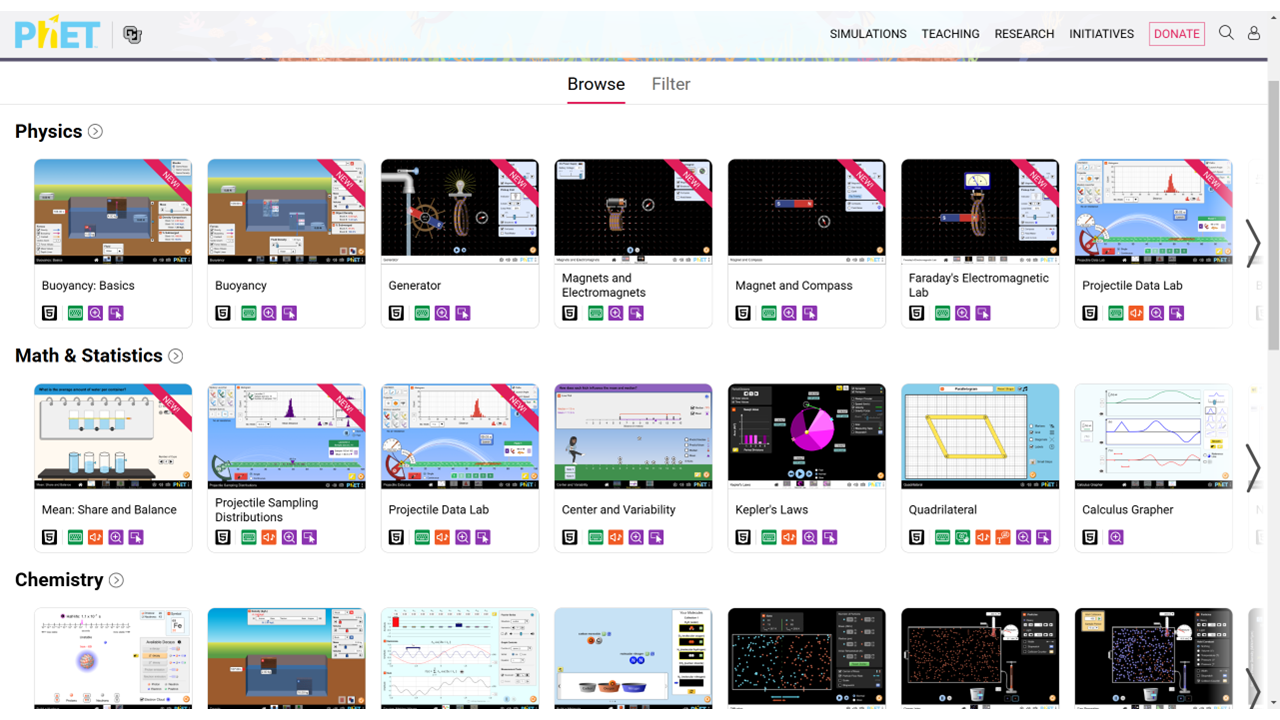
Access PhET Website
| a. | Navigate to the website: https://phet.colorado.edu/; |
| b. | Click the profile icon at the upper-right corner to register or sign in with an email account or Clever (Note: Signing in is not required to use PhET simulations only). |
Interact with Educational Simulations
| a. | Select the SIMULATIONS tab in the main navigation bar and then All Sims from the dropdown menu; |
| b. | Click the thumbnail image of the desired simulation; |
| c. | Click the Download icon under the simulation's title to save it for offline use; |
| d. | Click the Play icon to launch the simulation directly in the browser; |
| e. | Choose an interaction mode from the simulation's startup screen if required; |
| f. | Manipulate variables within the simulation using the available controls; |
| g. | Observe the real-time outcomes of the actions. |
Explore Teacher Resources
| a. | Select the TEACHING tab in the main navigation bar; |
| b. | Select Activities from the dropdown menu to go to the main activities search page; |
| c. | Enter a keyword in the text field and press Enter to search, or select a category button to browse (Note: Category buttons include: Physics Activities, Math & Statistics Activities, Chemistry Activities Earth & Space Activities, Biology Activities, University Activities, etc.); |
| d. | Refine search results using the filter options on the left-hand side (Note: Filter by SUBJECT, GRADE LEVEL, and ACTIVITY TYPE by checking the relevant boxes); |
| e. | Click the title of an activity from the results list to access it; |
| f. | Scroll down to the Files section on the activity's page; |
| g. | Click an individual file name to download it, or select Download all files as a compressed .zip to save all associated documents at once. |
Educational Scenarios
Educators' Perspectives
Learners' Perspectives