
This website uses cookies so that we can provide you with the best user experience possible. Cookie information is stored in your browser and performs functions such as recognising you when you return to our website and helping our team to understand which sections of the website you find most interesting and useful.
Font Size:
Introduction
Key Features
Uniqueness
Frequently Asked Questions
Open-Source?
Registration Needed?
Installation Required?
AI-empowered?
Specifications
URL:
Country or Region:
Author(s):
Availability:
Operating System(s):
Language(s):
Registration Needed:
Installation Required:
Video Demonstration
User Guide
This guide outlines how to create interactive polls, engage audiences in real-time, and export valuable polling data and insights using the Mentimeter web tool.
Access Mentimeter Website
| a. | Navigate to the website: https://www.mentimeter.com/; |
| b. | Click the Log in or Sign up button in the top-right corner; |
| c. | Sign in or register with a Google account or email address (Note: The free plan allows for up to 50 participants per month). |
Create Live Interactive Polls
| a. | Click the Start with AI button to generate a presentation from a text description; |
| b. | Enter the topic, session type, and objective into the text box; |
| c. | Click the Submit button; |
| d. | Review the AI-generated outline; |
| e. | Click Submit; |
| f. | Select a theme colour to create the draft presentation; |
| g. | Click Start editing after the generation is complete; |
| h. | Click the + New slide button in the top-left corner to add more slides; |
| i. | Select a slide; |
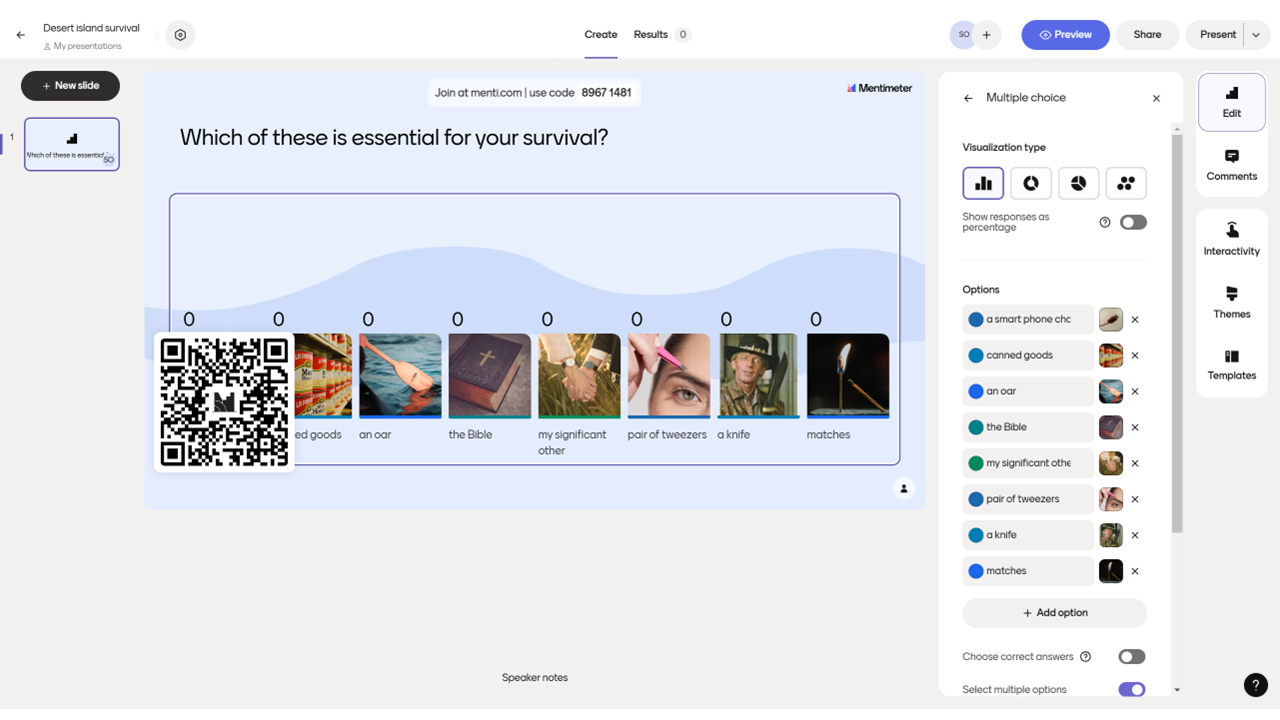
| j. | Choose an interactive question type such as Multiple Choice, Word Cloud, or Quiz from the Edit tab on the right-hand sidebar; |
| k. | Enter the question and any corresponding options or statements into the content fields for that slide; |
| l. | Select the Themes tab on the right-hand sidebar; |
| m. | Choose a pre-made theme to customise the visual appearance of the presentation. |
Enable Audience Participation
| a. | Click the Share button in the top-right corner of the editor; |
| b. | Copy the Participation link from the pop-up window; |
| c. | Download the QR code for the audience from the pop-up window; |
| d. | Click the Present button in the top-right corner to enter full-screen mode; |
| e. | Direct the audience to visit the website: https://www.menti.com/ and enter the code displayed on the presentation screen; |
| f. | Use the arrow keys at the bottom-left corner to navigate through the slides and display real-time results; |
| g. | Press the Esc key to exit the presentation and return to the editor. |
Export Polling Data and Insights
| a. | Open the presentation from the dashboard that contains the results to export; |
| b. | Click the Results tab at the top of the screen to view all submitted responses; |
| c. | Click the Arrow icon on the right-side edge to expand the right-side panel; |
| d. | Click Download on the right-side panel; |
| e. | Select All slides (PDF) to export the results. |
Educational Scenarios
Educators' Perspectives
Learners' Perspectives