
This website uses cookies so that we can provide you with the best user experience possible. Cookie information is stored in your browser and performs functions such as recognising you when you return to our website and helping our team to understand which sections of the website you find most interesting and useful.
Font Size:
Introduction
Key Features
Uniqueness
Frequently Asked Questions
Open-Source?
Registration Needed?
Installation Required?
AI-empowered?
Specifications
URL:
Country or Region:
Author(s):
Availability:
Operating System(s):
Language(s):
Registration Needed:
Installation Required:
Video Demonstration
User Guide
This guide outlines how to download, install, and configure OBS Studio for basic video recording and enhancement. (Reference Version: 31.1.2)
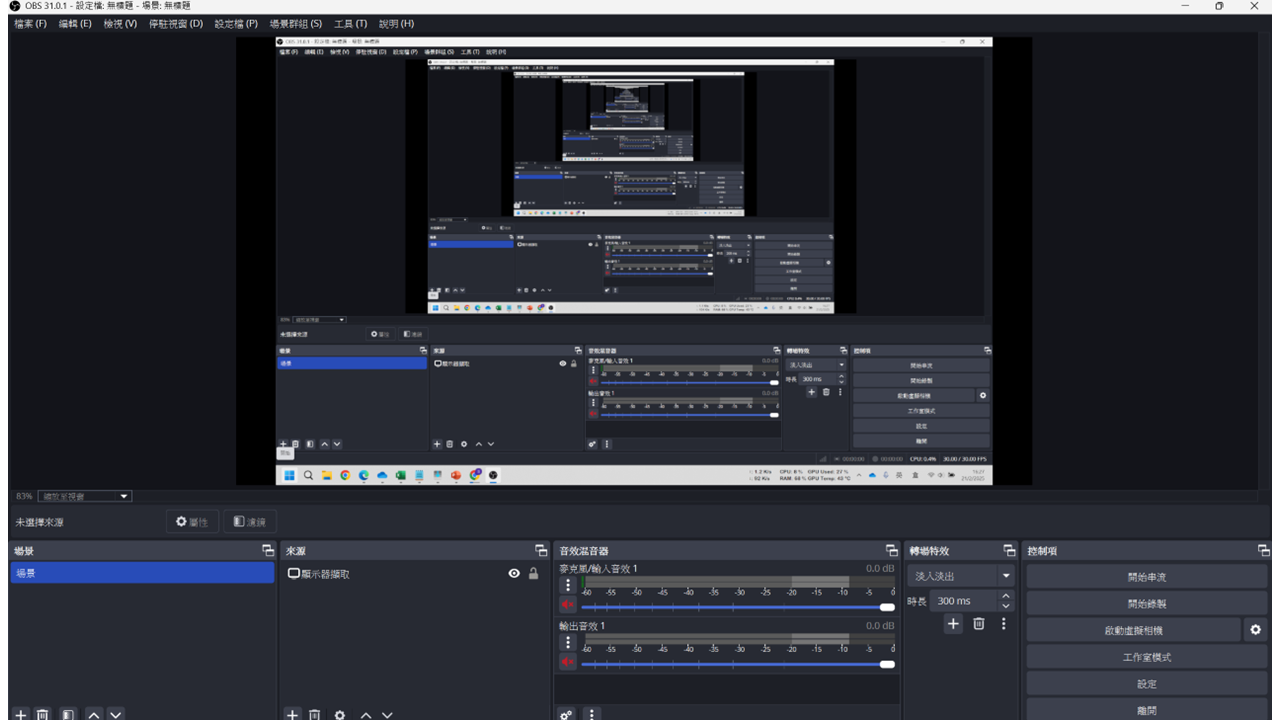
Download and Install OBS Studio
| a. | Navigate to the website: https://obsproject.com/; |
| b. | Select the installer version that matches your operating system; |
| c. | Run the installer and follow the on-screen instructions to complete the installation; |
| d. | Launch the OBS Studio software. |
Configure Video Sources
| a. | Click the + button in the Sources dock; |
| b. | Select Display Capture; |
| c. | Select the desired window from the Window dropdown menu and click OK; |
| d. | Click and drag the red corners of the source in the main preview area to resize and position it; |
| e. | Right-click within the Sources dock, select Add, and choose Media Source; |
| f. | Click the Browse button next to Local File to select a video; |
| g. | Tick the Loop checkbox to play the video continuously (Note: This is useful for animated backgrounds or recurring video elements); |
| h. | Click OK to add the video to the scene. |
Apply Colour Filters on Video
| a. | Right-click on the video source and select Filters; |
| b. | Click the + icon under the Effect Filters section; |
| c. | Select Chroma Key from the list; |
| d. | Adjust the filter settings, such as Key Colour Type, Similarity, and Smoothness, until the background is removed; |
| e. | Click Close to apply the filter; |
| f. | Right-click the desired source and select Filters; |
| g. | Click the + icon under Effect Filters and choose Colour Correction; |
| h. | Adjust the sliders for Gamma, Contrast, Brightness, and Saturation to enhance the video's appearance; |
| i. | Click Close to save the changes. |
Record a Scene
| a. | Click the Start Recording button in the Controls dock to begin capturing; |
| b. | Click the Stop Recording button to finish (Note: Recordings are saved by default to your system's Videos folder). |
Educational Scenarios
Educators' Perspectives
Learners' Perspectives