
This website uses cookies so that we can provide you with the best user experience possible. Cookie information is stored in your browser and performs functions such as recognising you when you return to our website and helping our team to understand which sections of the website you find most interesting and useful.
Font Size:
Introduction
Key Features
Uniqueness
Frequently Asked Questions
Open-Source?
Registration Needed?
Installation Required?
AI-empowered?
Specifications
URL:
Country or Region:
Author(s):
Availability:
Operating System(s):
Language(s):
Registration Needed:
Installation Required:
Video Demonstration
User Guide
This guide outlines how to install Aboboo, manage study groups, and use the dictation and reading practice features to improve language skills. (Reference Version: 3.11.1)
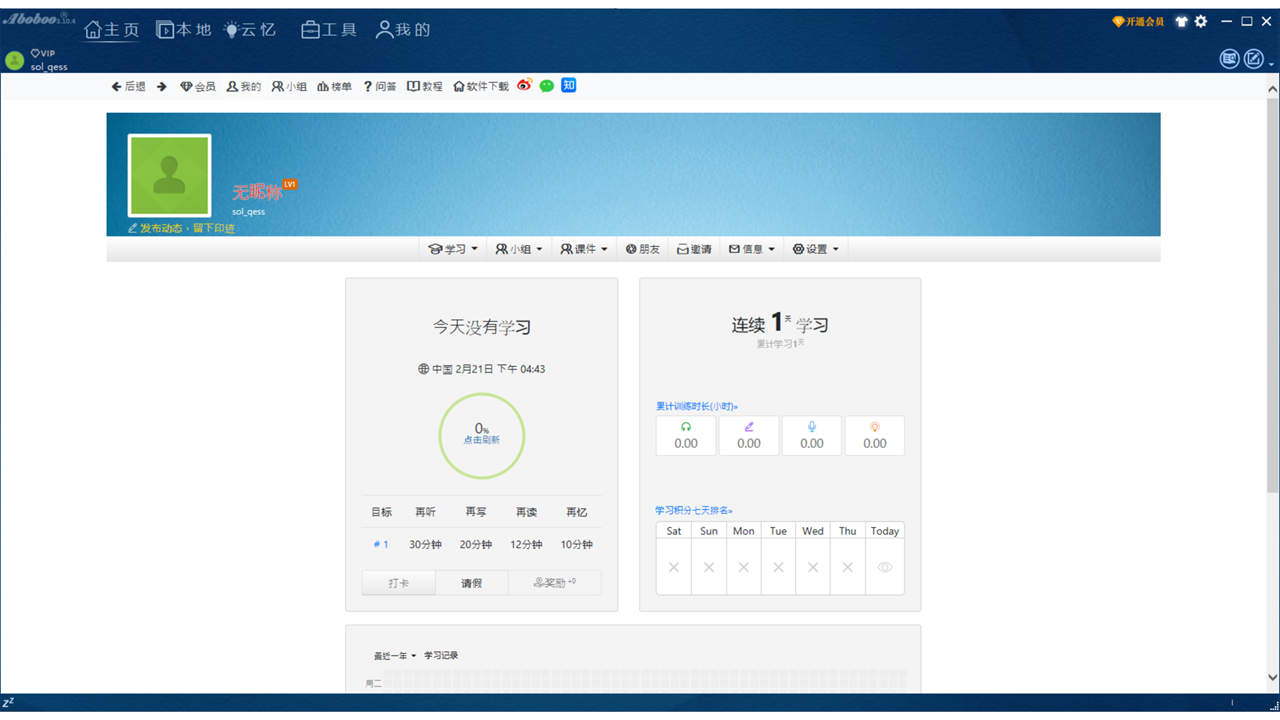
Download and Install Aboboo
| a. | Navigate to the website: https://www.aboboo.com/; |
| b. | Click 軟件下載 (Download) and select the installer version that matches the operating system; |
| c. | Run the installer and follow the on-screen instructions to complete the installation; |
| d. | Launch the Aboboo software. |
Join and Manage Study Groups
| a. | Click the 主頁 (Main Page) tab, then select the 小組 (Groups) sub-tab; |
| b. | Enter keywords into the 搜索 (Search) bar and click the search button; |
| c. | Select a group from the search results to view its details; |
| d. | Click the 加入小組 (Join Group) button to become a member; |
| e. | Click on a group name to view the shared study materials; |
| f. | Click the 下載 (Download) button next to a file to save it for offline use; |
| g. | Navigate to the 本地 (Local) tab, and select the 最新下載課件 (Newly Downloaded Courseware) section to see all downloaded materials; |
| h. | Select a downloaded file and click the 播放 (Play) button to start the lesson. |
Practise Sentence Dictation
| a. | Click the 本地 (Local) tab, then select a courseware file that includes audio and text; |
| b. | Select the 學習 (Study) > 單句聽寫 (Sentence Dictation) mode; |
| c. | Listen to the audio for the first sentence segment; |
| d. | Type the heard text into the provided text field; |
| e. | Click the 重聽 (Replay) button to listen to the audio again; |
| f. | Click the 校對 (Check Answer) button; |
| g. | Press the Esc key to move to the next sentence (Note: Using keyboard shortcuts can make the dictation process smoother and faster); |
| h. | Click the 完成 (Finish) button after completing all sentences to view the results; |
| i. | Click the 返回 (Back) button to exit the results screen. |
Practice Article Reading
| a. | Click the 本地 (Local) tab, then select a courseware file that includes audio and text; |
| b. | Select the 學習 (Study) > 跟讀 (Reading Practice) mode (Note: You may be prompted to set practice goals before you begin); |
| c. | Click the 開始 (Start) button; |
| d. | Listen to the original audio for the current sentence; |
| e. | Read the sentence aloud to record your voice; |
| f. | Click the 播放我的錄音 (Play My Recording) button to listen to your recording; |
| g. | Review the on-screen feedback, including waveform comparison and pronunciation score; |
| h. | Use the 語速 (Speed) slider to adjust the original audio's playback speed if needed; |
| i. | Click the 完成全文讀 (Finish) button to complete the practice session. |
Educational Scenarios
Educators' Perspectives
Learners' Perspectives