
This website uses cookies so that we can provide you with the best user experience possible. Cookie information is stored in your browser and performs functions such as recognising you when you return to our website and helping our team to understand which sections of the website you find most interesting and useful.
Font Size:
Introduction
Key Features
Uniqueness
Frequently Asked Questions
Open-Source?
Registration Needed?
Installation Required?
AI-empowered?
Specifications
URL:
Country or Region:
Author(s):
Availability:
Operating System(s):
Language(s):
Registration Needed:
Installation Required:
Video Demonstration
User Guide
This guide outlines how to use Memo for transcribing, translating, and exporting media files.
(Reference Version: 1.6.0)
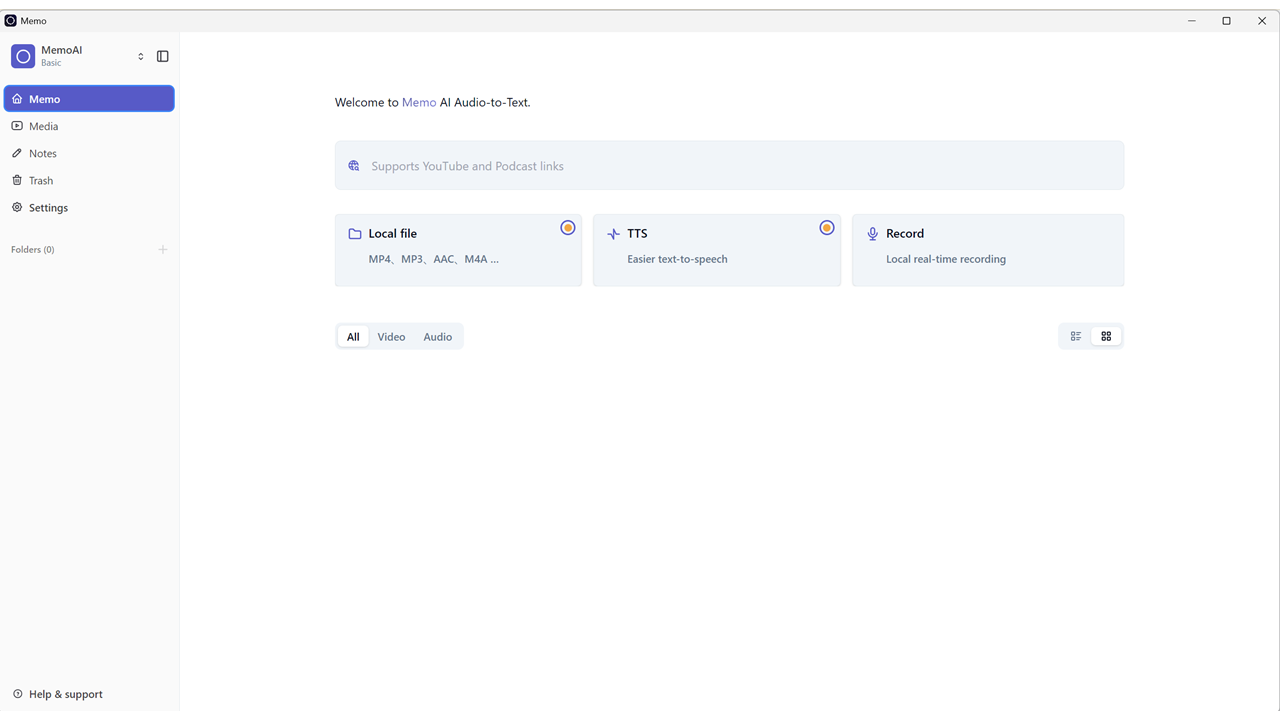
Download and Install Memo
| a. | Navigate to the website: https://memo.ac/; |
| b. | Select the Download tab from the top panel; |
| c. | Click the Download for Windows button; |
| d. | Run the installer and follow the on-screen instructions to complete the installation; |
| e. | Launch the Memo software; |
| f. | Click the Settings button in the left sidebar; |
| g. | Select the Transcription tab from the settings menu; |
| h. | Choose a model from the Available Models list under the Local Transcription > Model Management tab; |
| i. | Click the Download button to download the model. |
Transcribe Video Files
| a. | Click Memo in the left sidebar; |
| b. | Click Local file to select a file or paste a YouTube or Podcast link into the text field (Note: Memo supports MP4, MP3, AAC, M4A and other common audio and video formats); |
| c. | Configure settings such as language, quality, and auto cut in the pop-up window; |
| d. | Click the Transcribe button to begin. |
Apply Translation and Speaker Diarisation
| a. | Open a transcribed file from the Media library; |
| b. | Click the Translate button on the upper-right toolbar; |
| c. | Set the service provider and target language in the dropdown list and click Translate; |
| d. | Click the Speaker recognition icon on the upper-right toolbar (Note: This feature runs locally on your device to distinguish different speakers and requires a model download upon first-time use); |
| e. | Select the number of speakers in the dropdown list and click Recognising; |
| f. | Click the speaker label in the text field to enter the speaker names; |
| g. | Click the Confirm button to save the new label. |
Export Transcripts and Notes
| a. | Click the Export button in the upper-right corner; |
| b. | Select a file type from the Export format options, such as TXT, Markdown, or SRT; |
| c. | Toggle on the Speaker field to embed the speaker labels; |
| d. | Click the final Export button to save the file to your computer. |
Educational Scenarios
Educators' Perspectives
Learners' Perspectives