
This website uses cookies so that we can provide you with the best user experience possible. Cookie information is stored in your browser and performs functions such as recognising you when you return to our website and helping our team to understand which sections of the website you find most interesting and useful.
Font Size:
Introduction
Key Features
Uniqueness
Frequently Asked Questions
Open-Source?
Registration Needed?
Installation Required?
AI-empowered?
Specifications
URL:
Country or Region:
Author(s):
Availability:
Operating System(s):
Language(s):
Registration Needed:
Installation Required:
Video Demonstration
User Guide
This guide outlines how to create, customise, and export educational materials using Diffit by selecting content sources, adjusting reading levels, and adding interactive activities.
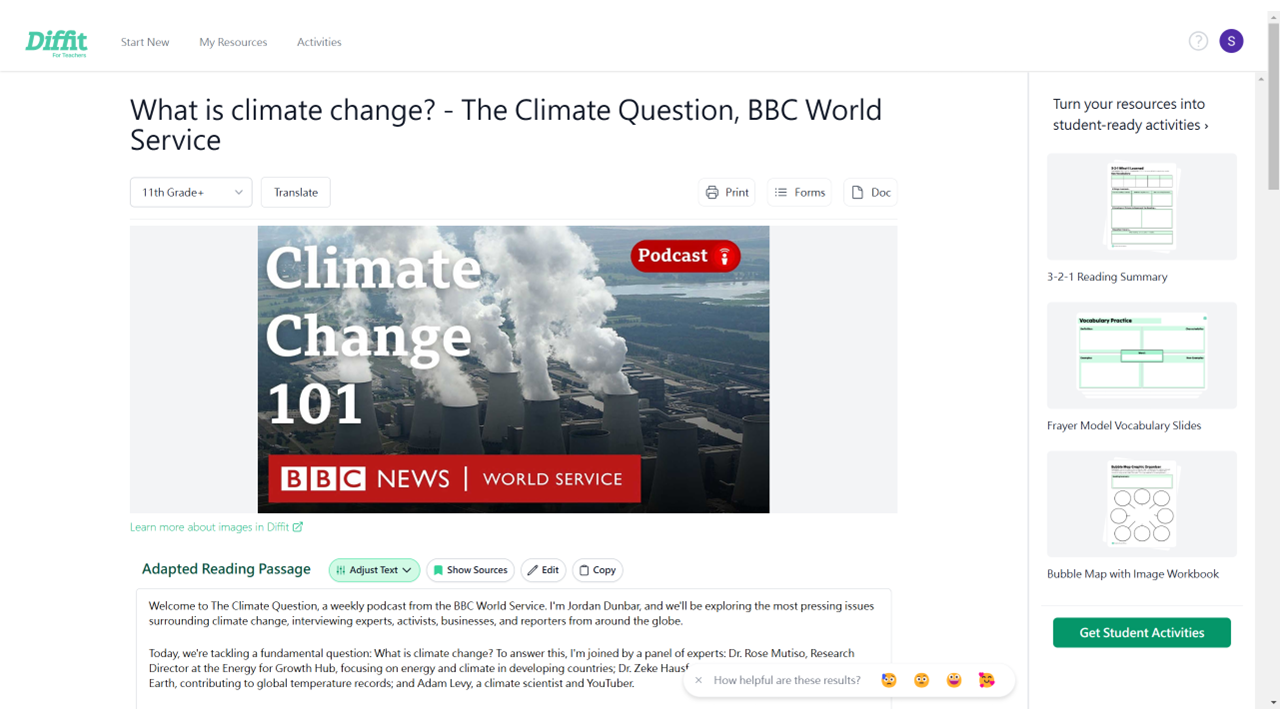
Access Diffit Website
| a. | Navigate to the website: https://web.diffit.me/; |
| b. | Click Teachers Start Here; |
| c. | Click the Sign In or Create Free Account button to log in or register using a Microsoft account, Google account, or an email address. |
Create and Customise Resources
| a. | Select a content source, such as Literally Anything, Books, or Text, PDFs & Links; |
| b. | Enter a topic in the search bar or click Upload a PDF to use a file from a local device (Note: The free plan permits uploading PDF files containing fewer than 40,000 characters); |
| c. | Select the Language and reading level from the dropdown menus; |
| d. | Click the Generate Resources button; |
| e. | Review the generated content, which includes Reading & Summary, Vocabulary, and Multiple Choice Questions (Note: Edit any section directly or click the generate buttons to add more vocabulary or questions); |
| f. | Scroll down to the Add Activity section and click Browse Activities; |
| g. | Select an activity from the library to add it to the resource. |
Edit and Refine Generated Content
| a. | Locate the section to be modified on the generated resources page; |
| b. | Click directly inside the text field of a section to make manual edits; |
| c. | Click the reading level button in the top toolbar to adjust the complexity; |
| d. | Select a new reading level from the dropdown list and click Regenerate; |
| e. | Click the Language button in the top toolbar to translate the material; |
| f. | Choose a target language from the list and click Translate to convert the full set of resources. |
Add Activities and Export Resources
| a. | Navigate to the + (Add Student Activities) button at the bottom of the left-side table of contents; |
| b. | Click on an activity type, such as Short Answer Questions or Open-Ended Prompts, to append it to the document; |
| c. | Click the Generate button within a specific activity's section to create new questions or prompts if needed; |
| d. | Click the v (More Export Options) icon to show the dropdown list from the top panel; |
| e. | Click Download PDF or Copy Link to export the resources page. |
Educational Scenarios
Educators' Perspectives
Learners' Perspectives