
This website uses cookies so that we can provide you with the best user experience possible. Cookie information is stored in your browser and performs functions such as recognising you when you return to our website and helping our team to understand which sections of the website you find most interesting and useful.
Font Size:
Introduction
Key Features
Uniqueness
Frequently Asked Questions
Open-Source?
Registration Needed?
Installation Required?
AI-empowered?
Specifications
URL:
Country or Region:
Author(s):
Availability:
Operating System(s):
Language(s):
Registration Needed:
Installation Required:
Video Demonstration
User Guide
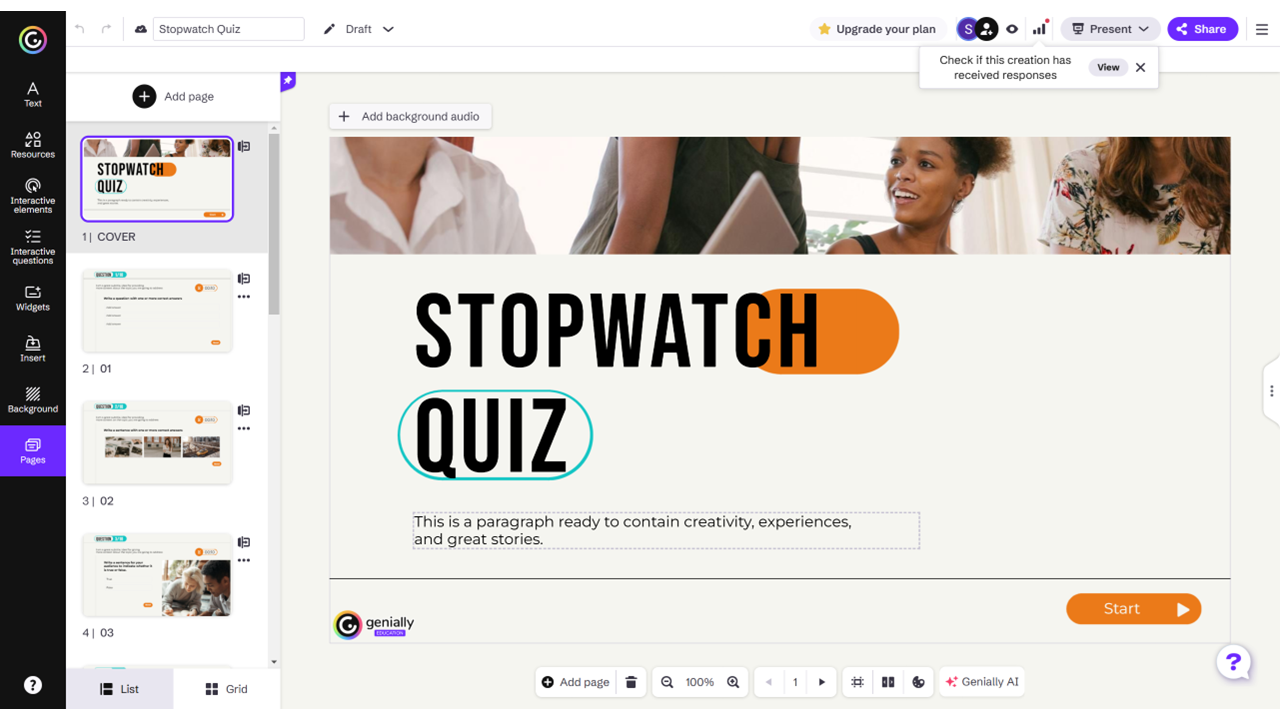
This guide outlines how to access the Genially website, create and edit slides using templates, and present and share the final interactive content.
(Access Date: 31 July 2025)
Access Genially Website
| a. | Navigate to the website: https://genial.ly; |
| b. | Click Log in or Sign up in the top-right corner of the page; |
| c. | Select Continue with Google, Microsoft, Facebook, or enter an email address to log in or register; |
| d. | Click the Profile picture on the top-left corner to access the main dashboard. |
Create Slides from a Template
| a. | Click the Create genially button on the left-hand menu of the main dashboard; |
| b. | Select From a template from the options in the dropdown list (Note: This also supports blank creation, or importing a file, including PPTX, PDF, Google Slides, and images); |
| c. | Browse the template gallery and click a template to preview its pages and structure; |
| d. | Click the Use this template button to open the template in the editor. |
Edit Slides
| a. | Select a slide to edit from the Pages tab on the left-hand side of the editor; |
| b. | Click the Text tab on the left-hand menu to add and format titles, paragraphs, and lists; |
| c. | Choose the Resources tab to upload images or search the image library; |
| d. | Click Interactive elements from the left-hand menu to add pre-made buttons, markers, and icons; |
| e. | Select any element on the slide and click the Interactivity icon that appears above it to add tooltips, links, or pop-up windows; |
| f. | Click the Animation icon to apply entrance, exit, and continuous effects to elements on the slide. |
Present and Share
| a. | Click Present > Show Creation > Continue from the top-right corner to enter full-screen presentation mode in a new browser tab (Note: You will be prompted to publish your creation first, giving it a title and description); |
| b. | Select the Share button from the top-right corner to open the publishing options; |
| c. | Choose the Link tab to copy a public link to the creation; |
| d. | Select the Insert tab to generate an iframe code for embedding; |
| e. | Click the Download button to save the creation as an interactive PDF, JPG, MP4, or HTML (Note: All download options are premium features). |
Educational Scenarios
Educators' Perspectives
Learners' Perspectives