
This website uses cookies so that we can provide you with the best user experience possible. Cookie information is stored in your browser and performs functions such as recognising you when you return to our website and helping our team to understand which sections of the website you find most interesting and useful.
Font Size:
Introduction
Key Features
Uniqueness
Frequently Asked Questions
Open-Source?
Registration Needed?
Installation Required?
AI-empowered?
Specifications
URL:
Country or Region:
Author(s):
Availability:
Operating System(s):
Language(s):
Registration Needed:
Installation Required:
Video Demonstration
User Guide
This guide outlines how to use Writetone's core features to refine text, humanise AI-generated content, and consult with AI subject matter experts for immediate answers.
Access Writetone Website
| a. | Navigate to the website: https://writetone.com/; |
| b. | Click Sign up / Log in in the top-right corner of the page; |
| c. | Select Continue with Google, Continue with Facebook, or enter an email address to create a new account or log in. |
Adjust Tone of Writing
| a. | Select the Paraphraser tool from the main dashboard; |
| b. | Enter the text into the text area on the left-hand side; |
| c. | Choose a desired writing tone from the top panel, including Simple, Normal, Formal, Informal, Casual, Academic, Short, and Expand; |
| d. | Click More Tones to view more available options; |
| e. | Toggle on the Syn. switch to enable synonyms; |
| f. | Click on a word in the right-hand side revised text area to view the synonyms; |
| g. | Click the synonyms to replace the word; |
| h. | Click the Copy button to use the new content. |
Humanise Generated Text
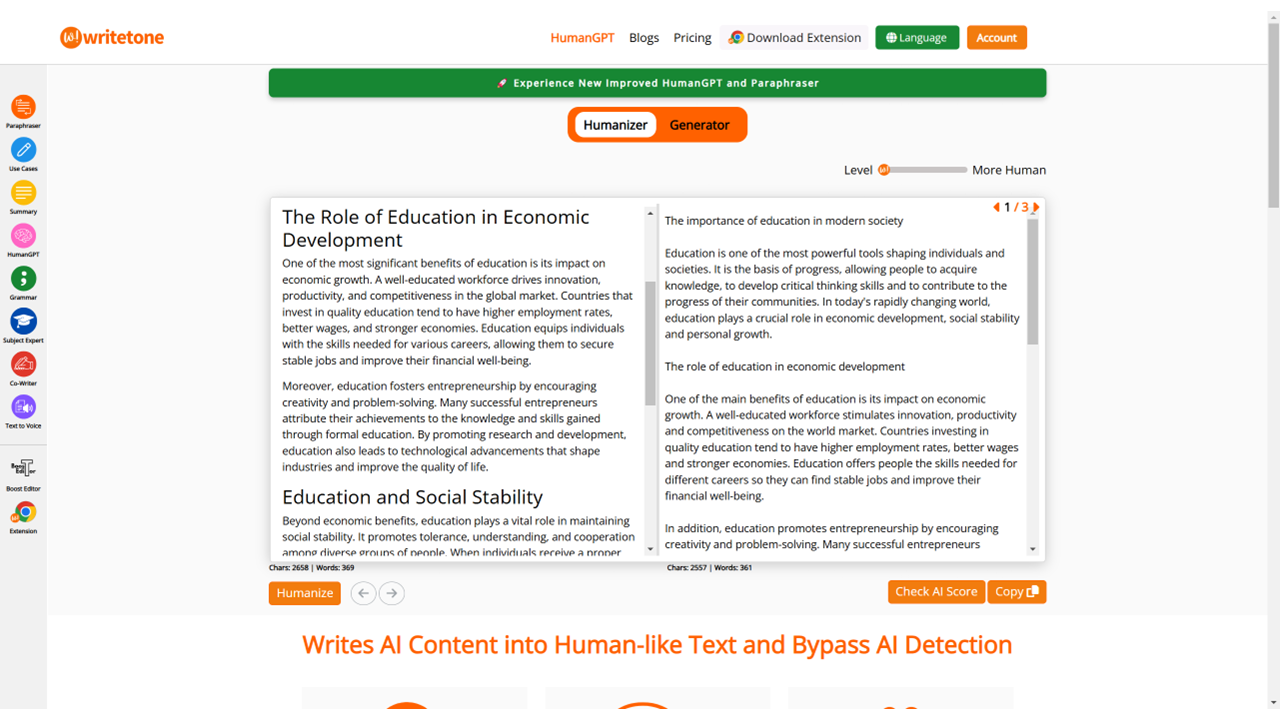
| a. | Click on the HumanGPT tool from the main dashboard (Note: This feature is designed to convert AI-generated content into human-like text and bypass AI detection); |
| b. | Adjust the level of humanisation by using the slider on the right; |
| c. | Enter the text into the input field; |
| d. | Click the Humanise button to process the text; |
| e. | Click Check AI Score; |
| f. | Review the generated content's AI Score for reference; |
| g. | Click the Copy button to save the humanised content for your use. |
Chat with AI Subject Expert
| a. | Select the Subject Expert tool from the main dashboard; |
| b. | Select a field of expertise from the dropdown menu, such as Geography, Nursing, or Economics; |
| c. | Enter the prompt into the text field; |
| d. | Click the send button to receive a response from the AI. |
Educational Scenarios
Educators' Perspectives
Learners' Perspectives