
This website uses cookies so that we can provide you with the best user experience possible. Cookie information is stored in your browser and performs functions such as recognising you when you return to our website and helping our team to understand which sections of the website you find most interesting and useful.
Font Size:
Introduction
Key Features
Uniqueness
Frequently Asked Questions
Open-Source?
Registration Needed?
Installation Required?
AI-empowered?
Specifications
URL:
Country or Region:
Author(s):
Availability:
Operating System(s):
Language(s):
Registration Needed:
Installation Required:
Video Demonstration
User Guide
This guide outlines how to use Research Rabbit to import papers, discover related academic works, and export citations for your research projects.
(Access Date: 25 July 2025)
Access Research Rabbit Website
| a. | Navigate to the website: https://www.researchrabbit.ai/; |
| b. | Click the Sign up or Log in button to register or access your account; |
| c. | Enter your credentials to access the dashboard. |
Import and Organise Paper Collections
| a. | Locate the left-hand sidebar on the main dashboard; |
| b. | Click the New Collection button; |
| c. | Enter a descriptive name for the collection and press Enter; |
| d. | Click to open a collection from the sidebar; |
| e. | Click the + Add Papers button to open the search interface; |
| f. | Enter keywords or a DOI into the search bar and click Search; |
| g. | Click Upload File to import existing reference libraries in BibTeX or RIS format; |
| h. | Click the + Add to Collection button next to each desired paper from the search results. |
Discover Related Academic Papers
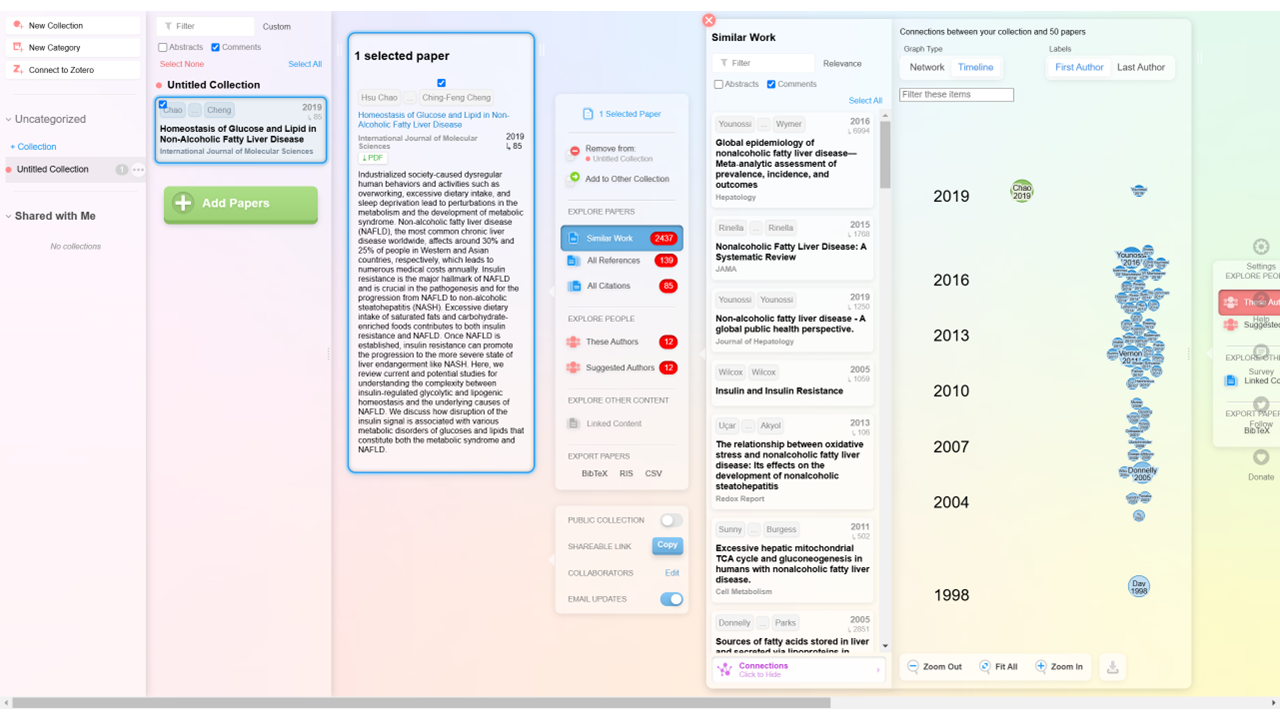
| a. | Select one or more papers in your collection by ticking the checkbox next to their titles; |
| b. | Click Similar Work, Earlier Work, or Later Work in the new panel to find related papers; |
| c. | Click on any paper in the new column to view its details in the preview pane; |
| d. | Click the + Add to button in the preview pane to add a paper to your collection; |
| e. | View the research network graph on the left side of the screen; |
| f. | Switch between Network and Timeline views using the toggle buttons above the graph; |
| g. | Interact with the visualisation by zooming, panning, and hovering over nodes to see paper details. |
Export Citation List
| a. | Locate the Export Papers section in any list of papers; |
| b. | Select a format for your citation export: BibTeX, RIS, or CSV; |
| c. | Click Save in the pop-up file explorer to download the file; |
| d. | Toggle on Email Updates for your collection to set up email alerts for new papers. |
Educational Scenarios
Educators' Perspectives
Learners' Perspectives