
This website uses cookies so that we can provide you with the best user experience possible. Cookie information is stored in your browser and performs functions such as recognising you when you return to our website and helping our team to understand which sections of the website you find most interesting and useful.
Font Size:
Introduction
Key Features
Uniqueness
Frequently Asked Questions
Open-Source?
Registration Needed?
Installation Required?
AI-empowered?
Specifications
URL:
Country or Region:
Author(s):
Availability:
Operating System(s):
Language(s):
Registration Needed:
Installation Required:
Video Demonstration
User Guide
This guide outlines how to use the Symbolab web tool to solve mathematical problems, generate function graphs, and save your results.
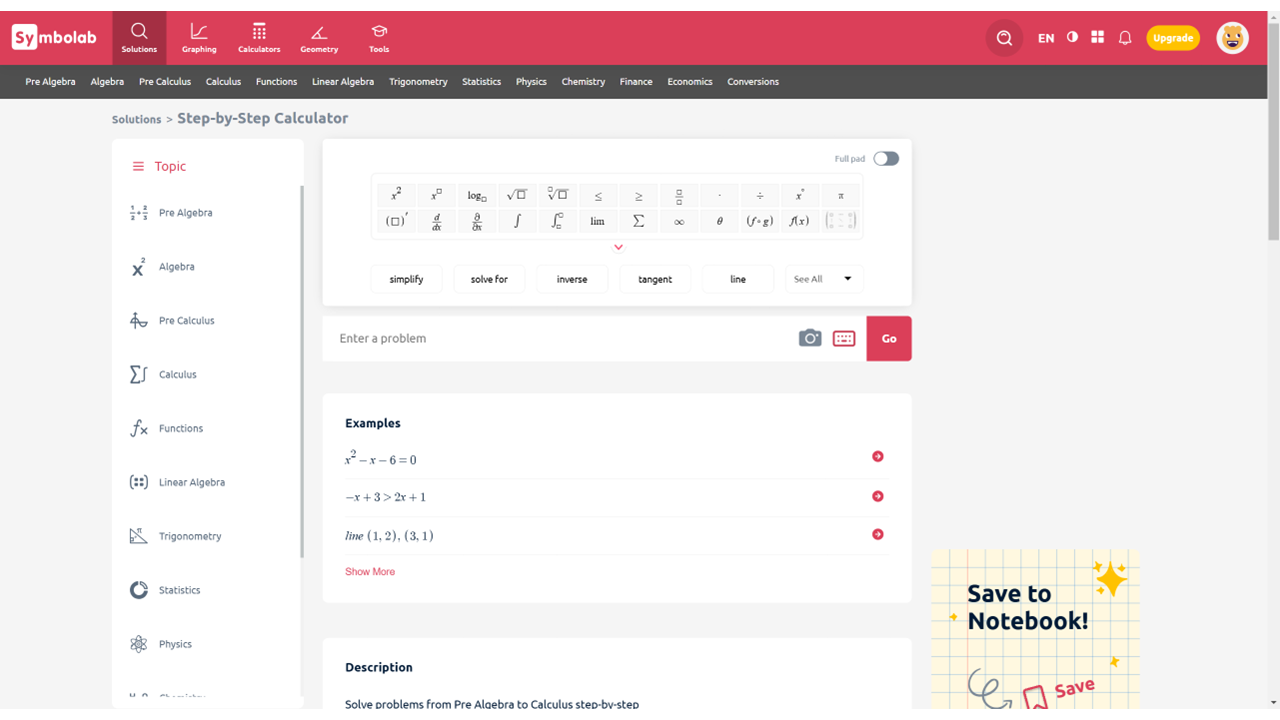
Access Symbolab Website
| a. | Navigate to the website: https://www.symbolab.com/; |
| b. | Create an account to save your work and access additional features. |
Solve Maths Problems with AI
| a. | Enter a mathematical equation or a plain English request into the AI Math Calculator input field; |
| b. | Select the on-screen mathematical symbols and functions for quick input; |
| c. | Click the Go button; |
| d. | Review the final answer displayed. |
Use Functions Calculator
| a. | Navigate to the Graphing tab; |
| b. | Enter a function into the Graphing Calculator input field (Note: You can enter multiple functions to see them plotted on the same graph in different colours); |
| c. | Press the Enter key to generate the graph; |
| d. | Use the zoom buttons to adjust the graph view; |
| e. | Hover over the graph to view key points; |
| f. | Click the red three-bar icon to open the option menu; |
| g. | Click Save as PDF to save the graph. |
Educational Scenarios
Educators' Perspectives
Learners' Perspectives