
This website uses cookies so that we can provide you with the best user experience possible. Cookie information is stored in your browser and performs functions such as recognising you when you return to our website and helping our team to understand which sections of the website you find most interesting and useful.
Font Size:
Introduction
Key Features
Uniqueness
Frequently Asked Questions
Open-Source?
Registration Needed?
Installation Required?
AI-empowered?
Specifications
URL:
Country or Region:
Author(s):
Availability:
Operating System(s):
Language(s):
Registration Needed:
Installation Required:
Video Demonstration
User Guide
This guide outlines how to download, install, and manage software applications using the UniGetUI tool on a Windows operating system.
(Reference Version: 3.3.1)
Download and Install UniGetUI
| a. | Navigate to the website: https://www.marticliment.com/unigetui/; |
| b. | Click the Download button to download the installer; |
| c. | Run the installer and follow the on-screen instructions to complete the installation; |
| d. | Open Windows PowerShell by pressing the Windows key and typing "PowerShell"; |
| e. | Type the command scoop install main/scoop-search into PowerShell and press Enter; |
| f. | Launch UniGetUI from your Start Menu or desktop shortcut. |
Install or Uninstall Applications
| a. | Open UniGetUI; |
| b. | Select package managers preferences from the left navigation panel; |
| c. | Toggle on the Scoop and Winget package manager tabs; |
| d. | Select Discover Packages from the left navigation panel; |
| e. | Enter a package name in the search bar and press Enter; |
| f. | Tick the checkbox next to the desired package(s); |
| g. | Click Install and more ... > Download selected installers in the top action bar; |
| h. | Navigate to the Installed Packages section in the left navigation panel to uninstall; |
| i. | Tick the checkbox next to the software you wish to remove; |
| j. | Click the Uninstall and more ... > Uninstall selected installers in the top action bar; |
| k. | Confirm the action when prompted (Note: You can install or uninstall multiple packages simultaneously by selecting them before clicking the respective action button). |
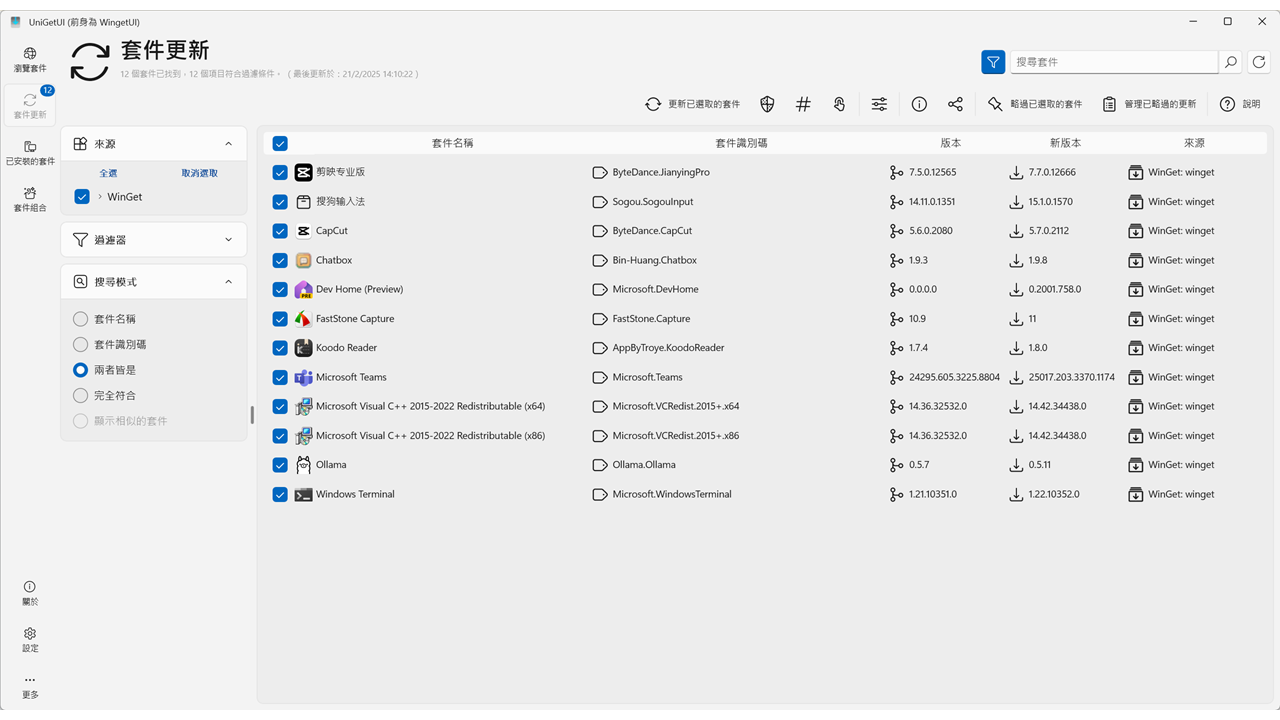
Update Installed Software
| a. | Open UniGetUI; |
| b. | Select Software Updates from the left navigation panel; |
| c. | Review the list of available updates; |
| d. | Tick the checkbox next to the package(s) you want to update; |
| e. | Click the Update and more ... > Update selected packages in the top action bar; |
| f. | Monitor the update progress in the Queue section (Note: To configure notifications or automatic updates, click the Settings icon and adjust the package update preferences). |
Educational Scenarios
Educators' Perspectives
Learners' Perspectives