
This website uses cookies so that we can provide you with the best user experience possible. Cookie information is stored in your browser and performs functions such as recognising you when you return to our website and helping our team to understand which sections of the website you find most interesting and useful.
Font Size:
Introduction
Key Features
Uniqueness
Frequently Asked Questions
Open-Source?
Registration Needed?
Installation Required?
AI-empowered?
Specifications
URL:
Country or Region:
Author(s):
Availability:
Operating System(s):
Language(s):
Registration Needed:
Installation Required:
Video Demonstration
User Guide
This guide outlines how to download, install, and use FxSound to boost sound quality and customise equalisation settings for an enhanced audio experience. (Reference Version: 1.1.33.0)
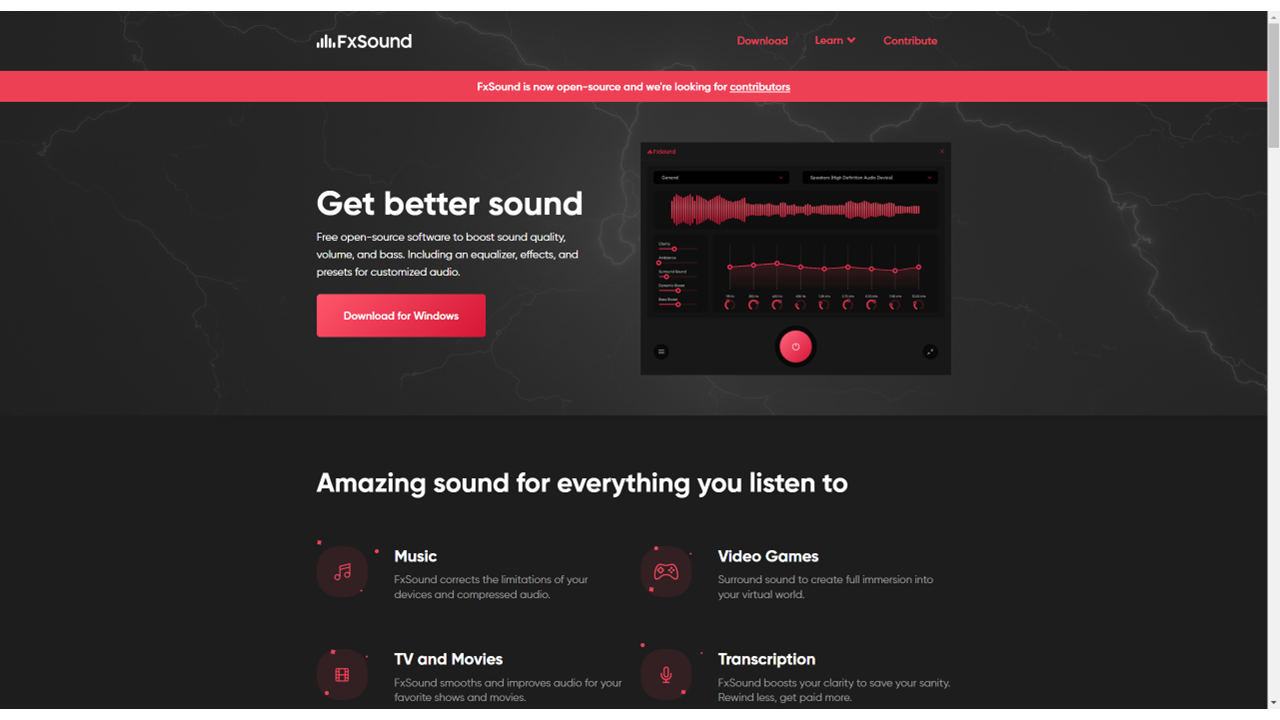
Download and Install FxSound
| a. | Navigate to the website: https://www.fxsound.com; |
| b. | Click the Download for Windows button on the homepage; |
| c. | Run the installer and follow the on-screen instructions to complete the installation; |
| d. | Launch the FxSound software. |
Boost Sound Quality
| a. | Open FxSound from the system tray or Start Menu; |
| b. | Click the Output Device dropdown to select your output device; |
| c. | Click the Preset dropdown to choose from a list of audio presets; |
| d. | Select a preset from the options, such as Default, Transcription, Volume Boost, or Voice (Note: Default has no processing, Transcription optimises voice clarity, Volume Boost increases overall amplitude, and Voice amplifies the human voice frequency range). |
Customise Equalisation
| a. | Open FxSound and ensure an output device and preset are selected; |
| b. | Locate the Equaliser panel in the main window; |
| c. | Adjust each slider to boost or reduce specific frequency ranges (Note: Use the equaliser to suit your personal hearing preferences or specific audio content). |
Educational Scenarios
Educators' Perspectives
Learners' Perspectives