
This website uses cookies so that we can provide you with the best user experience possible. Cookie information is stored in your browser and performs functions such as recognising you when you return to our website and helping our team to understand which sections of the website you find most interesting and useful.
Font Size:
Introduction
Key Features
Uniqueness
Frequently Asked Questions
Open-Source?
Registration Needed?
Installation Required?
AI-empowered?
Specifications
URL:
Country or Region:
Author(s):
Availability:
Operating System(s):
Language(s):
Registration Needed:
Installation Required:
Video Demonstration
User Guide
This guide outlines how to install ima.copilot, manage knowledge bases, create notes with AI, and use shared knowledge resources for enhanced productivity.
(Reference Version: 1.10.0.3007 )
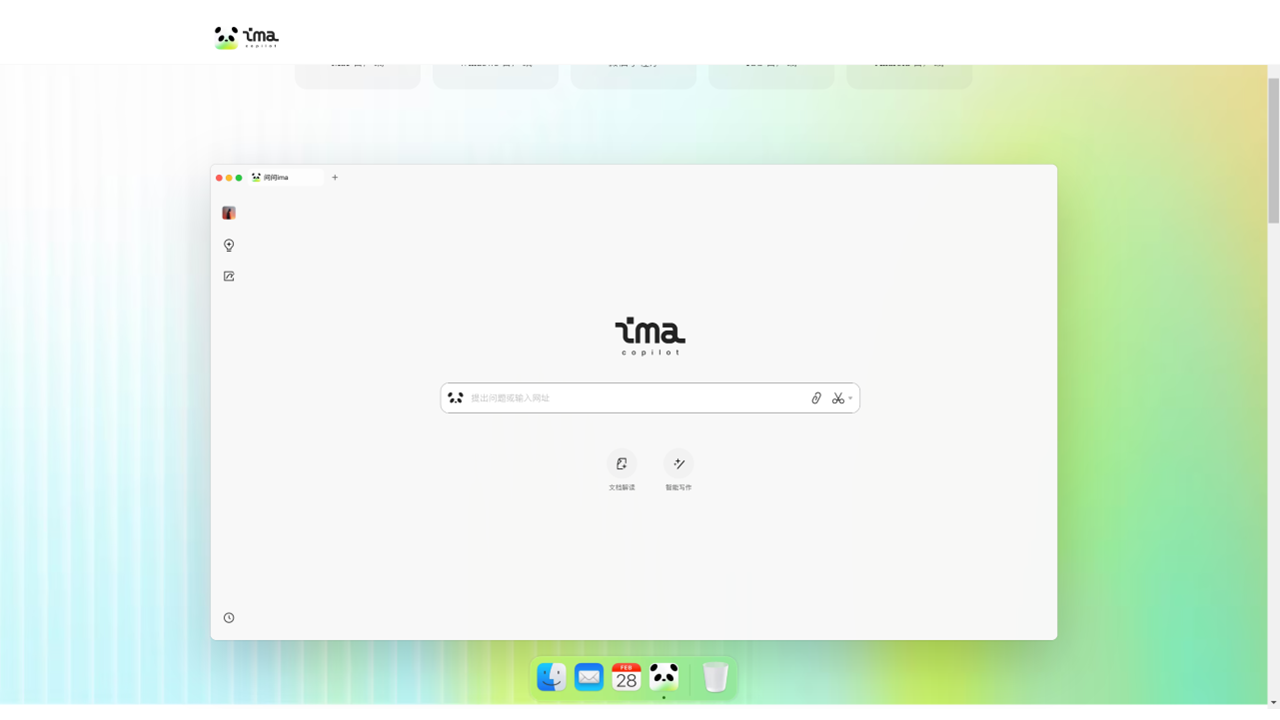
1. Download and Install ima.copilot
| a. | Navigate to the website: https://ima.qq.com/; |
| b. | Click the 下載電腦版 (Download Desktop Version) button; |
| c. | Run the installer and follow the on-screen instructions to complete the installation; |
| d. | Launch the ima.copilot software and log in or register with WeChat account. |
2. Create and Manage Knowledge Bases
| a. | Click the light bulb icon (Knowledge Base) from the left-side menu; |
| b. | Click the + icon to create a new knowledge base; |
| c. | Input a name for the knowledge base and click 確定 (Confirm) to create; |
| d. | Click the Import Files icon > 本地文件 (Local Files); |
| e. | Select the documents to add from the computer and click Open (Note: The system will process and index the information, making it ready for queries). |
3. Create and Edit Notes with AI
| a. | Select a model from the dropdown menu in the chat input area (Note: The available models include, Hunyuan and DeepSeek); |
| b. | Type a question into the text field; |
| c. | Press Enter to generate a response; |
| d. | Click the 記筆記 (Take Notes) icon under the response to save it as a new note; |
| e. | Click the 生成圖片 (Generate Image) icon; |
| f. | Click the Take Notes icon to add the generated visual to the note |
4. Use Shared Knowledge Bases
| a. | Click the light bulb icon (Knowledge Base) from the left-side menu; |
| b. | Click 發現 (Discover) under the 共享知識庫 (Shared Knowledge Base) section to browse available shared bases; |
| c. | Select a useful shared knowledge base; |
| d. | Click 加入知識庫 (Join the Knowledge Base) to add it to the personal collection; |
| e. | Select the saved shared base and type a question into the chat box to query it; |
| f. | Double-click a resource in the knowledge base to open it; |
| g. | Select text in the knowledge base and click AI 解讀 (AI Explain); |
| h. | View the output in the chat box area; |
| i. | Click 複製 (Copy) to copy the generated text to the clipboard. |
Educational Scenarios
Educators' Perspectives
Learners' Perspectives