
This website uses cookies so that we can provide you with the best user experience possible. Cookie information is stored in your browser and performs functions such as recognising you when you return to our website and helping our team to understand which sections of the website you find most interesting and useful.
Font Size:
Introduction
Key Features
Uniqueness
Frequently Asked Questions
Open-Source?
Registration Needed?
Installation Required?
AI-empowered?
Specifications
URL:
Country or Region:
Author(s):
Availability:
Operating System(s):
Language(s):
Registration Needed:
Installation Required:
Video Demonstration
User Guide
This guide outlines how to use Gamma to create AI-generated presentations and webpages, and how to export and share your creations. (Access Date: 21 July 2025)
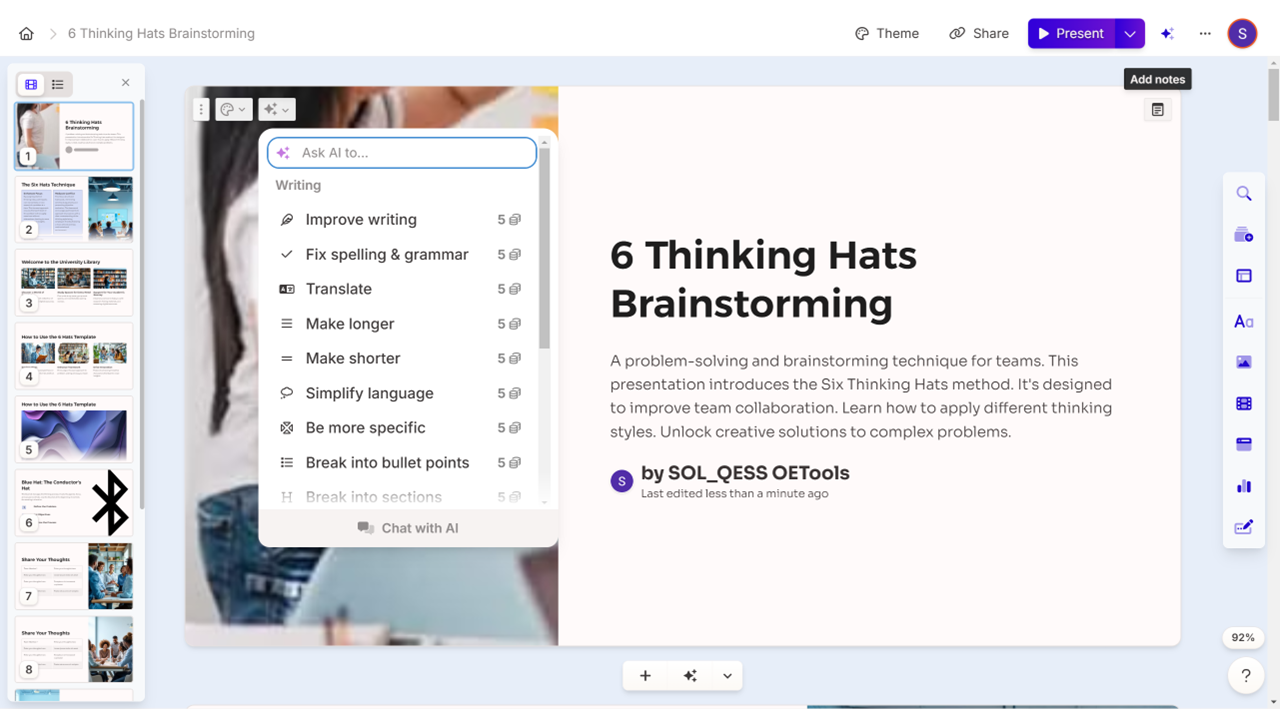
Access Gamma Website
| a. | Navigate to the website: https://gamma.app; |
| b. | Click Log in or Start for free to log in or register with a Google account or email. |
Create Presentations with AI
| a. | Click the + Create New button from Gamma dashboard; |
| b. | Select a creation mode from Paste in text, Generate, or Import file or URL; |
| c. | Select the Generate mode to create from a prompt; |
| d. | Choose Presentation as the content type (Note: Available options include Presentation, Webpage, Document, and Social); |
| e. | Specify the number of pages, page ratio, and content language; |
| f. | Enter the prompt in the text field; |
| g. | Click the Generate outline button; |
| h. | Review the generated outline and select the theme, amount of text, image source, and image style; |
| i. | Click the Generate button; |
| j. | Click on a slide to edit its content; |
| k. | Click the AI button, represented by the three stars icon, under a card to use AI assistance; |
| l. | Enter the prompt or request in the text field; |
| m. | Click the Send icon to generate AI-powered content; |
| n. | Review and edit the generated content as needed. |
Create Webpages with AI
| a. | Click the + Create New button from Gamma dashboard; |
| b. | Select the Generate mode; |
| c. | Select Website as the content type; |
| d. | Specify the number of cards and the content language; |
| e. | Enter the prompt in the text field; |
| f. | Click the Generate outline button; |
| g. | Click the AI button, represented by the three stars icon, under a card; |
| h. | Enter the prompt in the text field and click the Send icon; |
| i. | Review and customize the generated content as needed. |
Export and Share
| a. | Click the Share button in the top-right corner; |
| b. | Click Export to download the file as a PDF, PowerPoint, or other available formats; |
| c. | Click Embed and then click Copy embed code to get the code for embedding on a website. |
Educational Scenarios
Educators' Perspectives
Learners' Perspectives