
This website uses cookies so that we can provide you with the best user experience possible. Cookie information is stored in your browser and performs functions such as recognising you when you return to our website and helping our team to understand which sections of the website you find most interesting and useful.
Font Size:
Introduction
Key Features
Uniqueness
Frequently Asked Questions
Open-Source?
Registration Needed?
Installation Required?
AI-empowered?
Specifications
URL:
Country or Region:
Author(s):
Availability:
Operating System(s):
Language(s):
Registration Needed:
Installation Required:
Video Demonstration
User Guide
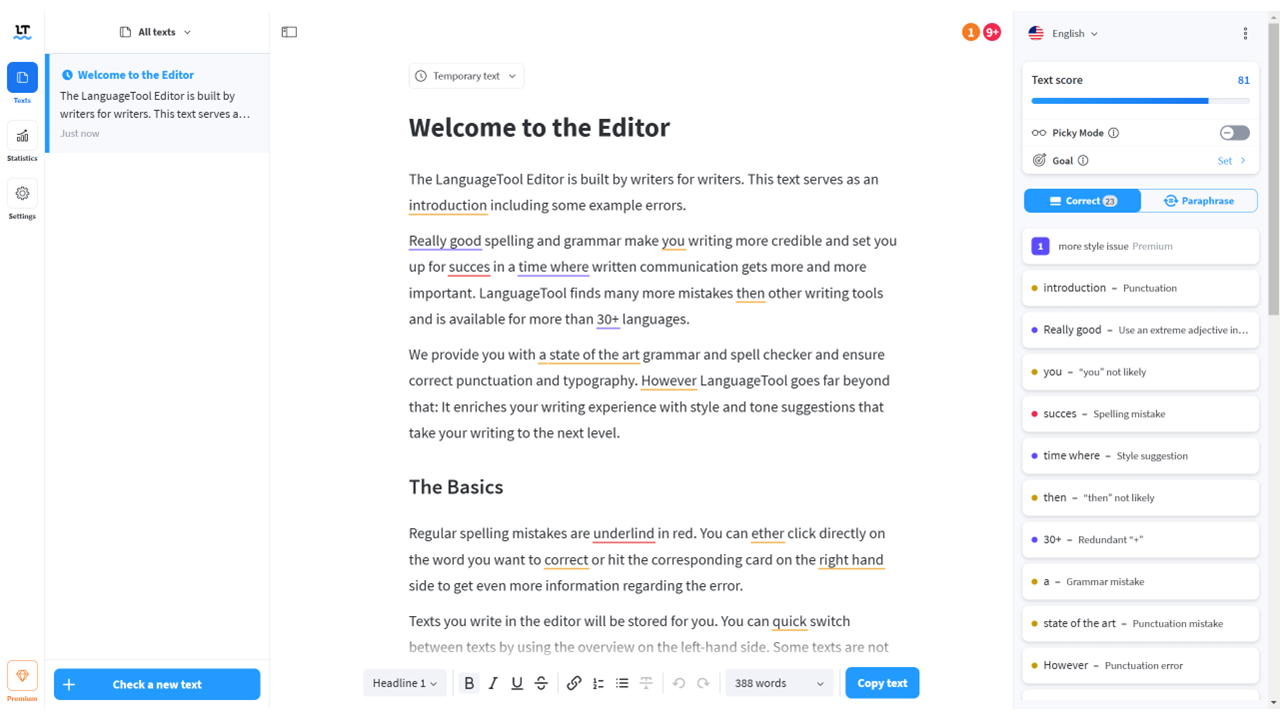
This guide outlines how to install and use the LanguageTool Chrome extension for real-time grammar checking, style improvement, and performance tracking.
Install LanguageTool Chrome Extension
| a. | Navigate to the website: https://languagetool.org/; |
| b. | Click Add to Chrome and then Add extension to install the extension; |
| c. | Click the puzzle piece icon in the top-right corner of your browser; |
| d. | Find LanguageTool in the list and click the pin icon to keep it visible on your toolbar. |
Check Grammar and Spelling
| a. | Click in any text field on a website; |
| b. | Locate the LanguageTool icon at the bottom-right corner of the text box; |
| c. | Identify potential errors underlined in different colours (Note: Red indicates spelling mistakes, yellow suggests grammar errors, and blue highlights style suggestions); |
| d. | Select a suggestion from the pop-up card to apply the correction. |
Improve Writing Style and Clarity
| a. | Click the puzzle piece icon in the top-right corner of your browser; |
| b. | Click the LanguageTool icon to open the settings menu; |
| c. | Toggle the Enable double-click function on; |
| d. | Click in any text field on a website; |
| e. | Double-click a word or phrase and click Find synonym in the pop-up card; |
| f. | Choose an alternative phrasing from the provided options; |
| g. | Highlight a sentence to be rewritten and click Paraphrase Sentence in the pop-up card; |
| h. | Select a mode between Standard and Fluent; |
| i. | Select a preferred version to replace the original sentence. |
View Writing Statistics
| a. | Navigate to the website: https://languagetool.org/editor; |
| b. | Select the Statistic tab from the left menu; |
| c. | Review the statistics, including Texts written, Sentences written, and Writing Productivity (Note: Writing statistics are recorded over a period and this data is available after 7 days of using the tool). |
Educational Scenarios
Educators' Perspectives
Learners' Perspectives