
This website uses cookies so that we can provide you with the best user experience possible. Cookie information is stored in your browser and performs functions such as recognising you when you return to our website and helping our team to understand which sections of the website you find most interesting and useful.
Font Size:
Introduction
Key Features
Uniqueness
Frequently Asked Questions
Open-Source?
Registration Needed?
Installation Required?
AI-empowered?
Specifications
URL:
Country or Region:
Author(s):
Availability:
Operating System(s):
Language(s):
Registration Needed:
Installation Required:
Video Demonstration
User Guide
This guide outlines how to use Twine to create, design, and export interactive, text-based stories with branching narratives.
Access Twine Website
| a. | Navigate to the website: https://twinery.org/; |
| b. | Click the Use in your browser button to launch the Twine editor online. |
Create Interactive Fiction Stories
| a. | Open Twine via the web editor to access the main story management area; |
| b. | Click Story > +New to create a new story project; |
| c. | Enter your story name in the input field; |
| d. | Click the Create button; |
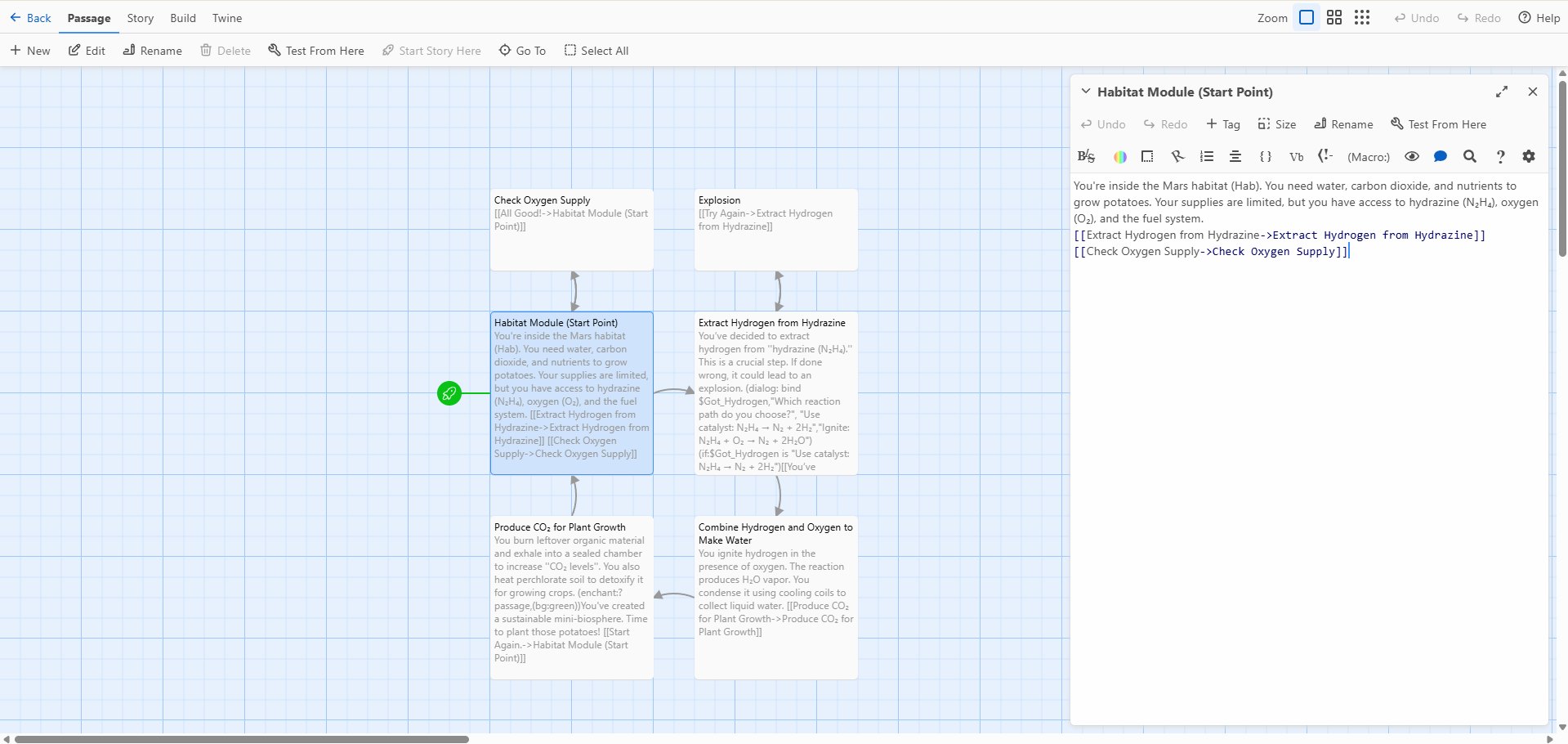
| e. | Double-click the default passage titled Untitled Passage to open the edit panel; |
| f. | Click the Title field to rename the passage; |
| g. | Type your story content in the main text area. |
Design Branching Narrative Paths
| a. | Click (Macro:) > Link… to insert a hyperlink to the passage; |
| b. | Enter the Link Text and the target Passage Name in the dialog box; |
| c. | Click the Add button; |
| d. | Double-click the newly created passage to open and edit it; |
| e. | Click (Macro:) > If…; |
| f. | Enter your conditional question text into the dialog box; |
| g. | Click the Done button; |
| h. | Click (Macro:) > Input…; |
| i. | Click the Add icon to insert a button interaction; |
| j. | Set the button label and bind it to a variable in the dialog; |
| k. | Click the Done button. |
Present Text-Based Games
| a. | Create passages that represent in-game locations, events, or interactions; |
| b. | Use branching hyperlinks such as [[Go North]], [[Pick up the key]], or [[Talk to the shopkeeper]] for choices; |
| c. | Enhance passages with images and style them using the colour button in the edit panel; |
| d. | Click Build > Play to preview and interact with your story in a browser. |
Export Projects as HTML
| a. | Click and drag passages to organise your story layout (Note: Changing the layout does not affect output); |
| b. | Click the Build icon; |
| c. | Click the Publish to File option to export your story; |
| d. | Save the generated HTML file to your computer. |
Educational Scenarios
Educators' Perspectives
Learners' Perspectives