
This website uses cookies so that we can provide you with the best user experience possible. Cookie information is stored in your browser and performs functions such as recognising you when you return to our website and helping our team to understand which sections of the website you find most interesting and useful.
Font Size:
Introduction
Key Features
Uniqueness
Frequently Asked Questions
Open-Source?
Registration Needed?
Installation Required?
AI-empowered?
Specifications
URL:
Country or Region:
Author(s):
Availability:
Operating System(s):
Language(s):
Registration Needed:
Installation Required:
Video Demonstration
User Guide
This guide outlines how to download, install, and use Diffuse for comparing text files and replacing differences.
(Reference Version: 0.4.8)
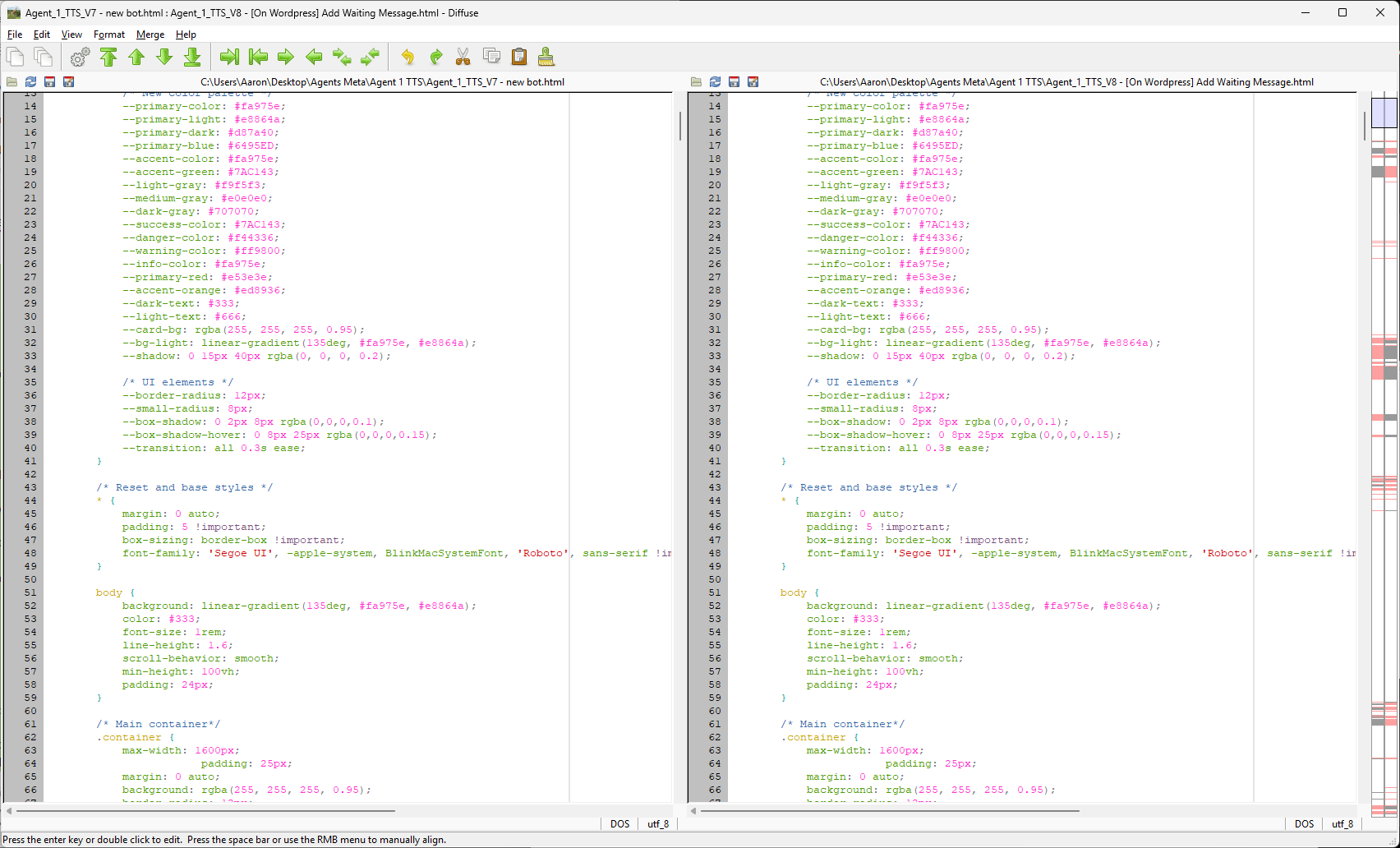
Download and Install Diffuse
| a. | Navigate to the website: https://diffuse.sourceforge.net/; |
| b. | Click the Download button to obtain the latest version; |
| c. | Follow the on-screen instructions to complete the installation; |
| d. | Launch the Diffuse application. |
Compare and Highlight Text Differences
| a. | Open the Diffuse application; |
| b. | Drag and drop your first file into the left panel and the second file into the right panel; |
| c. | View the differences highlighted between the files in the right-hand side comparison bar. |
Replace Text Based on Comparisons
| a. | Click any highlighted line in the left panel to select it; |
| b. | Click the Copy From Right button to copy the corresponding line from the right file to the left; |
| c. | Click the Next Difference button to navigate to the next difference; |
| d. | Click the Merge From Right button to merge the content from the right file into the left; |
| e. | Repeat steps c and d to continue merging additional differences; |
| f. | Review the merged content in the editing panel; |
| g. | Click the Save icon or select File > Save from the menu to save your changes. |
Educational Scenarios
Educators' Perspectives
Learners' Perspectives