
This website uses cookies so that we can provide you with the best user experience possible. Cookie information is stored in your browser and performs functions such as recognising you when you return to our website and helping our team to understand which sections of the website you find most interesting and useful.
Font Size:
Introduction
Key Features
Uniqueness
Frequently Asked Questions
Open-Source?
Registration Needed?
Installation Required?
AI-empowered?
Specifications
URL:
Country or Region:
Author(s):
Availability:
Operating System(s):
Language(s):
Registration Needed:
Installation Required:
Video Demonstration
User Guide
This guide outlines how to use the Google Scholar PDF Reader to install the Chrome extension, generate AI-powered article outlines, navigate citations, and export references to personal library. (Access Date: 22 July 2025)
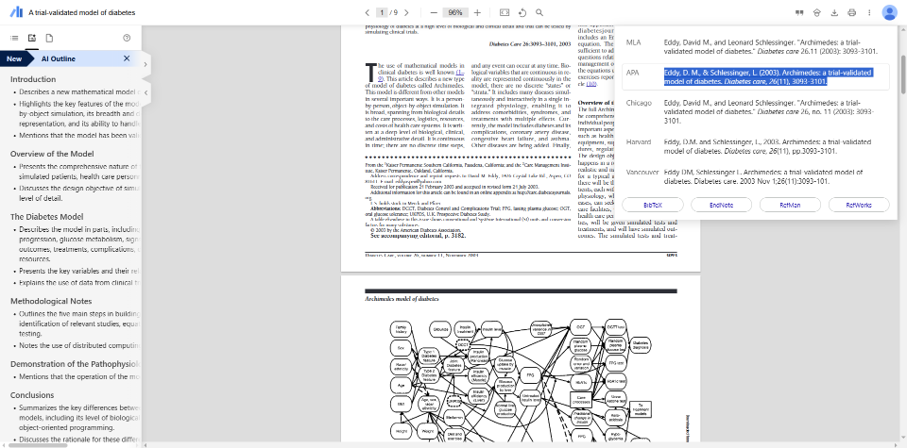
Install Google Scholar PDF Reader Chrome Extension
| a. | Navigate to the website: https://chromewebstore.google.com/detail/google-scholar-pdf-reader/dahenjhkoodjbpjheillcadbppiidmhp; |
| b. | Click Add to Chrome and then Add extension to install the extension; |
| c. | Click the puzzle piece icon in the top-right corner of the browser after installation; |
| d. | Find Google Scholar PDF Reader in the list and click the pin icon to keep it visible on toolbar. |
Generate AI-Powered Article Outlines
| a. | Open a PDF document in Chrome browser; |
| b. | Locate the AI-generated outline on the left-side panel of the reader; |
| c. | Click on any bullet point in the outline to jump directly to the corresponding section within the paper. |
Navigate and View Citations
| a. | Locate an in-text citation while reading a paper; |
| b. | Click on the in-text citation link; |
| c. | Review the summary of the cited reference in the pop-up window; |
| d. | Access the PDF of the referenced paper from this window if it is available. |
Export to Personal Library
| a. | Click the Cite button in the top toolbar with the PDF open; |
| b. | Select the desired format from the pop-up window and copy it to clipboard; |
| c. | Click the Google Scholar button next to the Cite button to save the article to library; |
| d. | Select a label for the article and click Done. |
Educational Scenarios
Educators' Perspectives
Learners' Perspectives