
This website uses cookies so that we can provide you with the best user experience possible. Cookie information is stored in your browser and performs functions such as recognising you when you return to our website and helping our team to understand which sections of the website you find most interesting and useful.
Font Size:
Introduction
Key Features
Uniqueness
Frequently Asked Questions
Open-Source?
Registration Needed?
Installation Required?
AI-empowered?
Specifications
URL:
Country or Region:
Author(s):
Availability:
Operating System(s):
Language(s):
Registration Needed:
Installation Required:
Video Demonstration
User Guide
This guide outlines how to use the FFmpeg Batch AV Converter for file conversion and frame extraction. (Reference Version: 7.1)
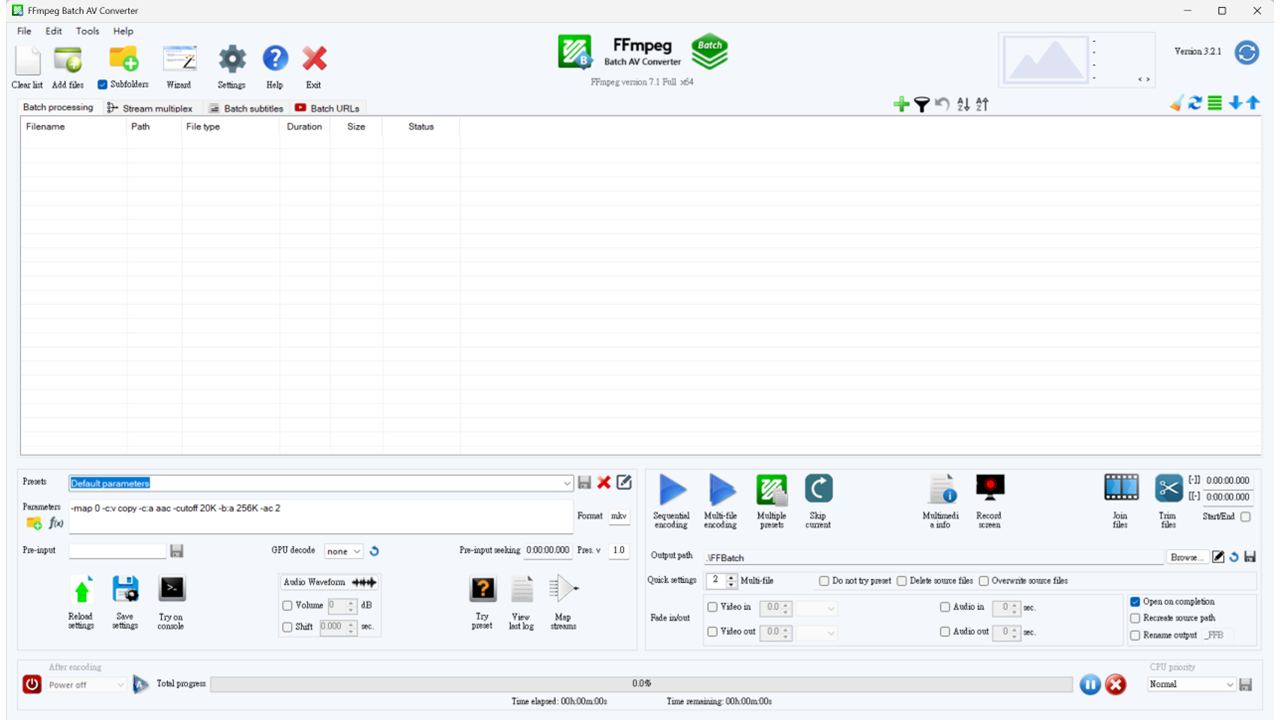
Download and Install FFmpeg
| a. | Navigate to the website: https://ffmpeg-batch.sourceforge.io/; |
| b. | Click Download and select the installer version that matches your operating system; |
| c. | Run the installer or extract the portable version to your desired location (Note: Ensure your system meets the minimum requirements: Windows 7 or higher, .NET Framework 4.6.1, and Visual C++ 2010 Redistributable); |
| d. | Launch the FFmpeg Batch AV Converter application. |
Convert Audio/Video Formats
| a. | Launch the FFmpeg Batch AV Converter application; |
| b. | Select the Batch processing tab in the main interface; |
| c. | Add your audio or video files to the main file list area by dragging and dropping them; |
| d. | Click the Preset dropdown menu and select an appropriate conversion profile; |
| e. | Click the Browse… button next to the output path field; |
| f. | Select the destination folder for your converted files; |
| g. | Click the Sequential Encoding button to begin the batch conversion process. |
Extract Video Frames
| a. | Launch the FFmpeg Batch AV Converter application; |
| b. | Add your video files by dragging and dropping them into the main file list area; |
| c. | Click the Wizard button in the top panel; |
| d. | Select the Image extraction wizard option in the wizard window; |
| e. | Click the Next button to proceed; |
| f. | Configure the extraction parameters, including frequency, output format, and output path; |
| g. | Click Next to confirm your settings; |
| h. | Click the blue Play icon to begin the frame extraction process. |
Educational Scenarios
Educators' Perspectives
Learners' Perspectives