
This website uses cookies so that we can provide you with the best user experience possible. Cookie information is stored in your browser and performs functions such as recognising you when you return to our website and helping our team to understand which sections of the website you find most interesting and useful.
Font Size:
Introduction
Key Features
Uniqueness
Frequently Asked Questions
Open-Source?
Registration Needed?
Installation Required?
AI-empowered?
Specifications
URL:
Country or Region:
Author(s):
Availability:
Operating System(s):
Language(s):
Registration Needed:
Installation Required:
Video Demonstration
User Guide
This guide outlines how to use the Sejda PDF web tool for essential document management tasks, including editing, compressing, merging, splitting, and correcting page alignment in your PDF files.
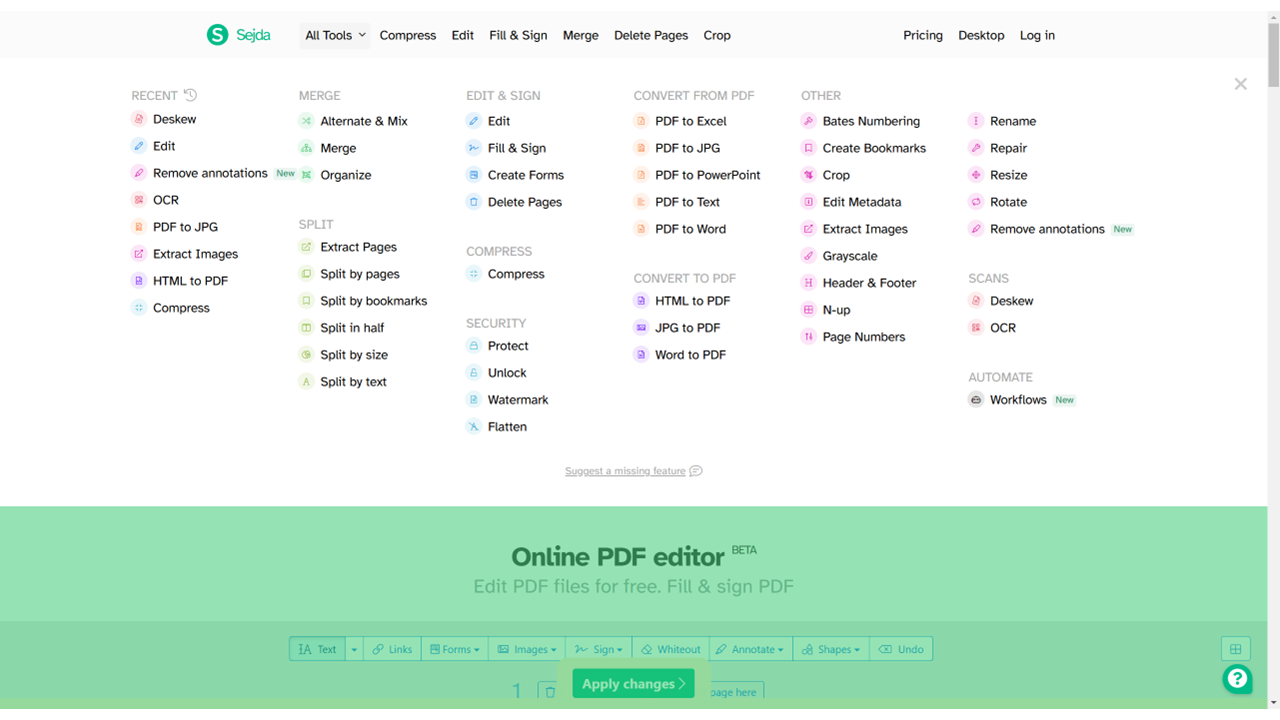
Access Sejda PDF Website
| a. | Navigate to the website: https://www.sejda.com/; |
| b. | Click the Edit a PDF document button (Note: Most tools can be used without an account; for advanced features, create an account and log in). |
Edit PDF Documents
| a. | Select the Edit tab in the top panel of the main page; |
| b. | Click the Upload PDF file button or drag and drop the file onto the page; |
| c. | Use the toolbar at the top of the screen to edit text, add links, insert images, fill forms, annotate, or add shapes; |
| d. | Click the Apply changes button after editing; |
| e. | Press the Download button to save the modified document. |
Compress, Merge, or Split PDFs
| a. | Select Compress, Merge, or a Split tool from the All Tools menu (Note: Split options include Extract Pages, Split by pages, Split by bookmarks, Split in half, Split by size, and Split by text); |
| b. | Upload your file or files; |
| c. | Follow the on-screen instructions to set your preferences, such as image quality for compression or file order for merging; |
| d. | Click the final action button, such as Compress PDF, Merge PDF files, or Split, to initiate the process; |
| e. | Download the resulting document or set of documents. |
Deskew PDF Pages
| a. | Click All Tools in the top panel of the main page; |
| b. | Locate and select the Deskew tool under the Scans category in the All Tools menu; |
| c. | Upload the scanned PDF file that requires straightening; |
| d. | Wait for the tool to automatically process and straighten the pages; |
| e. | Preview and download the corrected PDF. |
Educational Scenarios
Educators' Perspectives
Learners' Perspectives