
This website uses cookies so that we can provide you with the best user experience possible. Cookie information is stored in your browser and performs functions such as recognising you when you return to our website and helping our team to understand which sections of the website you find most interesting and useful.
Font Size:
Introduction
Key Features
Uniqueness
Frequently Asked Questions
Open-Source?
Registration Needed?
Installation Required?
AI-empowered?
Specifications
URL:
Country or Region:
Author(s):
Availability:
Operating System(s):
Language(s):
Registration Needed:
Installation Required:
Video Demonstration
User Guide
This guide outlines how to install the Brisk Teaching Chrome extension and use its AI-powered features to create a tutor, lesson plans, presentations, and quizzes. (Access Date: 17 July 2025)
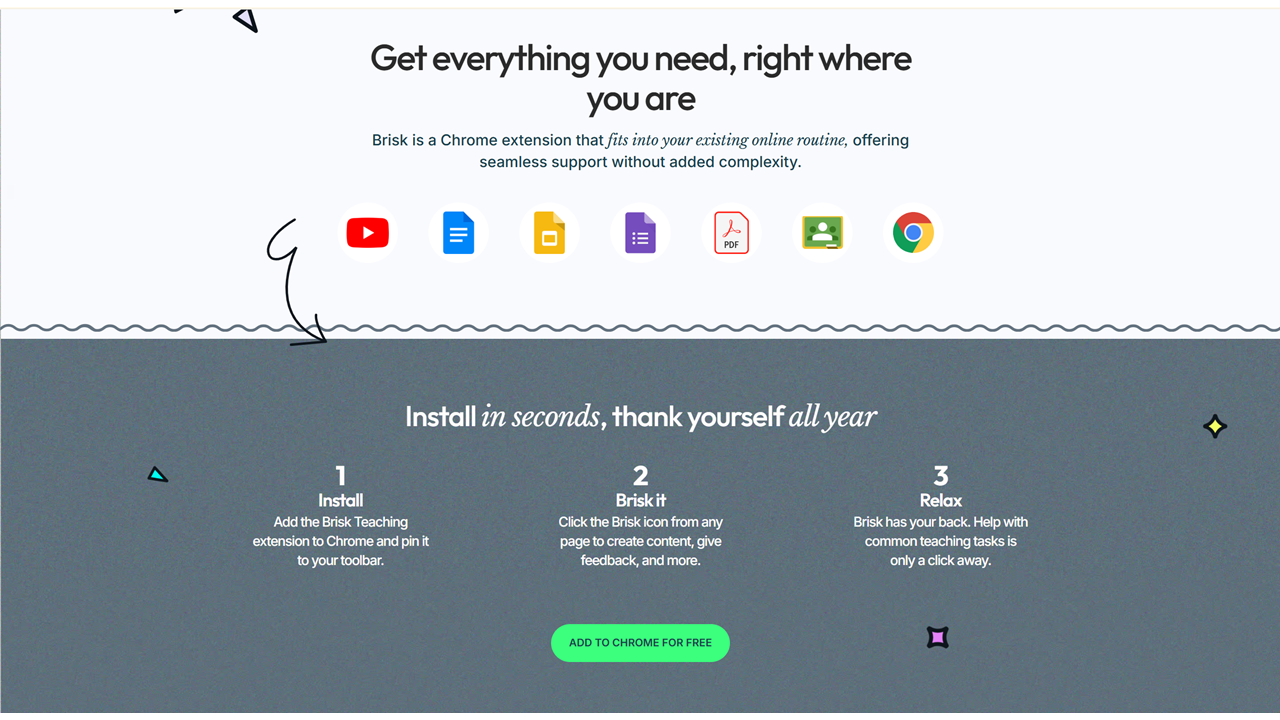
Install Brisk Teaching Chrome Extension
| a. | Navigate to the website: https://www.briskteaching.com/chrome-extension; |
| b. | Click Add to Chrome and then select Add extension; |
| c. | Sign in to Brisk Teaching using a Google account (Note: The Brisk icon will appear in the bottom-right corner of compatible websites). |
Create AI Tutor
| a. | Open a compatible website; |
| b. | Click the Brisk icon in the bottom-right corner to open the menu; |
| c. | Select Boost Student Activity; |
| d. | Click Tutor; |
| e. | Select the language of the content and grade level; |
| f. | Click Boost It; |
| g. | Click Preview & Edit to preview the student activity; |
| h. | Chat with the AI tutor in the Tutor area (Note: The learning progress is shown in the progress bar above); |
| i. | Click Share with students to share the activity. |
Create Lesson Plans
| a. | Open a compatible website containing the content for your lesson; |
| b. | Click the Brisk icon in the bottom-right corner to open the menu; |
| c. | Select Create; |
| d. | Click Lesson Plan; |
| e. | Input the requirements, such as learning objectives, in the text field; |
| f. | Select the language, grade level, and lesson duration; |
| g. | Click Brisk It (Note: The lesson plan will be generated within your Google Doc). |
Create Presentations
| a. | Open a compatible website or the generated lesson plan; |
| b. | Click the Brisk icon; |
| c. | Select Create; |
| d. | Click Presentation; |
| e. | Input the topic of the presentation in the text field; |
| f. | Select the language, grade level, and number of slides; |
| g. | Click Next; |
| h. | Select a Presentation Style; |
| i. | Click Brisk It (Note: The presentation slides will be generated within your Google Slides). |
Create Quizzes
| a. | Open a compatible website or the generated presentation; |
| b. | Click the Brisk icon; |
| c. | Select Create; |
| d. | Click Quiz; |
| e. | Input the requirements of the quiz in the text field; |
| f. | Select the language, grade level, number and question type; |
| g. | Click Next; |
| h. | Choose an output format from Google Form and Google Doc; |
| i. | Click Brisk It (Note: The quiz will be generated in your selected output format). |
Educational Scenarios
Educators' Perspectives
Learners' Perspectives