
This website uses cookies so that we can provide you with the best user experience possible. Cookie information is stored in your browser and performs functions such as recognising you when you return to our website and helping our team to understand which sections of the website you find most interesting and useful.
Font Size:
Introduction
Key Features
Uniqueness
Frequently Asked Questions
Open-Source?
Registration Needed?
Installation Required?
AI-empowered?
Specifications
URL:
Country or Region:
Author(s):
Availability:
Operating System(s):
Language(s):
Registration Needed:
Installation Required:
Video Demonstration
User Guide
This guide outlines using Xmind to create, edit, and customise mind maps with its AI-powered tools, and then save and export your work. (Access Date: 18 July 2025)
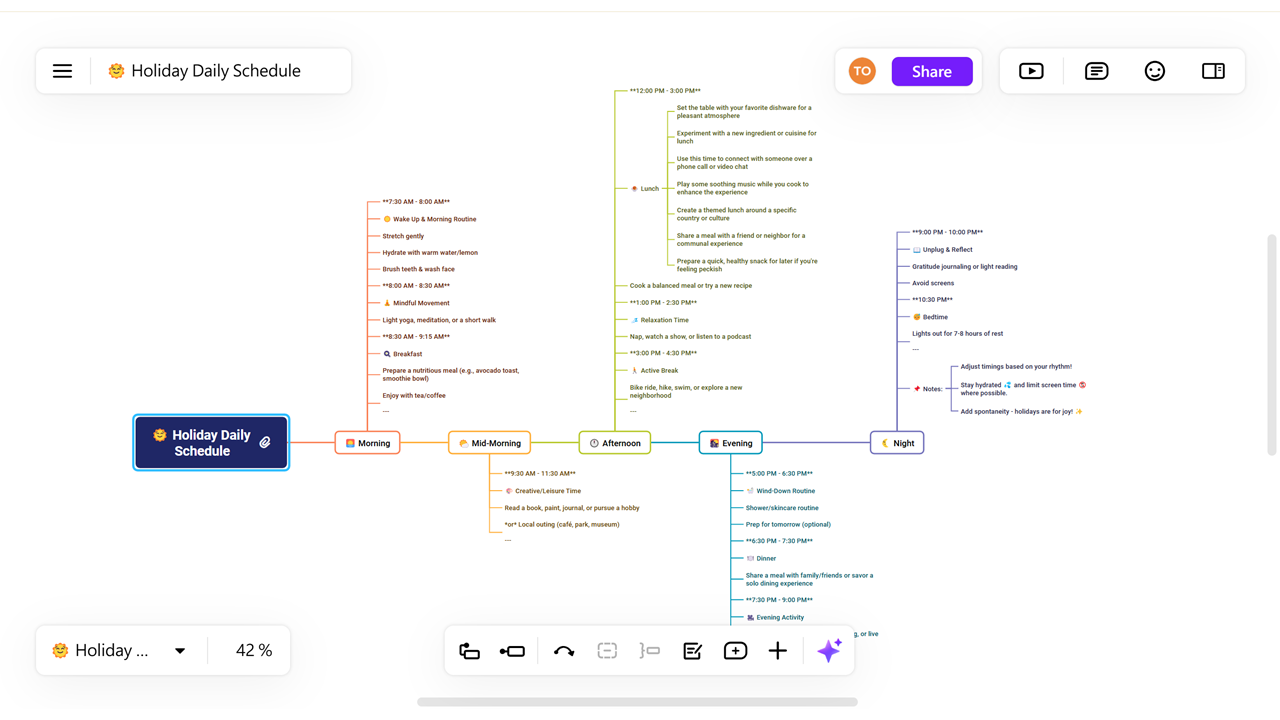
Access Xmind Website
| a. | Navigate to the website: https://xmind.ai/home/; |
| b. | Select to register or log in to the website with a Google account, Apple account, email address, or single sign-on; |
| c. | Input the username and password, and follow the on-screen prompts by clicking Continue > Skip > Skip > Continue; |
| d. | Click the Ellipsis Vertical icon (the Menu button) in the top-left corner; |
| e. | Select Back to Files to return to the home page. |
Create Mind Map with AI
| a. | Click the Create with AI button to access the AI creation modes; |
| b. | Select the Text mode and input a prompt and generation requirements in the respective fields; |
| c. | Select the Doc mode, drag-and-drop a file into the designated field, and input the generation requirements (Note: Supports PDF, DOCX, PPT, EXCEL, TXT, CSV, and Markdown files, up to 50MB in size; The character limit per file is 161,000); |
| d. | Select the Website mode, input a web link, and specify the generation requirements (Note: Only links containing text are supported); |
| e. | Select the YouTube mode and input a YouTube link; |
| f. | Select the language and mind map style from the two dropdown lists; (Note: The language and style selection is not available for Doc Mode); |
| g. | Click the Generate button (Note: Free plan users can create up to 10 files). |
Edit a Mind Map
| a. | Click a node to edit its style; |
| b. | Double-click a node to edit its content; |
| c. | Use the bottom toolbar to add elements such as Topic, Subtopic, Relationship, or Boundary; |
| d. | Use the top-right panel to customise the Style, Shape, Border, Text, Structure, Branch, and Numbering; |
| e. | Select a node and click the Topic button in the bottom toolbar to add a main topic; |
| f. | Select a node and click the Subtopic button in the bottom toolbar to add a subtopic; |
| g. | Click the Menu button to access options such as New Sheet, Search, or Rename (Note: Supported import formats include Xmind, Markdown, OPML, TextBundle, DOCX, and other mind map formats). |
Use Keyboard Shortcuts
| a. | Press the Enter key to add a sibling topic; |
| b. | Press the Tab key to add a subtopic; |
| c. | Press the Delete key to remove a topic; |
| d. | Press and hold the right mouse button to move the mind map; |
| e. | Press the CTRL key and scroll the mouse wheel to zoom in or out. |
Save and Export
| a. | Click the Menu button and select Export as to save the file as a PNG, JPEG, or PDF; |
| b. | Click the Menu button and select Download to save the file in the Xmind format (Note: The mind map is automatically saved as you edit). |
Educational Scenarios
Educators' Perspectives
Learners' Perspectives