
This website uses cookies so that we can provide you with the best user experience possible. Cookie information is stored in your browser and performs functions such as recognising you when you return to our website and helping our team to understand which sections of the website you find most interesting and useful.
Font Size:
Introduction
Key Features
Uniqueness
Frequently Asked Questions
Open-Source?
Registration Needed?
Installation Required?
AI-empowered?
Specifications
URL:
Country or Region:
Author(s):
Availability:
Operating System(s):
Language(s):
Registration Needed:
Installation Required:
Video Demonstration
User Guide
This guide outlines how to access the Notion website, create notes, import documents, utilise the AI writing assistant, and export and share pages. (Access Date: 17 July 2025)
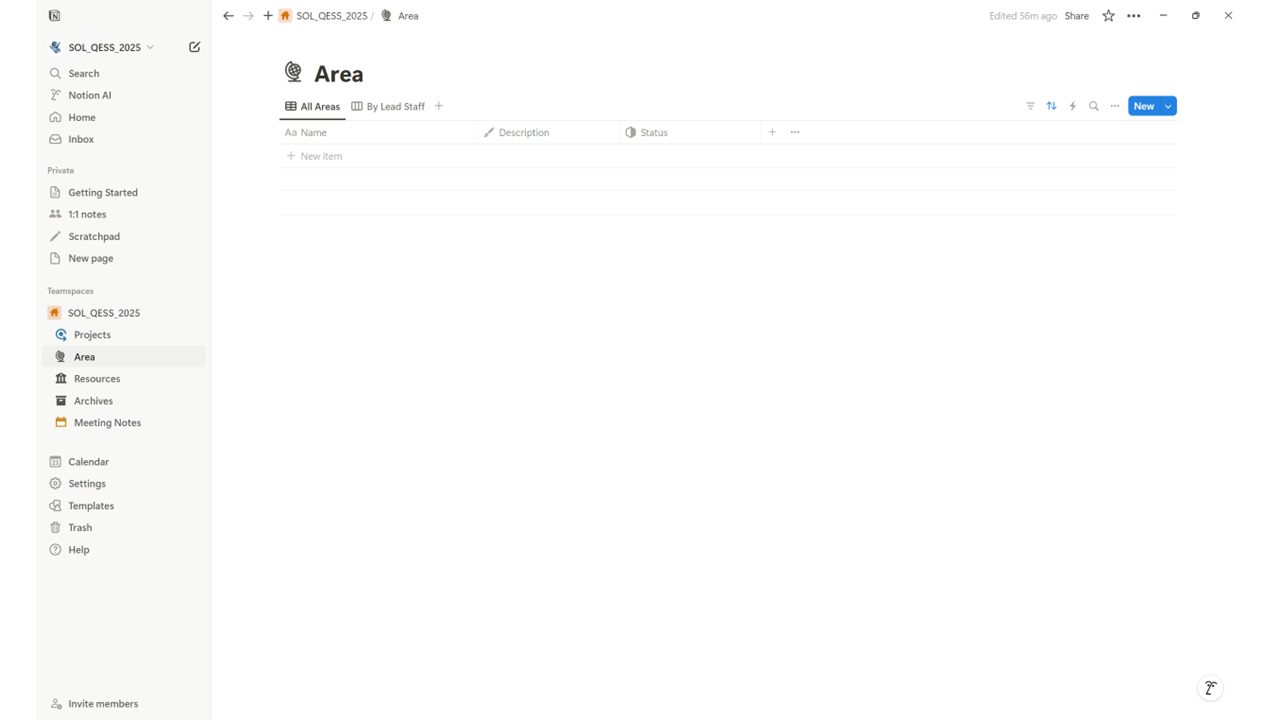
Access Notion Website
| a. | Navigate to the website: https://www.notion.com; |
| b. | Click Get Notion free or Log in; |
| c. | Register using a Google account, Apple account, Microsoft Account, or email address; |
Create Notes and Import Documents
| a. | Click the Edit icon (Create New Page button) at the top of the left sidebar to create a new note; |
| b. | Enter a title for the new page; |
| c. | Start typing in the page to add content; |
| d. | Click the three-dot icon in the upper-right corner; |
| e. | Select Import from the dropdown panel; |
| f. | Select the application or file type from the pop-up window (Note: Supports import from CSV, PDF, Markdown, HTML, Word, Google Docs, Trello, etc); |
| g. | Click the + icon or press the / key to insert blocks, media, embeds, or files (Note: Blocks include To-do list, Quote, Table, Divider, Link to page, etc). |
Use AI Writing Assistance
| a. | Press the spacebar on a new line to activate the Notion AI assistant; |
| b. | Enter a prompt; |
| c. | Highlight the desired text to edit; |
| d. | Click Improve writing from the menu; |
| e. | Select Accept, Discard, Insert below, or Try again from the menu; |
| f. | Press the Space key in an empty line; |
| g. | Choose an AI function such as Continue writing, Add a summary, Brainstorm ideas, or Generate a flowchart; |
| h. | Click the Send icon. |
Export and Share
| a. | Navigate to the desired page; |
| b. | Click the three-dot icon in the top-right corner; |
| c. | Select Export from the dropdown menu; |
| d. | Choose the export format from the pop-up window; |
| e. | Adjust the settings; |
| f. | Click the Export button to download the file; |
| g. | Click the Share button in the top-right corner; |
| h. | Click Copy Link to get the shareable link. |
Educational Scenarios
Educators' Perspectives
Learners' Perspectives