
This website uses cookies so that we can provide you with the best user experience possible. Cookie information is stored in your browser and performs functions such as recognising you when you return to our website and helping our team to understand which sections of the website you find most interesting and useful.
Font Size:
Introduction
Key Features
Uniqueness
Frequently Asked Questions
Open-Source?
Registration Needed?
Installation Required?
AI-empowered?
Specifications
URL:
Country or Region:
Author(s):
Availability:
Operating System(s):
Language(s):
Registration Needed:
Installation Required:
Video Demonstration
User Guide
This guide outlines how to access the DeepSeek website, utilise the DeepThink feature to chat with files, and perform AI-based coding tasks. (Access Date: 6 August 2025)
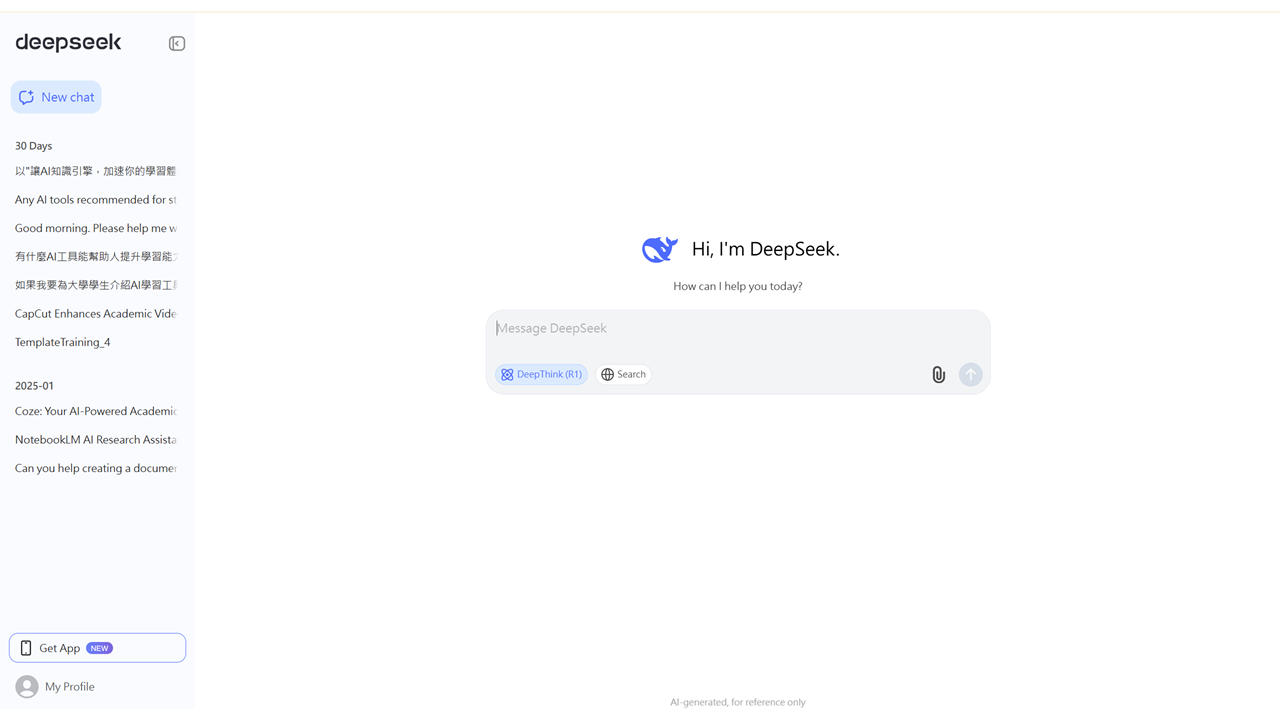
Access DeepSeek Website
| a. | Navigate to the website: https://chat.deepseek.com/; |
| b. | Register or log in to the DeepSeek website; |
| c. | Click 開始對話 (Start Chat) to initiate a new chat. |
Chat with Files Using DeepThink
| a. | Click the DeepThink (R1) button to enable this function; |
| b. | Click the paperclip icon to upload a file (Note: A maximum of 50 documents or images can be uploaded, with each file not exceeding 100 MB); |
| c. | Select the file to be uploaded from your local drive; |
| d. | Input the prompts in the text area; |
| e. | Click the blue arrow button to send the query. |
Perform AI-Based Coding
| a. | Click the Run button to preview the HTML webpage in a pop-up window; |
| b. | Click the X button at the top right corner to return to the chat; |
| c. | Click the Copy or Download button to export the generated HTML code. |
Prompt Example: (Upload a PDF lecture notes to DeepSeek)
Create a study game using uploaded PDF lecture notes from [Module Name] focusing on pages [X]-[Y]. The game should test understanding of [Specific Topic] through [Game Mechanics]. Key concepts to include: [List 3-5 Core Concepts].
Game format should include [e.g., drag-and-drop classification, multiple-choice quiz with detailed explanations, and flashcards].
Enable export of custom study summaries and performance analytics to support independent learning and academic advising.
Educational Scenarios
Educators' Perspectives
Learners' Perspectives